Configure C++ Namespaces for AUTOSAR Adaptive Interfaces and Data Types
R2026bFor component models configured for the AUTOSAR Adaptive Platform, generate C++ code with individual C++ namespaces for architectural data types and export the individual C++ namespaces as namespace symbols in exported ARXML files. To generate and export the individual C++ namespaces of data types, you configure the C++ Namespace code generation property of data types defined in the Architectural Data section of a linked data dictionary.
To configure individual C++ namespaces of interfaces defined in the Architectural Data section of a data dictionary:
Open the Architectural Data Editor by entering
archdataeditorin the MATLAB® Command Window and open thePortInterfacesdata dictionary.In the Interfaces tab, select SensorInterface.
In the right pane of the Architectural Data Editor, expand the Code Generation tab.
Set C++ Namespace to
company::chassis::perception.In the Interfaces tab, select HazardInterface.
Set C++ Namespace to
company::chassis::actuation.For each interface set Header file to
impl_type_interfaces.h.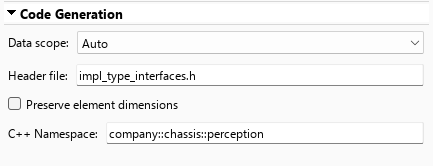
Save and close the data dictionary.
Save the model.
To configure individual C++ namespaces of data types defined in the Architectural Data section of a data dictionary:
Open the Architectural Data Editor and create a new data dictionary by selecting New in the File section of the editor toolstrip. Name the data dictionary
ArchDataTypes.In the Architectural Data Editor, in the Create section of the toolstrip, add an alias data type to the data dictionary by selecting Alias Type.
Select the alias data type, and expand the Code Generation section in the Details pane.
Specify the Header file as
impl_type_aliastype.h.Specify the C++ Namespace as
alias::ns.
Create a component model configured for the AUTOSAR Adaptive Platform. This example uses the Software Component (Adaptive) model template from the Simulink® Start Page. For steps to create the model used in this example, see Create Mapped AUTOSAR Component with Simulink Start Page.
On the Modeling tab, expand the Design section and click Link to Data Dictionary. In the Model Properties dialog box, browse for and select the
ArchDataTypesdata dictionary file. Click Apply, and then click OK.In the model canvas, double-click the
RequiredPort.In1bus element port to open the port properties dialog box.On the Signal tab set Data type to
AliasType.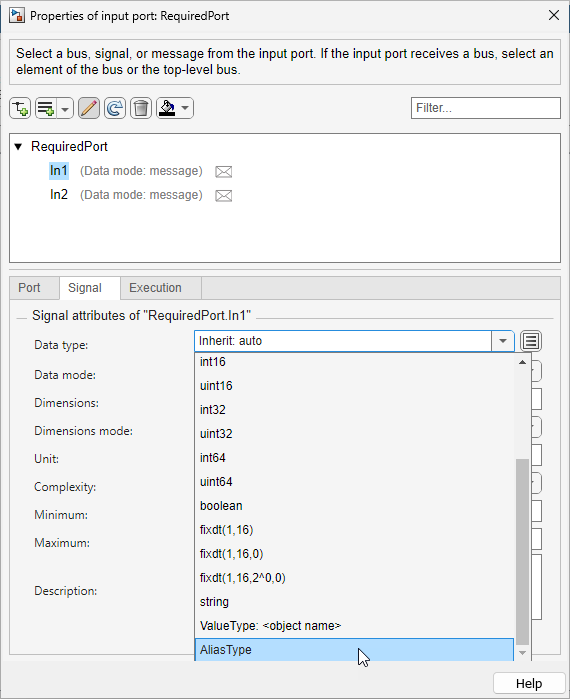
Save the model and data dictionary. Export ARXML and generate C++ code.
Inspect the generated C++ code.
Header file
impl_types_aliastype.hdefines the architectural alias data type including the assigned C++ namespacealias::ns.#ifndef ALIAS_NS_IMPL_TYPE_ALIASTYPE_H_ #define ALIAS_NS_IMPL_TYPE_ALIASTYPE_H_ #include <cstdint> namespace alias { namespace ns { using AliasType = double; } /* namespace ns */ } /* namespace alias */ #endif //ALIAS_NS_IMPL_TYPE_ALIASTYPE_H_In the exported ARXML file
modelname_datatype.arxmlNAMESPACEStagging.... <ELEMENTS> <STD-CPP-IMPLEMENTATION-DATA-TYPE UUID="..."> <SHORT-NAME>AliasType</SHORT-NAME> <CATEGORY>TYPE_REFERENCE</CATEGORY> <NAMESPACES> <SYMBOL-PROPS> <SHORT-NAME>alias</SHORT-NAME> <SYMBOL>alias</SYMBOL> </SYMBOL-PROPS> <SYMBOL-PROPS> <SHORT-NAME>ns</SHORT-NAME> <SYMBOL>ns</SYMBOL> </SYMBOL-PROPS> </NAMESPACES> <TEMPLATE-ARGUMENTS> <CPP-TEMPLATE-ARGUMENT> <TEMPLATE-TYPE-REF DEST="STD-CPP-IMPLEMENTATION-DATA-TYPE">/DataTypes/SwBaseTypes/double</TEMPLATE-TYPE-REF> </CPP-TEMPLATE-ARGUMENT> </TEMPLATE-ARGUMENTS> </STD-CPP-IMPLEMENTATION-DATA-TYPE> </ELEMENTS> ...
See Also
Simulink.dictionary.ArchitecturalData

