Publish and Subscribe to Messages on ThingSpeak Using MQTT Blocks
R2026bThis example shows how to communicate using the Message Queuing Telemetry Transport (MQTT) on NVIDIA® Jetson® and DRIVE® platforms.
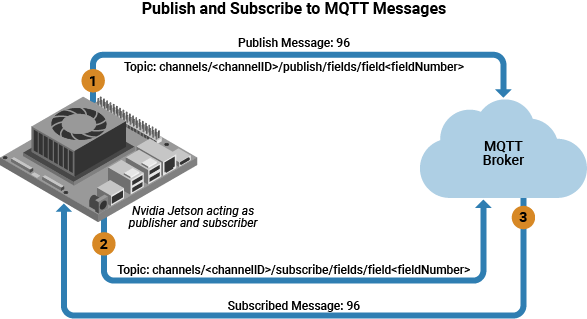
MQTT is a wireless publish/subscribe architecture that enables messages to be pushed to the client devices without the need to continuously poll the broker. In this example, ThingSpeak™ acts as the broker; a central point of communication, in charge of dispatching messages to and from clients and an NVIDIA Jetson board acts as the MQTT client (publisher and subscriber). For more information on MQTT protocol, see MQTT Basics (ThingSpeak) and Introduction to MQTT.
The Simulink® model in this example uses the MQTT Publish and MQTT Subscribe blocks from MATLAB® Coder™ Support Package for NVIDIA Jetson and NVIDIA DRIVE Platforms to send and receive MQTT messages to a ThingSpeak MQTT broker.
Prerequisites
Target Board Requirements
NVIDIA Jetson embedded platform.
Ethernet crossover cable to connect the target board and host PC (if you cannot connect the target board to a local network).
Tools, libraries, and environment variables on the target board for the compilers and libraries. For more information, see Prerequisites for Generating Code for NVIDIA Boards.
ThingSpeak Broker Requirements
An MQTT ThingSpeak device that is configured for the NVIDIA Jetson board to communicate with ThingSpeak. MQTT access to user-created channels, including credentials, is handled by a ThingSpeak MQTT device. This device must be configured with the credentials necessary for the NVIDIA Jetson to communicate with ThingSpeak, and for authorizing specific channels. For more information on how to create a MQTT device, see Create a ThingSpeak MQTT Device (ThingSpeak).
Configure the Simulink Model
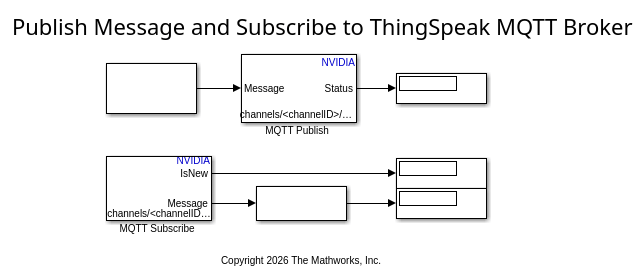
The Simulink model in this example uses the output of a String Constant block as the MQTT message. The MQTT Publish block publishes this message on a publish topic and the MQTT Subscribe block subscribes to the corresponding subscribe topic to receive the published message.
open_system('nvidia_MQTT_publish_subscribe')
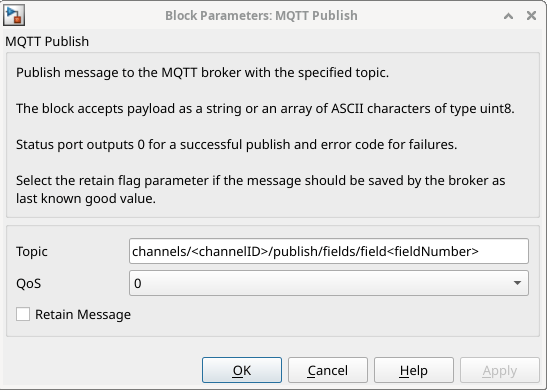
The MQTT Publish block is preconfigured with the topic of this format:
channels/<channelID>/publish/fields/field<fieldNumber>
Set the channelID and fieldNumber corresponding to the channel-ID and field-number in the ThingSpeak channel.
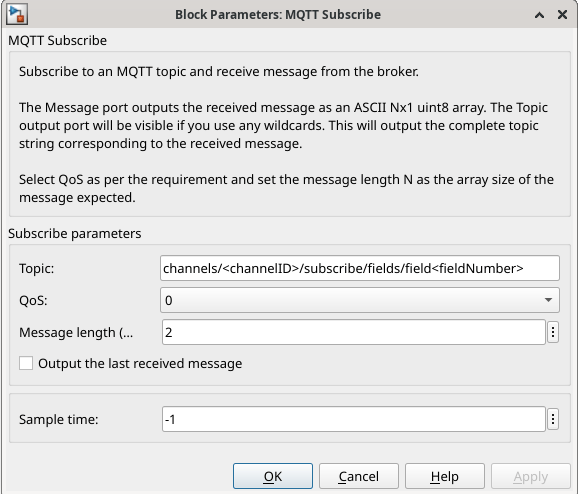
The MQTT Subscribe block is preconfigured with the topic of this format:
channels/<channelID>/subscribe/field<fieldNumber>.
Set the channelID and fieldNumber corresponding to the channel-ID and field-number in the ThingSpeak channel.
Prepare the Simulink Model for External Mode
Configure these parameters in the model.
On the
Hardwaretab, clickModel Settingsto open the Configuration Parameters dialog box.Select
Hardware Implementationand set theHardware boardparameter toNVIDIA Jetson.Under
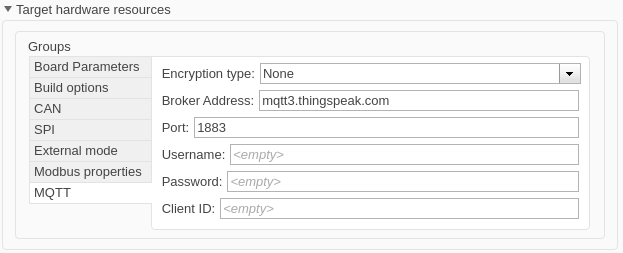
Target hardware resources, in theGroupsection, selectMQTT. For more information on how to configure the MQTT properties, see Model Configuration Parameters for NVIDIA Hardware Board. Use the same parameters as set while you create a ThingSpeak MQTT device.In the External mode section, ensure that the Communication interface is set to
XCP on TCP/IP.
Run External Mode
In the Simulink Toolstrip, on the Hardware tab, click Monitor & Tune. This deploys the model on the target hardware and runs the model in external mode.

View the Published Data on the ThingSpeak Broker
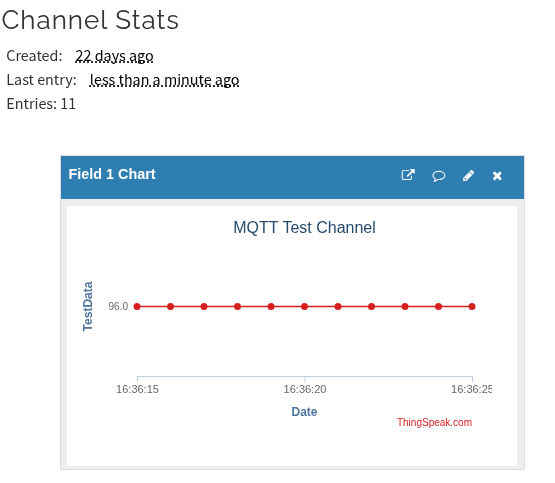
To view the published message on the broker, go to Channels > My Channels, and then select the channel on which the message is published.