Simulate RoadRunner Scenarios with Observers Modeled in MATLAB or Simulink
In RoadRunner Scenario, actors represent dynamic entities, such as vehicles or pedestrians, and behaviors define the logic that controls how an actor moves or reacts during simulation. An observer is a type of actor that can monitor a RoadRunner scenario as a whole. You can use an observer to record, visualize, and analyse run-time simulation data from all actors in a scenario. While a behavior programs the movement of one specific actor in a scenario, the observer can retrieve run-time data from any vehicle. You can use an observer to stream the actor velocity of a vehicle to a visualization tool such as the Scope block. At the end of the scenario simulation, you can view a plot of the actor velocity changing over time.
An observer does not modify a RoadRunner scenario unlike an actor or behavior. An observer is only active during simulation.
You can create an observer in one of two ways:
Using a MATLAB® System object™
Using a Simulink® model
Use MATLAB System object Representing Observer to View Number of Vehicles Crossing Threshold Velocity
A System object is a specialized MATLAB object designed specifically for implementing and simulating dynamic systems with inputs that change over time. You can use various object functions within a System object to obtain and process data from the object. For more information on the standard authoring functions used for creating a MATLAB System object, see Create System Objects.
This example shows how to create an observer using a MATLAB System object. The observer observes the number of vehicles that drive at a velocity above a certain threshold value, in every time step of the scenario simulation.
The example workflows on this page assume that:
You have a RoadRunner license and the product is installed. For more information, see Install and Activate RoadRunner (RoadRunner).
You have a RoadRunner Scenario license and the product is installed. For more information, see Get RoadRunner Updates and Upgrades (RoadRunner).
Set up Cosimulation Environment
At the MATLAB Command Window, specify the path to your local RoadRunner installation folder. This code snippet uses the default installation path of the RoadRunner application on Windows®. You can change the path to match the location of your RoadRunner installation folder.
RRInstallationFolder = "C:\Program Files\RoadRunner " ...
  + matlabRelease.Release + "\bin\win64";
Set the project location to the path of your RoadRunner project folder.
rrProjectLocation = "C:\Observer_proj";
Create a roadrunner object to launch
the RoadRunner application, and open the project at the specified project
location.
rrApp = roadrunner(rrProjectLocation,"InstallationFolder",...
  RRInstallationFolder);
Open the scene FourWaySignal, which is in the Scenes folder of your
project.
openScene(rrApp,"FourWaySignal");
Open the scenario CutInAndSlow, which is in the Scenarios folder of
your
project.
openScenario(rrApp,"CutInAndSlow");
Connect to the RoadRunner Scenario server to enable cosimulation by using the createSimulation
function.
ss = createSimulation(rrApp);
Author MATLAB System object Behavior
Create the class mySysObserver that inherits from
matlab.System base class. The file containing
mySysObserver must share the same name as the class.
In the setupImpl method, get the list of actors in the scenario
simulation. In the stepImpl method, increment a counter variable to
get the number of vehicles driving above the velocity threshold in each time step. In
the releaseImpl method, assign the array containing this statistic
for all time steps to a workspace variable named
NumberofVehiclesOverThreshold.
classdef mySysObserver < matlab.System

    properties(Access=private)
         mScenarioSimObj;
         mScenarioSimActorList = [];
         velThreshold = 15;  % Set threshold velocity
         y = [];
    end

    methods(Access = protected)

       function setupImpl(obj)
           obj.mScenarioSimObj = Simulink.ScenarioSimulation.find("ScenarioSimulation", ...
           "SystemObject", obj);
           obj.mScenarioSimActorList = obj.mScenarioSimObj.get("ActorSimulation");
           % Get list of all actors
       end

       function stepImpl(obj)
           count = 0;
           for i = 1:length(obj.mScenarioSimActorList)
               vel = norm(getAttribute(obj.mScenarioSimActorList{i},"Velocity"));
               if(vel > obj.velThreshold)
                 count = count + 1;
                 % Number of vehicles driving above threshold velocity
                 % in every time step
               end
           end
           obj.y = [obj.y,count];
           % Array with count value across all time steps
       end

       function releaseImpl(obj)
           assignin('base','NumberofVehiclesOverThreshold', obj.y);
           % Final array assigned to workspace variable
       end
    end
end
Add the System object in the file mySysObserver as an observer named
velThreshold to the simulation
ss.
observer = addObserver(ss,"velThreshold","mySysObserver")
Start the simulation.
set(ss,"SimulationCommand","Start");
Check the NumberofVehiclesOverThreshold variable in the base
workspace to view the number of vehicles that crossed the velocity threshold across
different time steps.
After you finish viewing, or working with the variable, delete it from your workspace.
clearvars NumberofVehiclesOverThreshold;Use Simulink Model Representing Observer to View Number of Vehicles Crossing Threshold Velocity
Create and add a Simulink model as an observer of a RoadRunner Scenario simulation.
This Simulink model observes the number of vehicles that drive at a velocity above a certain threshold value, in every time step of the scenario simulation. The velocity threshold value is configurable from the model.
The example workflows on this page assume that:
You have a RoadRunner license and the product is installed. For more information, see Install and Activate RoadRunner (RoadRunner).
You have a RoadRunner Scenario license and the product is installed. For more information, see Get RoadRunner Updates and Upgrades (RoadRunner).
Explore a Simulink Observer Model
Open the Simulink model Velocity_Threshold.
modelname = "Velocity_Threshold";
open_system(modelname);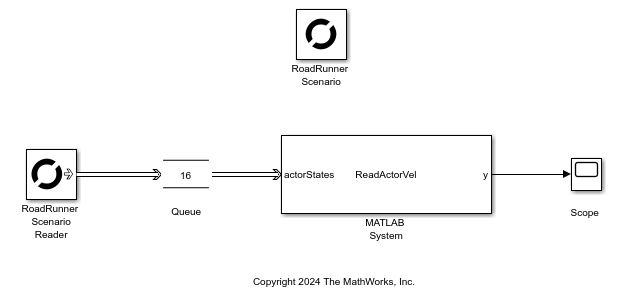
In the model, a RoadRunner Scenario Reader block is connected to a Queue block. The RoadRunner Scenario Reader block reads actor information dispatched by a simulation through the buses loaded in the workspace by the load model callback function.
In the Block Parameters dialog box of the RoadRunner Scenario Reader block, Topic Category is set to Actor, Actor Type is set to All Types, and Topic is set to Actor Pose. These parameter settings enable the RoadRunner Scenario Reader block to output the Actor ID, Pose, Velocity, and Angular Velocity of vehicles in the scenario.
The Queue block is connected to a MATLAB System block. The Queue block allows you to receive and manage information from multiple vehicles in RoadRunner Scenario in the form of messages.
The MATLAB System block executes the behavior implemented in the MATLAB System object file ReadActorVel. The System object file contains these primary functions:
getInterfaceImpl— Defines the interface to the MATLAB System block, including the input and output signal types. The MATLAB System block receives messages through one input port and sends a signal through one output port.stepImpl— Implements the code that calculates the number of vehicles that drive at a velocity above a certain threshold value, in every time step.
To configure the velocity threshold from the model, double-click the MATLAB System block to open the Block Parameters dialog box. Enter the desired value in the Velocity Threshold box, and click OK. Save the model.
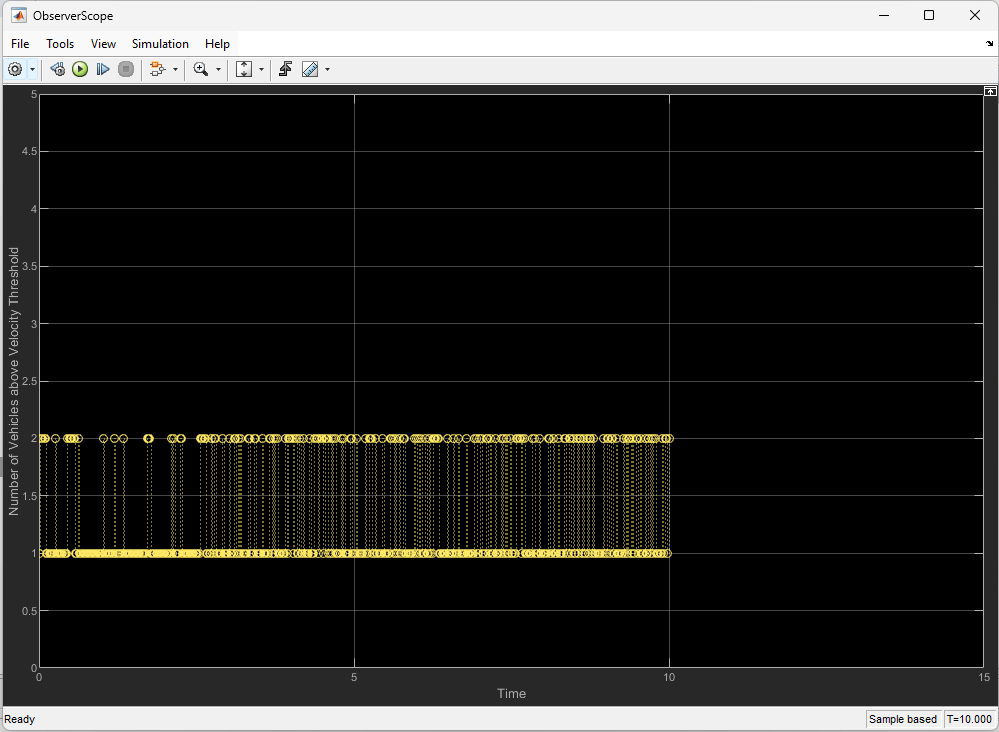
The connected Scope block then plots a graph of the number of vehicles that drive at a velocity above a certain threshold value, at every time step.
Note: Any Simulink model representing an observer must not have a RoadRunner Scenario Writer block.
Add Simulink Observer Model to Scenario
1. Specify the path to your local RoadRunner installation folder. This code snippet uses the default installation path of the RoadRunner application on Windows. You can change the path to match the location of your RoadRunner installation folder.
RRInstallationFolder = "C:\Program Files\RoadRunner " + matlabRelease.Release + "\bin\win64";
2. Set the project location to the path of your RoadRunner project folder.
rrProjectLocation = "C:\RRScenario\MyProjects";3. Create a roadrunner object to launch the RoadRunner application, and open the project at the specified project location.
rrApp = roadrunner(rrProjectLocation,"InstallationFolder",RRInstallationFolder);4. Open the scene FourWaySignal, which is in the Scenes folder of your project.
openScene(rrApp,"FourWaySignal");5. Open the scenario SwervingLeadVehicle, which is in the Scenarios folder of your project.
openScenario(rrApp,"SwervingLeadVehicle");6. Connect to the RoadRunner Scenario server to enable cosimulation by using the createSimulation function.
ss = rrApp.createSimulation();
Connection status: 1
Connected to RoadRunner Scenario server on localhost:60729, with client id {2810159e-0a46-4eaa-b960-ac45a2506a71}
7. Add the model Velocity_Threshold to the scenario as an observer named sysobs.
addObserver(ss,"sysobs","Velocity_Threshold");
8. Start the simulation.
set(ss,"SimulationCommand","Start");
9. Ensure that the example runs until the simulation stops.
while(ss.get("SimulationStatus")~="Stopped")
  pause(1);
end
After the scenario plays, check the Scope block from the opened Simulink model to view the number of vehicles that crossed the velocity threshold across different time steps.
Copyright 2026 The MathWorks, Inc.
Add Observer to a RoadRunner Scenario
After authoring the observer as a MATLAB
System object or a Simulink model, you must add it to a RoadRunner scenario by using the addObserver function. If the
command is successful, then the function returns logical 1 (true).
Otherwise, the function returns logical 0 (false).

