Develop a Model That Complies with the MISRA™ Standard
R2026bThis example shows how to prepare a model to comply with the MISRA C coding standard. MISRA C guidelines are widely adopted in safety-critical applications to promote the generation of safe and reliable C code. When generating code from Simulink® and Stateflow® models using Embedded Coder®, it is important to verify that the generated code complies with applicable MISRA C guidelines.
To develop a model for MISRA compliance, follow this general workflow:
Design the model in Simulink or Stateflow.
Run MISRA modeling checks in Model Advisor to identify modeling patterns that can generate non-compliant code.
Generate C code using Embedded Coder.
Perform static code analysis on the generated code by using Polyspace®.
Review, justify, and document compliance results.
Example Model
This example uses the EmbeddedCoderIntro model to illustrate MISRA-compliant code generation workflow.
openExample('ecoder/ControlCastExpressionsInGeneratedCodeExample')
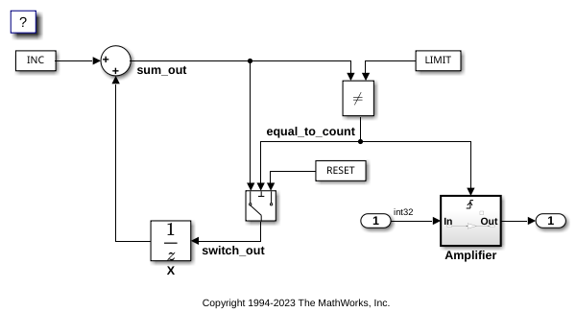
To prepare the model for code generation, use the Embedded Coder Quick Start.
Run MISRA Modeling Standard Checks
Use Model Advisor to assess the model against MISRA C modeling guidelines. These checks detect modeling patterns that can cause violations in the generated code, allowing you to address issues early in the development process.
To open the Model Advisor, in the Simulink editor, click the Modeling tab and select Model Advisor. A System Selector - Model Advisor dialog box opens. Select the model or system that you want to analyze and click OK.
In the left pane, expand By Task > Modeling Standards for MISRA C:2023. If the folder is not visible, open Settings > Preferences and select Show By Task Folder.
Select the checks that you want to include in the analysis.
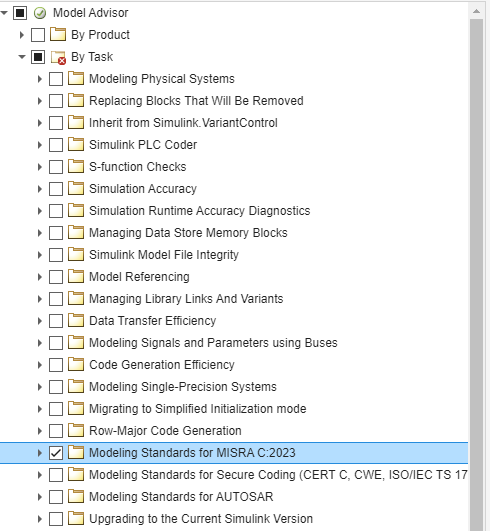
Click Run Checks to execute the analysis.
After execution, the Model Advisor displays the results in the right pane. You can see the total number of checks that passed, failed, were flagged as warnings, and did not execute. Address the reported issues in the model. Use the Help link in each check for details on the guideline and resolution steps. Rerun the checks until failures and warnings are resolved before proceeding to code generation. For more information, see Run Model Advisor Checks and Review Results (Simulink Check).
Generate C Code
Before generating code, configure code generation objectives to enable MISRA C compliant code generation.
In the Simulink editor, on the C Code tab, click Settings.
In the Configuration Parameters dialog box, select Code Generation > Objectives.
Select the MISRA C:2023 guidelines objective and apply the changes.
Enabling the MISRA C code generation objective automatically configures relevant code generation parameters to support MISRA compliance. After the MISRA modeling checks pass, Embedded Coder. If required, modify the model to adhere to the Modeling Guidelines and Model Advisor Checks for Verifying Compliance with MISRA C Standards.
To prevent possible name clashes, multiple function definitions, and multiple data definitions, use one of these code generation approaches:
Single model: Generate code from a single model that includes referenced models.
Multiple models: Generate code from multiple models using shared utility folder to manage reusable functions or apply data ownership for controlling the data definitions. Perform manual integration to combine code from multiple models.
Perform Static Code Analysis Using Polyspace
Polyspace tools extend MISRA compliance checking to the generated code level. By running Polyspace static code analysis, you can examine generated code without executing it, to detect MISRA rule violations, run-time errors such as division by zero, overflow, or invalid memory access.
To run Polyspace MISRA analysis, on the Apps tab, select Polyspace Code Verifier.
On the Polyspace tab, select Bug Finder in the Mode section.
Click Settings > Project Settings and enable the MISRA C:2023 coding standard in the Coding Rules & Code Metrics node. Save the configuration and close the window. For more information, see Check for C/C++ Coding Defects and Coding Standard Violations (Polyspace Bug Finder).
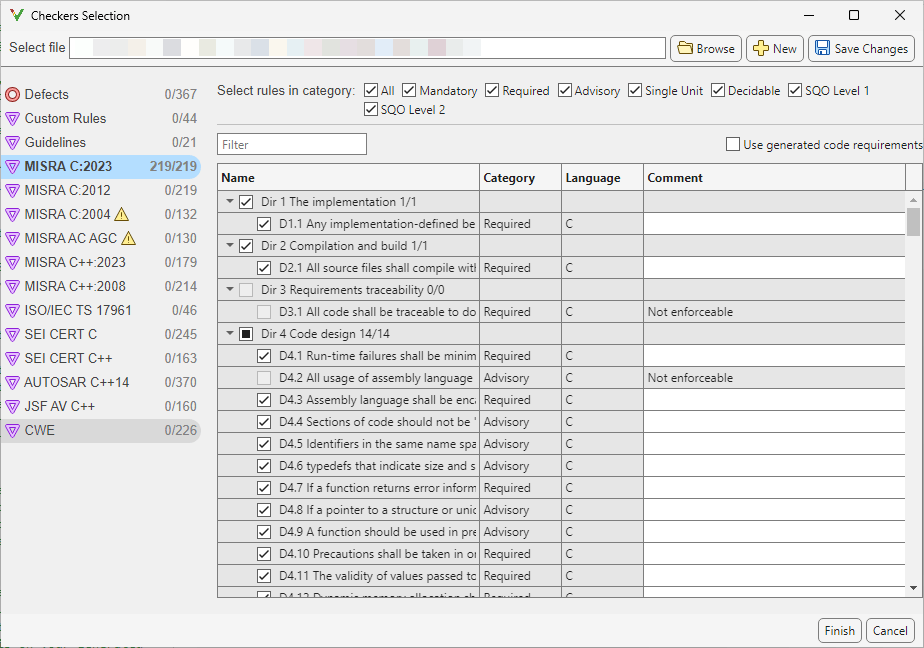
Click Run Analysis. Polyspace checks whether the model has changed since the last code generation. If the generated code is up-to-date, Polyspace starts the analysis. If the generated code is not up-to-date or if there is no generated code, Polyspace generates the code first and then starts the analysis.
After the analysis completes, the Polyspace UI opens, displaying a list of MISRA C:2023 rule violations. It shows MISRA rule violations grouped by rule ID and severity. Review them and address them when possible. For more information about running a Polyspace analysis on your generated code, including analysis options and results, see Bug Finder Analysis in Simulink (Polyspace Bug Finder).
Polyspace Annotations to Justify Results
You can use Polyspace annotations in the generated code to:
Justify deviations with a clear rationale.
Suppress known acceptable violations.
These annotation helps to hide known or acceptable violations and they appear in Polyspace reports, providing traceability. For more information, see Annotate Code and Hide Known or Acceptable Results (Polyspace Bug Finder).
Use block annotations in Simulink when you need to document design-level decisions, such as modeling choices or intentional deviations from MISRA modeling guidelines. For more information, see Address Polyspace Results by Annotating Simulink Blocks (Polyspace Bug Finder).

