Transform Time Series Using Econometric Modeler App
R2026bThe Econometric Modeler app enables you to transform time series data based on deterministic or stochastic trends you see in plots or hypothesis test conclusions. Available transformations in the app are log, seasonal and nonseasonal difference, and linear detrend. These examples show how to apply each transformation to time series data.
Apply Log Transformation to Data
This example shows how to stabilize a time series, whose
variability grows with the level of the series, by applying the log
transformation. The data set Data_Airline.mat contains monthly counts of airline passengers.
Download the Data_Airline.mat MAT-file into your current folder, and
then load it into the workspace.
fldr = pwd;
openExample("Data_Airline.mat",workDir=fldr);
load(fullfile(fldr,"Data_Airline.mat"))
To change the folder to which to download the data set, set fldr to its
absolute path.
At the command line, open the Econometric Modeler app.
econometricModeler
Alternatively, open the app from the apps gallery (see Econometric Modeler).
Import DataTimeTable into the app:
On the Modeler tab, in the Import section, click the Import button
 .
.In the Import Data dialog box, select the check box for the
DataTimeTablevariable.Click Import.
The variable PSSG appears in the Time
Series pane, and its time series plot is in the
Plot(PSSG) figure window.
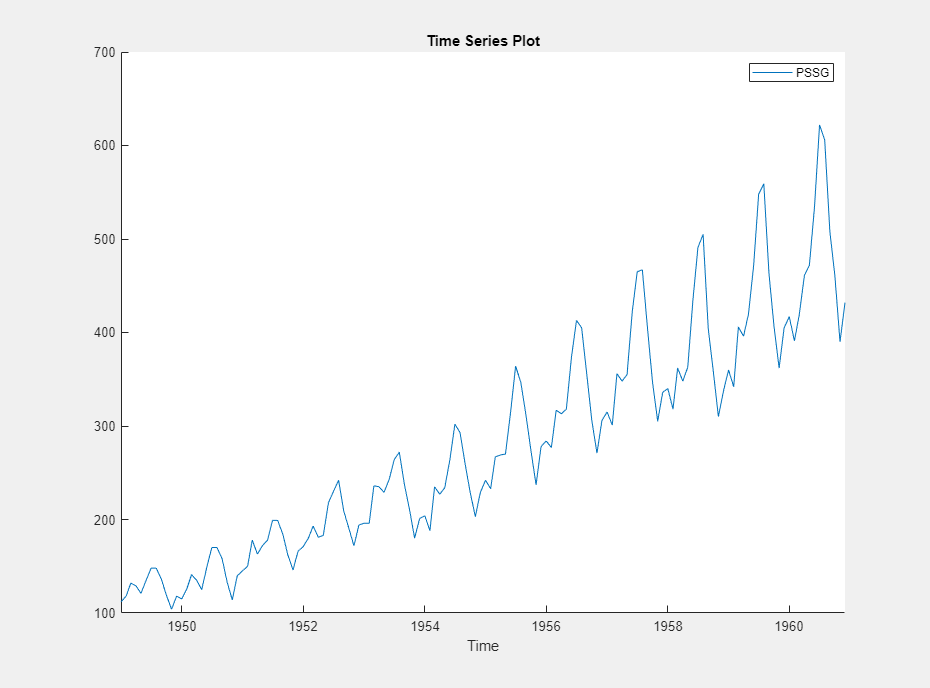
The series exhibits a seasonal trend, serial correlation, and possible exponential growth. For an interactive analysis of serial correlation, see Detect Serial Correlation Using Econometric Modeler App.
Apply the log transform to PSSG:
In the Time Series pane, select
PSSG.On the Modeler tab, in the Transforms section, click Log.
The transformed variable PSSG_Log appears in the
Time Series pane, and its time series plot appears in the
Plot(PSSG_Log) figure window.
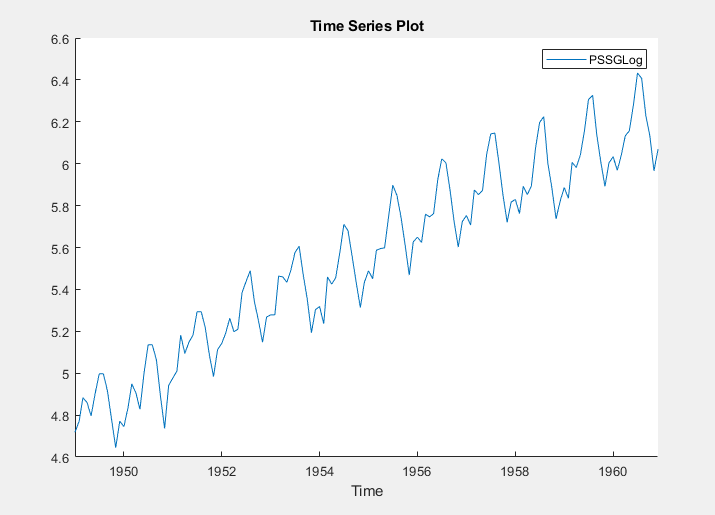
The exponential growth appears removed from the series.
Stabilize Time Series Using Nonseasonal Differencing
This example shows how to stabilize a time series by applying
multiple nonseasonal difference operations. The data set, which is stored in
Data_USEconModel.mat, contains the US gross domestic
product (GDP) measured quarterly, among other series.
At the command line, load the Data_USEconModel.mat data
set.
load Data_USEconModelAt the command line, open the Econometric Modeler app.
econometricModeler
Alternatively, open the app from the apps gallery (see Econometric Modeler).
Import DataTimeTable into the app:
On the Modeler tab, in the Import section, click the Import button
.In the Import Data dialog box, select the check box for the
DataTimeTablevariable.Click Import.
The variables, including GDP, appear in the
Time Series pane, and a time series plot of all the
series appears in the Plot(COE) figure window.
In the Time Series pane, double-click
GDP. A time series plot of
GDP appears in the
Plot(GDP) figure window.
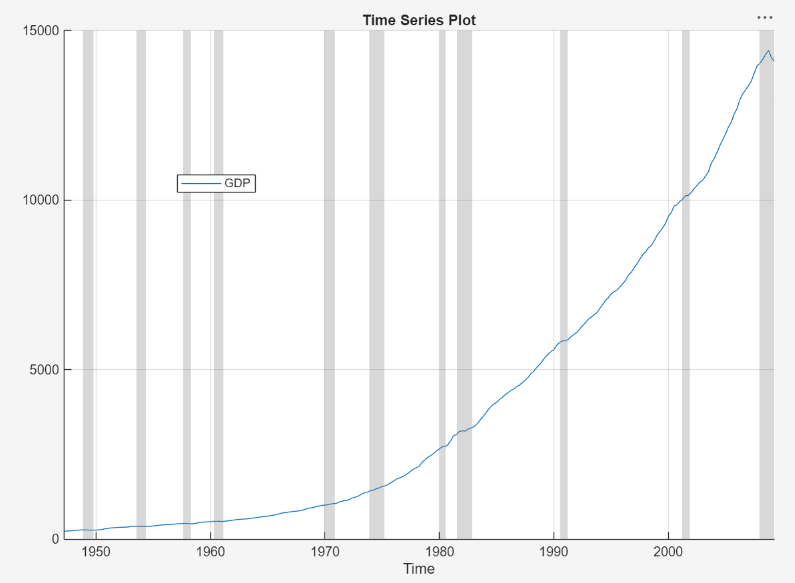
The series appears to grow without bound.
Apply the first difference to GDP. On the
Modeler tab, in the Transforms
section, click Difference.
In the Time Series pane, a variable representing the
differenced GDP (GDP_Diff) appears. A time series
plot of the differenced GDP appears in the
Plot(GDP_Diff) figure window.
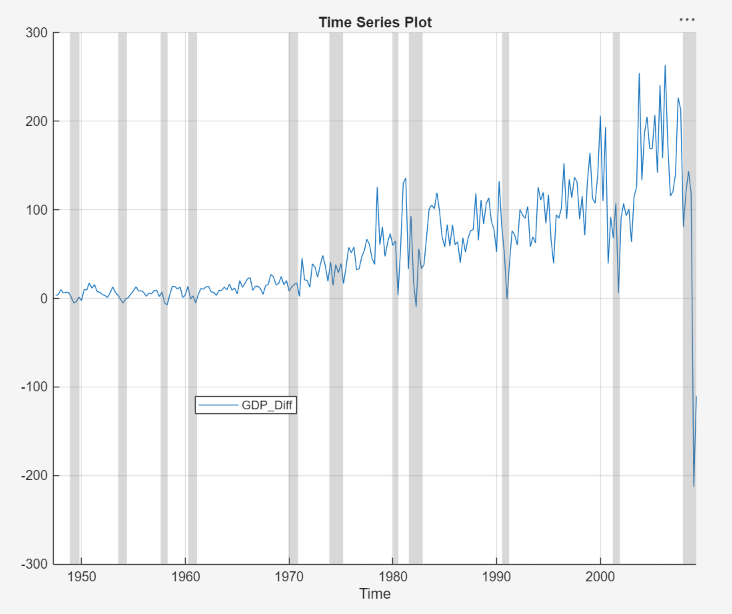
The differenced GDP series appears to grow without bound after 1970.
Apply the second difference to the GDP by differencing the differenced
GDP. With GDP_Diff selected in the Time
Series pane, on the Modeler tab, in the
Transforms section, click
Difference.
In the Time Series pane, a variable representing the
transformed differenced GDP (GDP_Diff_Diff)
appears. A time series plot of the differenced GDP appears in the
Plot(GDP_Diff_Diff) figure window.
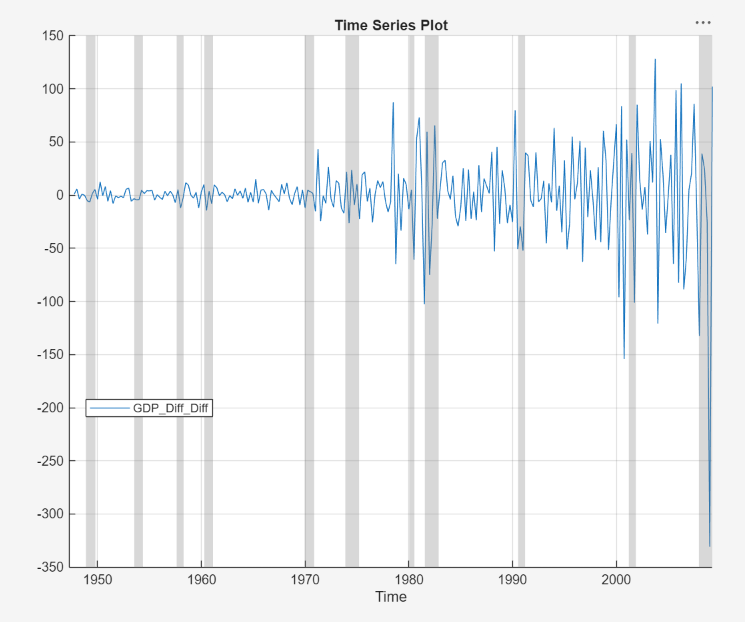
The transformed differenced GDP series appears stationary, although heteroscedastic.
Convert Prices to Returns
This example shows how to convert multiple series of prices
to returns. The data set, which is stored in
Data_USEconModel.mat, contains the US GDP and personal
consumption expenditures measured quarterly, among other series.
At the command line, load the Data_USEconModel.mat data
set.
load Data_USEconModelAt the command line, open the Econometric Modeler app.
econometricModeler
Alternatively, open the app from the apps gallery (see Econometric Modeler).
Import DataTimeTable into the app:
On the Modeler tab, in the Import section, click the Import button
.In the Import Data dialog box, select the check box for the
DataTimeTablevariable.Click Import.
GDP and PCEC, among
other series, appear in the Time Series pane, and a
time series plot containing all series appears in the figure window.
In the Time Series pane, click
GDP, then press Ctrl and
click PCEC. Both series are selected.
Click the Plots tab, then click Time
Series. A time series plot of GDP
and PCEC appears in the
Plot(GDP) figure window.
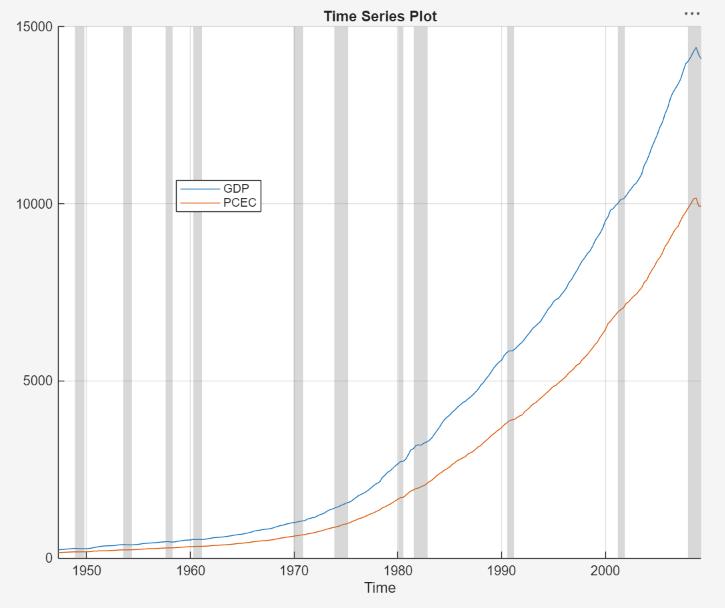
Both series, as prices, appear to grow without bound.
Convert the GDP and personal consumption expenditure prices to returns:
Click the Modeler tab. Ensure that
GDPandPCECare selected in the Time Series pane.In the Transforms section, click Log.
The Time Series pane displays variables representing the logged GDP series (
GDPLog) and the logged personal consumption expenditure series (PCECLog).With
GDPLogandPCECLogselected in the Time Series pane, in the Transforms section, click Difference.
The Time Series pane displays variables representing
the GDP returns (GDP_Log_Diff) and personal
consumption expenditure returns (PCEC_Log_Diff).
A time series plot of the GDP and personal consumption expenditure returns
appears in the Plot(GDP_Log_Diff) figure window.
In the Time Series pane, rename the
GDP_Log_Diff and
PCEC_Log_Diff variables. Click
GDP_Log_Diff twice to select its name and
enter GDPReturns. Click
PCEC_Log_Diff twice to select its name and
enter PCECReturns.
The app updates the names of all documents associated with both returns.
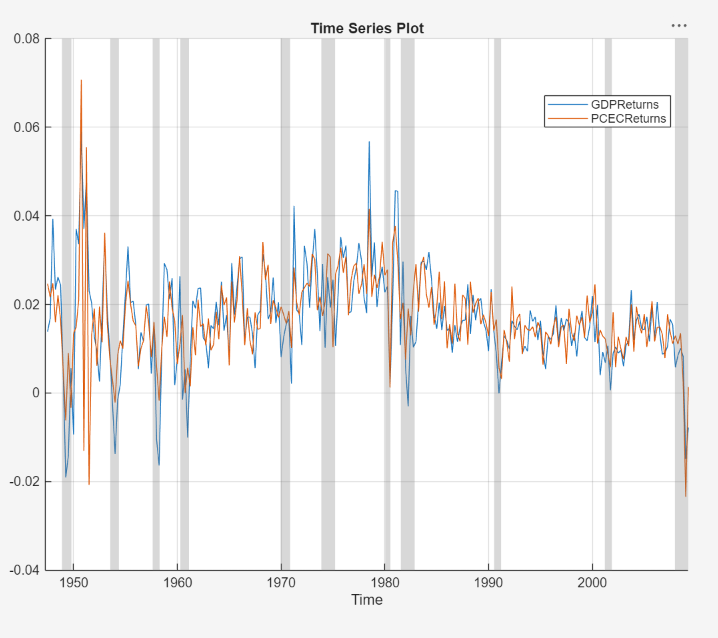
The series of GDP and personal consumption expenditure returns appear stationary, but observations within each series appear serially correlated.
Remove Seasonal Trend from Time Series Using Seasonal Difference
This example shows how to stabilize a time series exhibiting
seasonal integration by applying a seasonal difference. The data set Data_Airline.mat contains monthly counts of airline passengers.
Download the Data_Airline.mat MAT-file into your current folder, and
then load it into the workspace.
fldr = pwd;
openExample("Data_Airline.mat",workDir=fldr);
load(fullfile(fldr,"Data_Airline.mat"))
To change the folder to which to download the data set, set fldr to its
absolute path.
At the command line, open the Econometric Modeler app.
econometricModeler
Alternatively, open the app from the apps gallery (see Econometric Modeler).
Import DataTimeTable into the app:
On the Modeler tab, in the Import section, click the Import button
.In the Import Data dialog box, select the check box for the
DataTimeTablevariable.Click Import.
The variable PSSG appears in the Time
Series pane, and its time series plot appears in the
Plot(PSSG) figure window.
Address the seasonal trend by applying the 12th order seasonal difference.
On the Modeler tab, in the
Transforms section, set
Seasonal to 12. Then, click
Seasonal.
The transformed variable PSSG_SDiff appears in
the Time Series pane, and its time series plot appears
in the Plot(PSSG_SDiff) figure window.
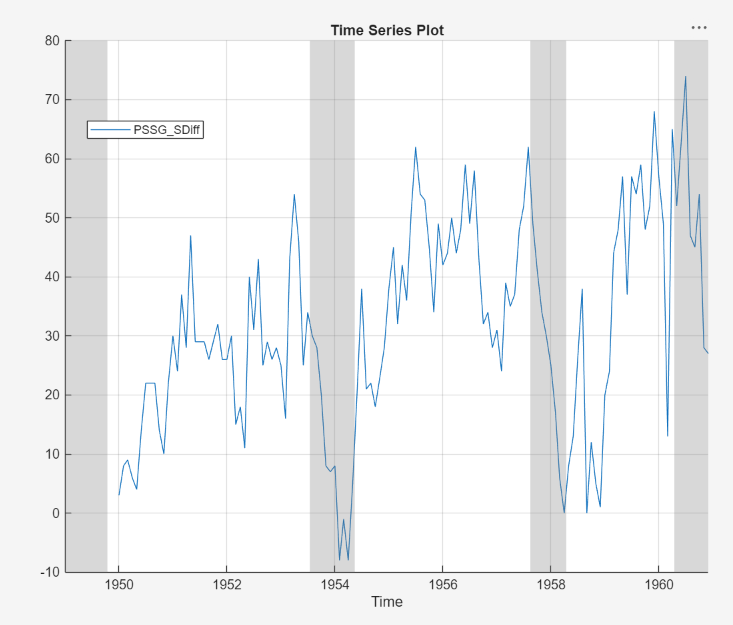
The transformed series appears to have a nonseasonal trend.
Address the nonseasonal trend by applying the first difference. With
PSSG_SDiff selected in the Time
Series pane, on the Modeler tab, in the
Transforms section, click
Difference.
The transformed variable PSSG_SDiff_Diff
appears in the Time Series pane, and its time series
plot appears in the Plot(PSSG_SDiff_Diff) figure window.
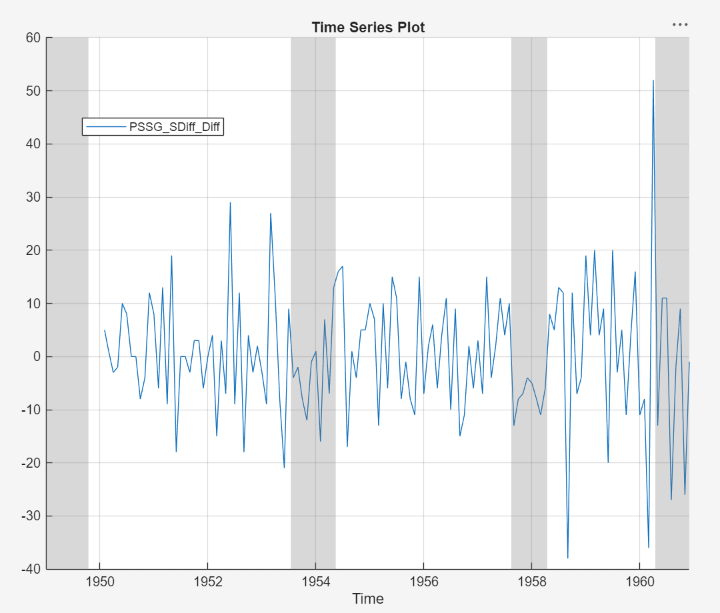
The transformed series appears stationary, but observations appear serially correlated.
In the Time Series pane, rename the
PSSG_SDiff_Diff variable by clicking it twice
to select its name and entering
PSSGStable.
The app updates the names of all documents associated with the transformed series.
Remove Deterministic Trend from Time Series
This example shows how to remove a least-squares-derived
deterministic trend from a nonstationary time series. The data set Data_Airline.mat contains monthly counts of airline passengers.
Download the Data_Airline.mat MAT-file into your current folder, and
then load it into the workspace.
fldr = pwd;
openExample("Data_Airline.mat",workDir=fldr);
load(fullfile(fldr,"Data_Airline.mat"))
To change the folder to which to download the data set, set fldr to its
absolute path.
At the command line, open the Econometric Modeler app.
econometricModeler
Alternatively, open the app from the apps gallery (see Econometric Modeler).
Import DataTimeTable into the app:
On the Modeler tab, in the Import section, click the Import button
.In the Import Data dialog box, select the check box for the
DataTimeTablevariable.Click Import.
The variable PSSG appears in the Time
Series pane, and its time series plot appears in the
Plot(PSSG) figure window.
Apply the log transformation to the series. On the Modeler tab, in the Transforms section, click Log.
The transformed variable PSSG_Log appears in
the Time Series pane, and its time series plot appears
in the Plot(PSSG_Log) figure window.
Identify the deterministic trend by using least squares. Then, detrend the series by removing the identified deterministic trend. On the Modeler tab, in the Transforms section, click Detrend.
The transformed variable PSSG_Log_Detrend
appears in the Time Series pane, and its time series
plot appears in the Plot(PSSG_Log_Detrend) figure
window.
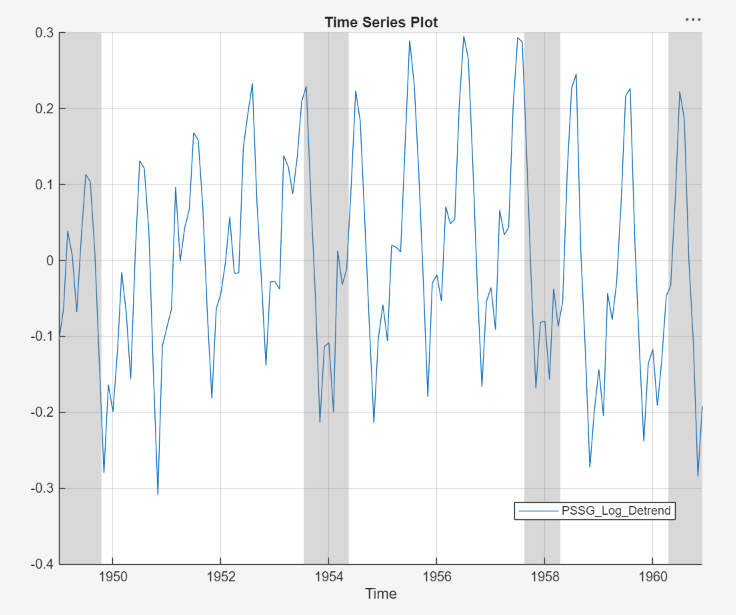
PSSG_Log_Detrend does not appear to have a
deterministic trend, although it has a marked cyclic trend.

