Import Datastore into Reduced Order Modeler
R2026bThis example shows how to import a datastore into the Reduced Order Modeler app.
Verify that the datastore is in a format that the app supports. For information on types of datastores that you can import into the app, see Supported Data Formats (Simulink).
Open the app by using the datastore object as the input to the
reducedOrderModelerfunction.Configure options in the Import Data dialog box and import the data.
View the imported data in the app.
Create Datastore
The data files Data1.mat, Data2.mat, Data3.mat, Data4.mat, and Data5.mat all contain timetables of the same size.
Create a datastore from these files by using fileDatastore.
fileDS = fileDatastore({'Data1.mat', 'Data2.mat', 'Data3.mat', 'Data4.mat', 'Data5.mat'}, ...
    'ReadFcn', @(x) struct2array(load(x)), ...
    'PreviewFcn', @(x) struct2array(load(x)), ...
    'UniformRead', true);
The fileDS datastore contains timetables that all have the same size, which means that you can import it into the Reduced Order Modeler app. For more information on supported datastore formats, see Supported Data Formats (Simulink).
To view the timetable columns, read the data in the datastore by calling the read function. Each call to this function returns the data from one file in the datastore, and each subsequent call continues reading from the endpoint of the previous call. For example, to return the data in Data1.mat and Data2.mat, call read twice.
read1 = read(fileDS);
read2 = read(fileDS);
View the first few rows of read1 and read2.
head(read1)
         t          input      output
    ___________    ________    _______

    0 sec          0.057147     1.0998
    0.10101 sec     0.22776    0.83084
    0.20202 sec     0.23141    0.87966
    0.30303 sec     0.45965    0.98681
    0.40404 sec     0.42355     1.0185
    0.50505 sec     0.36288     1.0984
    0.60606 sec     0.50995    0.84644
    0.70707 sec     0.62748    0.85609
head(read2)
         t          input      output
    ___________    ________    _______

    0 sec          0.060832     1.1874
    0.10101 sec     0.10134     0.5999
    0.20202 sec     0.11401     0.7998
    0.30303 sec     0.30724    0.98875
    0.40404 sec     0.43962     1.1892
    0.50505 sec       0.261     1.1507
    0.60606 sec     0.84015    0.82667
    0.70707 sec     0.61628    0.80817
The column t contains time in seconds. The column input contains the input values. The column output contains the output values.
Open App Using Datastore
To open the app, use the reducedOrderModeler function with the datastore object as the input argument. Before opening, the app checks the preview function of the object. In this example, the object is in a supported format. So, the app opens, along with the Import Data dialog box. If the object is not in a supported format, the app does not open and the command window displays an error message.
reducedOrderModeler(fileDS);
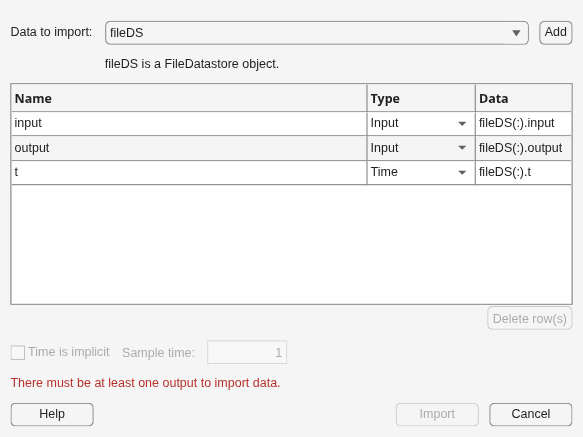
The Import Data dialog box shows the imported fileDatastore object. For more information on this dialog box, see Import Time-Domain Data as ROM Inputs and Outputs (Simulink).
Set the Type of output as Output. Click Import.
To view the imported data, in the app, on the Reduced Order Model tab, click Open Results. On the Simulation Result tab, select the result number for which you want to view the data.
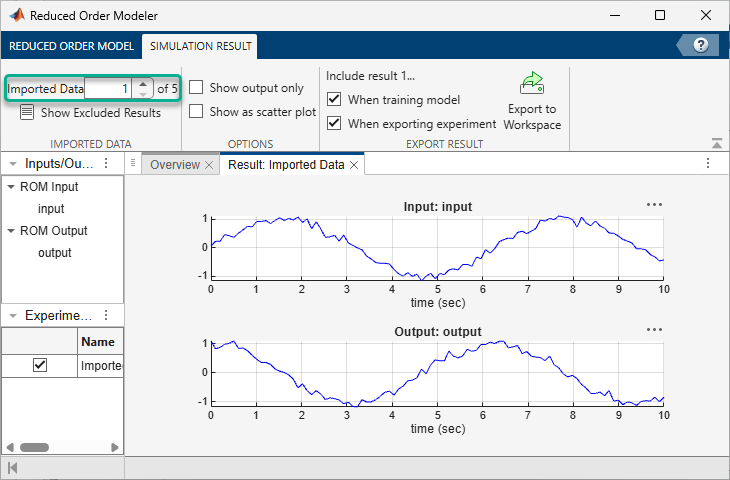
You can import another datastore into the app by clicking Import Data on the Reduced Order Model tab and configuring the data in the Import Data dialog box.
For more information on importing data, see Import Time-Domain Data as ROM Inputs and Outputs (Simulink).
See Also
Apps
- Reduced Order Modeler (Simulink)
Objects
Functions
Topics
- Reduced Order Modeling (Simulink)
- Configure Options in Reduced Order Modeler (Simulink)

