Export Results from Registration Estimator App
R2026bWhen you find an acceptable registration from Registration Estimator, export the results. You can use the exported results to apply similar registration to other frames in an image sequence. There are two options to export the results:
Export the registered image and the geometric transformation to the workspace. Apply the same geometric transformation to other images by using the
imwarpfunction.Generate a function with the desired registration technique and settings. Call this function to register other images using the same settings.
Export Results to the Workspace
To export the registration results to the workspace, click the desired trial in the history list, then click Export and select Export Images. In the Export to Workspace dialog box, assign a name to the registration output.
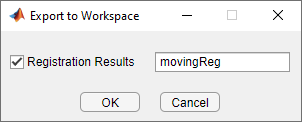
The output is a structure that contains these fields.
| Field | Description |
|---|---|
RegisteredImage | Registered image, returned as a numeric array of the same size as the fixed image. |
SpatialRefObj | Spatial referencing object for the fixed image, returned as an imref2d object. |
Transformation | Geometric transformation used for the registration, returned as a
The structure contains this field except when you export the results of a nonrigid registration technique. |
DisplacementField | Displacement field, returned as a numeric array of size nrows-by-ncols-by-2, where nrowsand ncols are the number of rows and columns in the fixed image, respectively. The two planes are the displacements along the x-axis and y-axis, respectively. The structure contains this field when you export the results of a nonrigid registration technique or when you select the Apply Nonrigid parameter for a feature-based or intensity-based registration technique. For more information, see Tune Registration Settings in Registration Estimator. |
To apply the same geometric transformation or displacement field to another moving
image, call the imwarp function. For example, this code
registers a moving image named J2 using the exported registration output
named
movingReg.
tform = movingReg.Transformation;
fixedRef = movingReg.SpatialRefObj;
movingReg = imwarp(J2,tform,OutputView=fixedRef);
Generate a Function
To generate MATLAB® code that registers images using the desired registration technique and settings, click the corresponding trial in the history list, then click Export. Select the Generate Function option. The app opens the MATLAB editor containing a function with the autogenerated code. To save the code, click Save in the MATLAB editor.
Note
If you generate a function using a feature-based registration technique, then you must have Computer Vision Toolbox™ to run the function.
The generated function accepts a moving and a fixed image as inputs. The function returns a structure that contains the final registered image, the spatial referencing object, and the geometric transformation of the registered image. If you generate a function using a feature-based registration technique, then the output structure has two additional fields for the moving matched features and the fixed matched features.

