MATLAB Projects TOML Format (.toml)
R2026bThe matlab.toml
definition file type allows you to define and manage your entire project configuration in a
single TOML file. This format is easier to review and merge under source control, and you
can edit it directly in the MATLAB® editor.
With a TOML-based project, you can:
Centralize project configuration, package dependencies, and file labels in one place.
Declare dependencies on MATLAB packages with version constraints, and automatically install them from configured repositories when the project opens.
Associate labels with file patterns, so labels are applied automatically without labeling files individually.
Validate the TOML file to quickly identify issues such as invalid syntax, invalid data, or missing files.
Detect missing package dependencies when running project checks.
Simplify source control workflows, including easier comparison of changes and conflict resolution, with minimal noise in pull requests.
Set TOML Format as Default
By default, when you first create or make changes to a project, the project definition files are multiple fixed-path XML files.
To change the default metadata format to the TOML format, on the
Home tab, in the Environment section,
click Settings. Select MATLAB > Project and, in the New Projects setting, set
Project definition files to
matlab.toml.
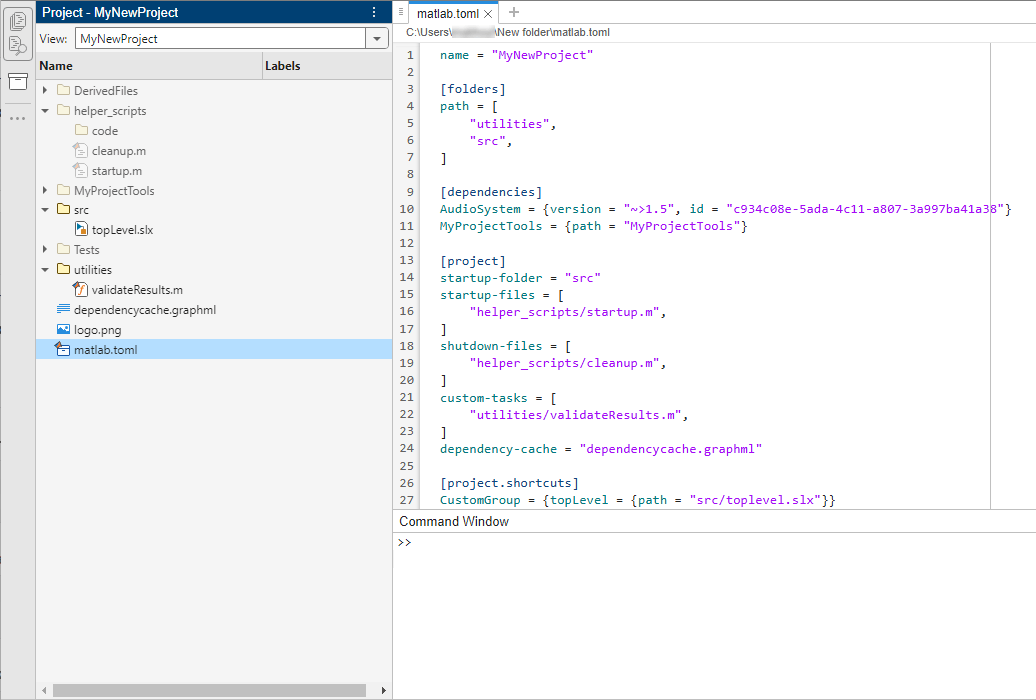
Then, when you create a new MATLAB project in a folder, MATLAB creates one single definition file matlab.toml in the
project root folder. By default, all files in the project root folder are project files.
Convert Existing Projects to TOML Format
To convert existing projects to use the new one-file-metadata TOML format, follow these steps:
On the Project tab, in the Environment section, click Settings.
In the Advanced section, edit Definition file type by clicking Change.
In the new window, specify the definition file type of your project as
matlab.toml.Click Convert to convert your project to the new TOML format.
The conversion conserves user-defined labels.
If you are converting a project that uses the
Multiple XML
                        files
definition file type to thematlab.tomldefinition file type, the conversion conserves built-in project labels only if you select Keep built-in labels and their attached files.
Alternatively, use the matlab.project.convertDefinitionFiles function to convert the project
programmatically.
The conversion process preserves all user data and files including the source control history of your project files, project shortcuts, and project startup and shutdown tasks. If you are using built-in labels and label categories, you can choose to preserve them during conversion.
Note
When you convert a project to TOML format:
Label data and single-valued categories are not preserved. MATLAB automatically converts all single-valued categories to multi-valued categories.
Empty folders are preserved if they are under source control or on the project path or test path.
To help preserve project content, store your project under source control before converting.
After conversion, when the project reloads, the Project Issues panel reports conversion-related issues. This table shows the conversion-related issues and how to fix them.
| Check Description | Issue Type | Fix |
|---|---|---|
| Unable to preserve project dependencies on packages during the conversion. | Warning | Create a startup file to install the package dependencies. |
| Unable to preserve Blockset Designer data during the conversion. | Warning | Blockset Designer is not supported in
matlab.toml. The software automatically
removes the Blockset Designer data. |
| Unable to preserve label data during the conversion. | Warning | Label data is not preserved during the conversion. |
Single-valued categories are not supported in
matlab.toml. Single-valued categories have
been converted to multi-valued categories. | Warning | MATLAB automatically converts single-valued categories in your project into multi-valued categories. |
| Files with test label were found in the project root folder. | Warning | Move the files associated with a test label inside a test folder. |
| Unable to remove files during the conversion of the project definition files. | Error | Remove the listed files manually. |
| Unable to remove folders during the conversion of the project definition files. | Error | Remove the listed folders manually. |
TOML Syntax Examples
When you edit your project settings and configuration using the user interface, the
project logs this information in the matlab.toml file. You might need
to read and edit the TOML file when comparing versions or resolving conflicts. The
following table provides some examples about the TOML syntax used by MATLAB Projects. For the full list of properties defined in the
matlab.toml file, see matlab.toml instead.
MATLAB Projects TOML Syntax
| Task | Syntax in matlab.toml |
|---|---|
| Specify the project title. | You can edit the project name at anytime using the Project Settings dialog box. For more information, see Specify Project Details. In the This example TOML code specifies the name of the project. |
| Specify the project path. | You can specify which folders to be available on the MATLAB search path when the project is open using the Project Settings dialog box. For more information, see Specify Project Path. In the This example TOML code
specifies that the |
| Specify dependencies on other projects and packages. | You can specify all dependencies that your project requires using the Project Settings dialog box. For more information, see Manage Project Dependencies. In the
This example TOML code specifies that
the project requires at least the version |
| Create shortcuts to frequent project tasks. | You can create shortcuts in projects to perform common project tasks, such as opening important files and loading data. For more information, see Create Shortcuts to Frequent Tasks. In the This example TOML code specifies that the
This
example TOML code specifies that the |
You can also create and configure your MATLAB project using the matlab.toml file. To create and
configure a project from scratch using the TOML syntax, follow these steps.
In the Files Panel, in the folder you want to create a project in, create a text file named
matlab.toml.This action creates an unnamed project. All files in the folder are included in the project.
Open the
matlab.tomlfile as a text file. In the Files panel, right-clickmatlab.tomland select Open as Text. Double-clicking thematlab.tomlfile opens the project in the panel instead.Configure the project by following the example code listed in
matlab.toml. All properties are optional.
See Also
matlab.toml | matlab.project.convertDefinitionFiles
Topics
- Create Projects
- Source Control Integration
- Find and Install Packages Programmatically
- Create and Manage Packages
- Release and Manage Package Dependencies and Versioning using Projects
- Develop and Share Software in MATLAB

