updateProcessingChain
R2026bLaunch Hardware Setup pages to update the signal processing chain for a TI AWR2944EVM radar sensor
Since R2026b
Syntax
rdr.updateProcessingchain()
Description
rdr.updateProcessingchain() launches the specific Hardware Setup pages
to update the signal processing chain and flash the corresponding executable binary to a
Texas Instruments® (TI) AWR2944EVM mmWave radar sensor, represented using rdr
connection object. rdr is an instance of either mmWaveRadar (the
System object used for reading object detections) or dca1000 (the
System object used for reading raw ADC (IQ) data).
You use this function to change the signal processing chain after creating the
mmWaveradar or dca1000 System object. The TI
AWR2944EVM radar sensor supports TDM (Time-division Multiplexing) or DDM (Doppler Division
Multiplexing) as the processing chain. In the TDM processing chain, only one transmit
antenna is active at a time. In the DDM processing chain, all transmit antennas transmit
simultaneously. As a result, TDM never has more than one active transmitter at a time,
whereas DDM uses all transmitters concurrently.
The Hardware Setup pages guide you through these steps:
Enable flashing mode of AWR2944EVM mmWave sensor.
Select the processing chain —
TDM,DDM, orAutodetect from Configuration File (.cfg)Flash the executable binary specific to processing chain to AWR2944EVM.
Enable functional mode.
Connect and set up DCA1000EVM (only required for reading raw ADC (IQ) data)
Verify radar data acquisition.
Examples
To automatically detect TDM or DDM processing chain from the
Configuration file (.cfg), the Hardware Setup process launched using
updateProcessingChain() can be used to analyze the file. The
process reviews the Configuration file to verify whether each TX antenna is assigned
to a chirp for TDM operation or it uses phase modulation to separate transmitted
signals for DDM operation. The below steps define the workflow with
updateProcessingChain() if mmWaveradar
object is used to connect to the board.
Connect to TI AWR2944EVM radar sensor to prepare it to read object detections.
rdr = mmWaveRadar("TI AWR2944EVM")rdr =
mmWaveRadar with properties:
BoardName: "TI AWR2944EVM"
ConfigPort: "COM8"
DataPort: "COM9"
ProcessingChain: "DDM"
ConfigFile: "C:\ProgramData\MATLAB\SupportPackages\R2026b\toolbox\target\supportpackages\timmwaveradar\configfiles\awr2944_highRange_3d_3Azim_1ElevTx_DDM.cfg"
MMWave SDK Version: "04.07.01.04"
SensorIndex: 1
MountingLocation: [0, 0, 0] (m)
MountingAngles: [0, 0, 0] (degrees)
UpdateRate: 5 (samples/s)
RangeResolution: 7.449219e-02 (m)
RangeRateResolution: 9.211421e-02 (m/s)
AzimuthResolution: 1.447751e+01 (degrees)
ElevationResolution: 1.820996e+01 (degrees)
MaximumRange: 1.287225e+01 (m)
MaximumRangeRate: 7.369136e-01 (m/s)
Show all properties all functions
BoardName: "TI AWR2944EVM"
ConfigPort: "COM8"
DataPort: "COM9"
ProcessingChain: "DDM"Call the updateProcessingChain() function to open the
corresponding Hardware Setup page.
rdr.updateProcessingChain()
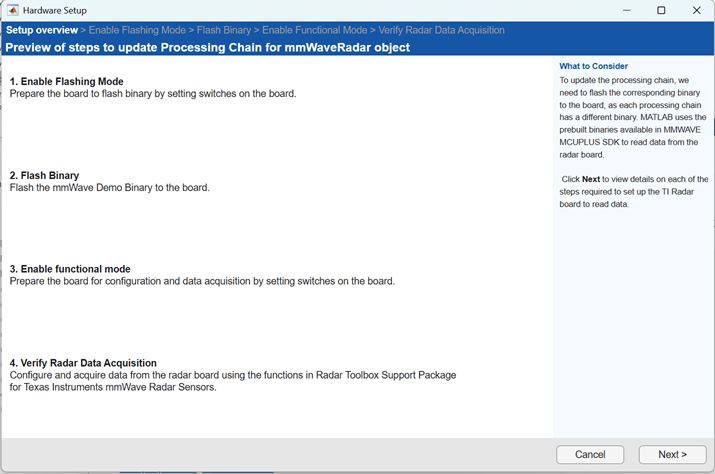
You can proceed with the steps to enable the flashing mode, specify the Configuration file, identify the processing chain, flash the binary, enable the functional mode, and verify the radar connection.
In the Select the Processing Chain Configuration page that
appears after you enable flashing mode, select TDM or
DDM processing chain. Because, in this example, you
need to determine the processing chain from the config file, select the third
option Autodetect from Configuration File
(.cfg).
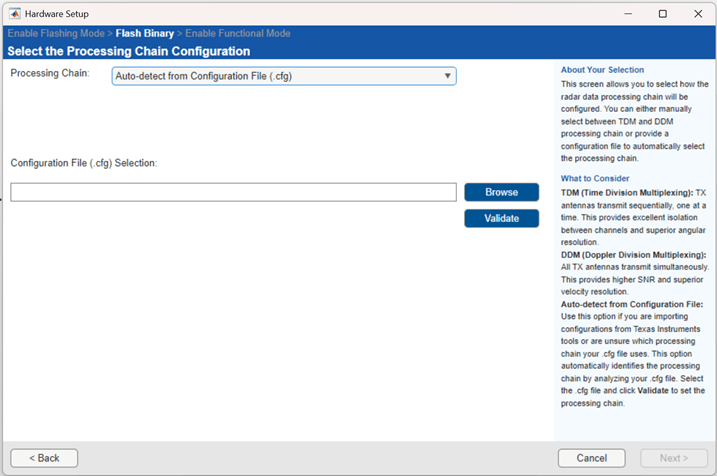
Browse for the Configuration file, and click Validate. This action identifies the TDM or DDM processing chain by analyzing the various parameters in the file.
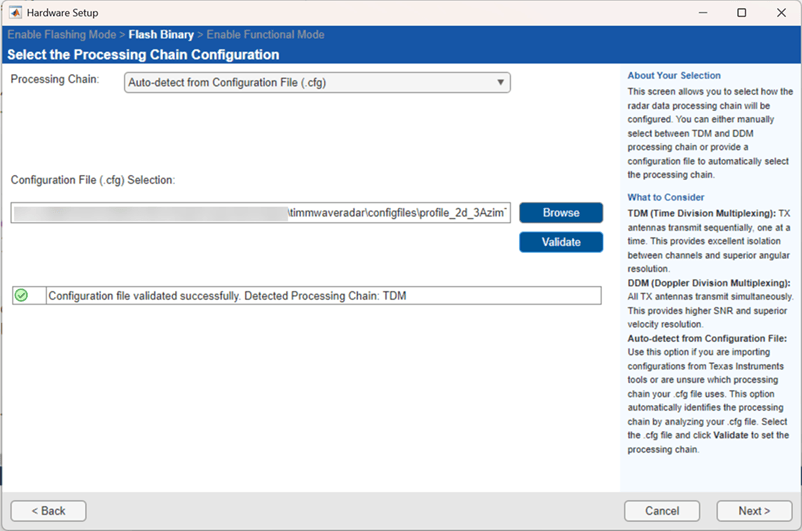
Note
The Configuration file (.cfg) that is stored in the Select the
Processing Chain Configuration page of Hardware Setup is applied
to mmWaveRadar or dca1000 object also.
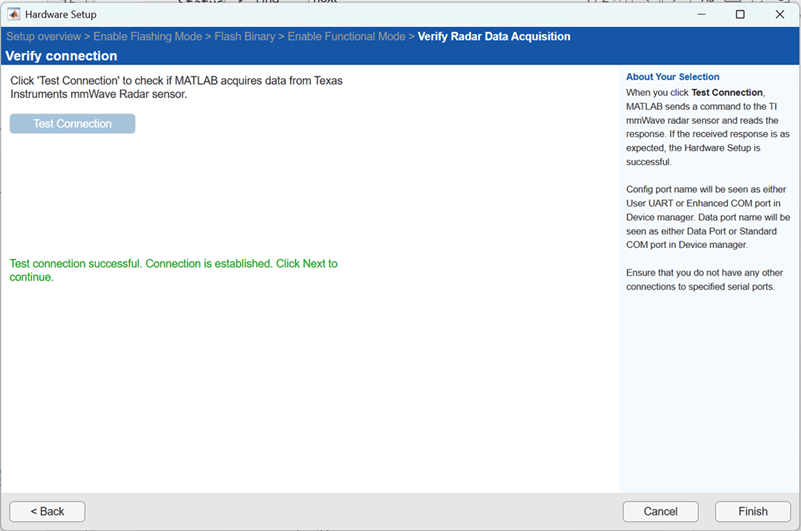
You can then proceed with the remaining steps of Hardware Setup and verify that the radar data acquisition is successful in the final step.
Version History
Introduced in R2026b

