Interact with Signal Editor Tool from Signal Editor Block
R2026bThe Signal Editor block Open Signal Editor button  opens a version of the Signal Editor tool that
is synchronized with the block.
opens a version of the Signal Editor tool that
is synchronized with the block.
To see the differences, create a model and add a Signal Editor block.
Create some signal data as MATLAB®
timeseriesobjects.Define the time values for the signal data.
sampleTime = 0.01;
endTime = 10;
numberOfSamples = endTime * 1/sampleTime +1;
timeVector = (0:numberOfSamples) * sampleTime;
Create the data for the two scalar signals.
signal_1 = timeseries(sin(timeVector)*10,timeVector);
signal_2 = timeseries(rand(size(timeVector)),timeVector);
Create the signals for the bus.
busSignal.busElement_1 = timeseries(cos(timeVector)*2,timeVector);
busSignal.busElement_2 = timeseries(randn(size(timeVector)),timeVector);
Create a scenario.
scenario = Simulink.SimulationData.Dataset;
Add the signal and bus elements to the scenario.
scenario = scenario.addElement(signal_1, 'signal_1');
scenario = scenario.addElement(signal_2, 'signal_2');
scenario = scenario.addElement(busSignal, 'busSignal');
Save the scenario to a MAT file,
myScenario.mat.save myScenario.mat scenario;
Double-click the block, in the File name parameter, browse to
myScenario.matand click Apply.To open the Signal Editor tool, click the Open Signal Editor button
. The Signal Editor tool opens populated with
the scenario and a plotted signal.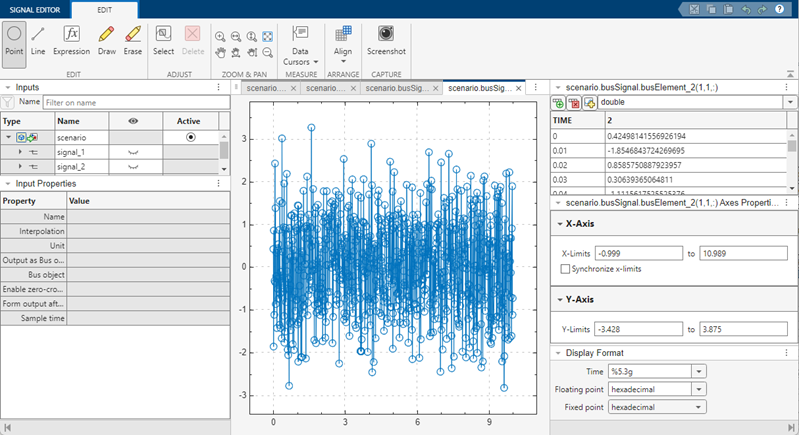
To see the input properties for a signal, click a signal in the hierarchy.

These properties correspond to the Signal Editor block parameter settings.
Signal Editor Block Signal Editor Interface Output as bus object
Output a bus signal
Bus object
Select bus object
Enable zero-crossing detection
Enable zero-crossing detection
Form output after final data value by
Form output after final data value by
Sample time
Sample time Compare to the standalone Signal Editor tool with the same
myScenario.matfile.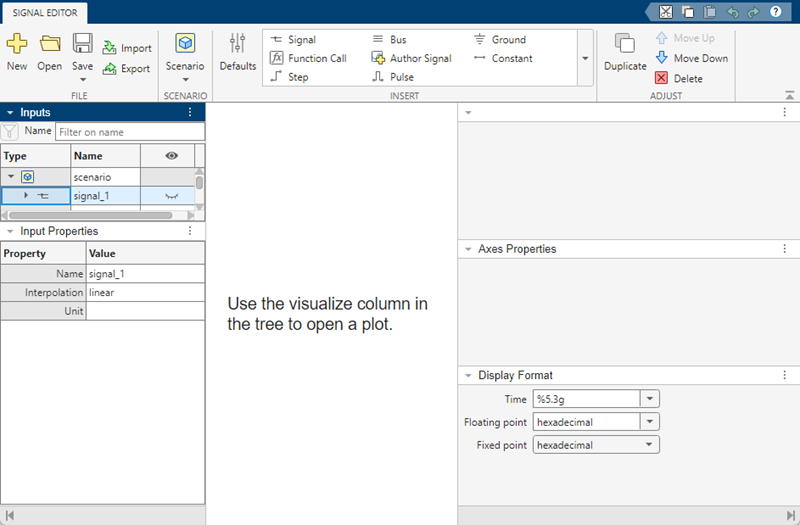
To apply changes between the Signal Editor block and the Signal Editor tool:
To change the active scenario in the Signal Editor tool, click the associated button in the hierarchy Active column and then click Save. Closing the tool updates then Signal Editor block.
Block parameters become read-only when you start the Signal Editor tool. To change control from the Signal Editor tool to the Signal Editor block, close the Signal Editor tool.
To see parameter changes for an active signal from the Signal Editor block in the associated Signal Editor tool, click the active signal in the signal hierarchy.

