R2026a

New Features, Bug Fixes, Compatibility Considerations

  Run 3D simulations using Unreal Engine 5.4

The 3D visualization engine that comes installed with Simulink® 3D Animation™ has been updated to Unreal Engine® 5.4. Previously, the toolbox used Unreal Engine 5.3.

For information about using Unreal Engine to create custom scenes, see Customize Scenes in Unreal Engine for 3D Simulations and Unreal Engine Simulation Environment Requirements and Limitations.

 Compatibility Considerations

If your Simulink 3D Animation model uses an Unreal Engine executable or project developed using a prior release of the Simulink 3D Animation Interface for Unreal Engine Projects support package, the simulation can return an error. To migrate the project so that it is compatible with the R2026a version of the support package, see Migrate Projects Developed Using Prior Support Packages.

 Simulation 3D Viewer interface improvements, including setting graphics quality of 3D simulation

Starting in R2026a, the context menu for the world provides these additional options.

OptionDescription
Graphics Quality

Balances visual quality and performance. To set the graphics quality, select from the list.

  • Auto — The software selects the optimal graphics quality based on your CPU and GPU capabilities.

  • Cinematic — Ultra-high visual quality with slowest performance.

  • Epic — Highest visual quality with lower performance.

  • High — High visual quality with good performance.

  • Medium — Medium visual quality with faster performance.

  • Low — Lowest visual quality with fastest performance.

Create Primitive

To create primitive shapes at the scene origin, select from the list.

  • Box

  • Plane

  • Sphere

  • Cone

  • Cylinder

You can also right-click any actor in the 3D environment to display a context menu for that actor and world.
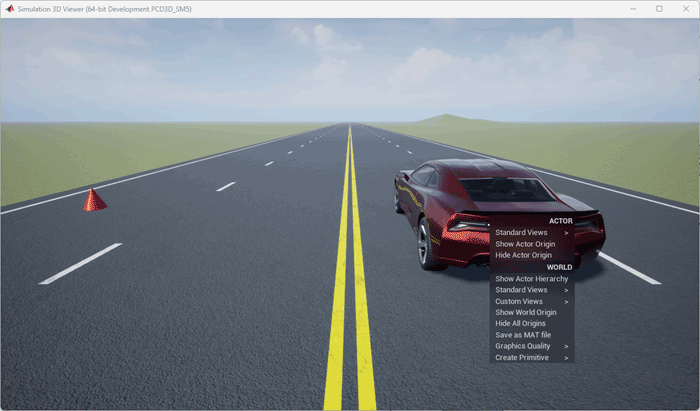
Context menu of actor and world

For more information about interacting with 3D environment, see Interact with Unreal Engine Simulation Environment. For more information on keyboard shortcuts and mouse actions, see Navigate in Unreal Engine Environment.

You can also set the graphics quality of the simulation using the GraphicsQuality property of the sim3d.World object.

Configure the Lidar field of view to improve resolution in the areas of interest within the 3D environment

Starting in R2026a, you can use the Field-of-view specification parameter in Simulation 3D Lidar block to sample the field of view of the sensor.
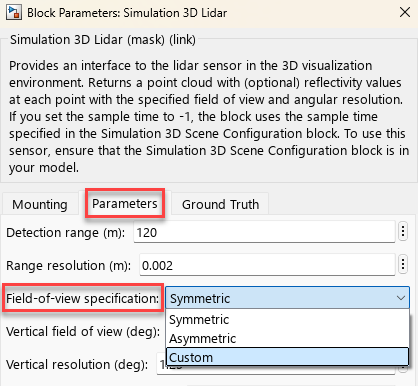
Block mask setting for field of view specification.

You can also configure the field of view of the lidar sensor created using the sim3d.sensors.Lidar object.

View the coverage of Simulation 3D Radar Data Generator in the 3D environment

Starting in R2026a, you can visualize the coverage of Simulation 3D Radar Data Generator block in the 3D environment.

To enable the field of view visualization, use the Visualize field of view parameter in the Parameters tab of the Simulation 3D Radar Data Generator block mask.
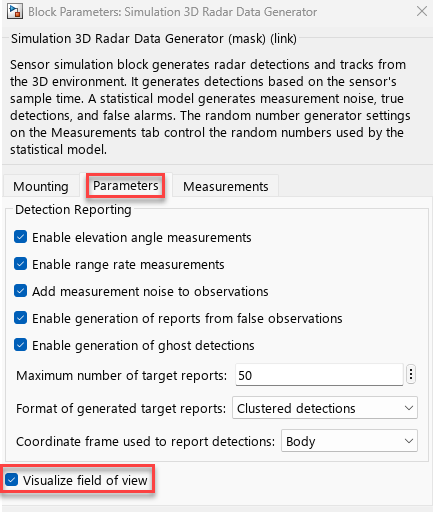
Block mask settings to visualize field of view and set the range

Attach sensor to any actor in the 3D environment

Starting in R2026a, you can mount sensors to any actor in the Unreal Engine 3-D environment. In any Simulation 3D sensor block, set the Parent name parameter to Custom to enable the Custom parent name parameter, where you can specify the actor name for sensor mounting.
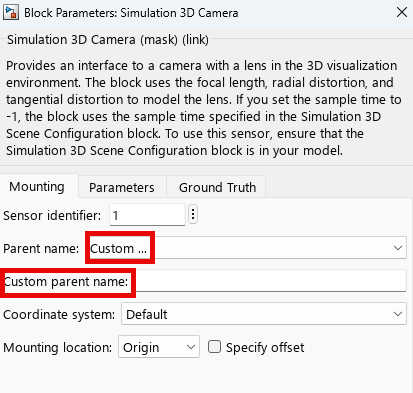
Block mask settings to visualize field of view and set the range

These sensor blocks allow you to mount the sensor to any actor, including child actors in the Unreal Engine 3-D environment:

 Functionality being removed or changed

Renamed scene names in sim3d.World object

Behavior change

Starting in R2026a, these scene names have been renamed to specify the scene using the Scene argument of the sim3d.World object. The table lists the new scene names.

TypeOld NameNew Name
Default scenesEmpty sceneEmptyScene
Blank sceneBlankScene
Scenes you can install with Simulink 3D AnimationStraight roadStraightRoad
Curved roadCurvedRoad
Empty GrassEmptyGrass
Scenes you can install with other MathWorks® productsOpen surfaceOpenSurface
Double lane changeDoubleLaneChange
Parking lotParkingLot
Large parking lotLargeParkingLot
US highwayUSHighway
Virtual McityVirtualMcity
ZalaZONE High-Speed Handling CourseZalaZONEHighSpeed
ZalaZONE Hill TracksZalaZONEHillTracks
ZalaZONE Smart CityZalaZONESmartCity
US city blockUSCityBlock
AirportAirport
Suburban sceneSuburbanScene
Offroad pit miningOpenPitMine
Construction site sceneConstructionSite
Rolling VineyardRollingVineyard

Renamed actor mobility options

Starting in R2026a, set the Mobility argument or property of actor objects using one of these options.

  • 'Static' – Actors do not move or update during simulation, and the software uses precomputed lighting.

  • 'Stationary' – Actors do not move or update during simulation, and the software uses dynamic lighting such as casting shadows.

  • 'Movable' – Actors can move or update during simulation, and the software uses dynamic lighting.

There are no plans to remove support for existing references to sim3d.utilis.MobilityTypes.Movable and sim3d.utilis.MobilityTypes.Static as Mobility values.

R2025b

Bug Fixes

Quality and stability improvements

R2025b delivers quality and stability improvements, building on the new features introduced in R2025a.

R2025a

New Features, Bug Fixes, Compatibility Considerations

  Enhance visualization using Unreal Engine from Epic Games

Classic Virtual Reality World is being replaced with a new 3D environment using Unreal Engine from Epic Games®. The functions and blocks that allow you to build virtual reality worlds, import models, and link virtual reality worlds that use VRML format to MATLAB® and Simulink will be removed in a future release. Instead, use the sim3d classes and Simulation 3D blocks to create, interact with, and link 3D environments with MATLAB and Simulink. For guidance on transitioning, see Transition Virtual Reality World to Unreal Engine 3D Environment.

 Compatibility Considerations

The apps that allow you to edit virtual reality worlds and record 3D animation in virtual reality worlds have been removed.

The functions and blocks that allow you to edit and view virtual reality worlds issue a warning and will be removed in a future release. Instead, use sim3d classes and Simulation 3D blocks to create and edit the 3D environment.

The table summarizes these changes.

TypeNameFunctionality Change
Apps3D World EditorRemoved
Simulink 3D Animation Player
FunctionsvreditTo be removed
vr.canvas
vrfigure
vrplay
vrview
vrworld/edit
vrworld/view
BlocksVR RigidBodyTree
VR Sink
VR Source
VR To Video

 View camera coverage in the 3D environment

Starting in R2025a, you can visualize camera coverage and set the visualization range of the coverage in the 3D environment.

You can use these parameters in the Parameters tab of the Simulation 3D Camera block mask to enable and configure the field of view visualization.
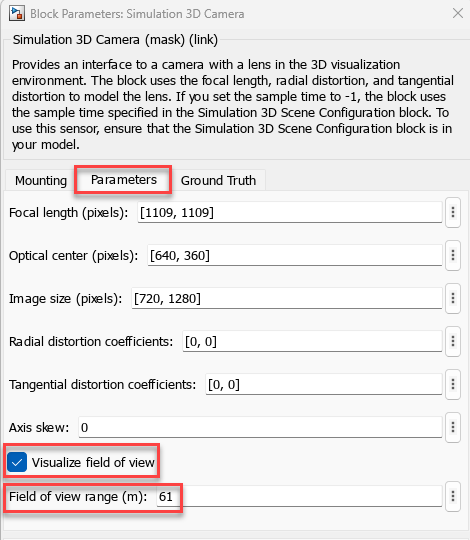
Block mask settings to visualize field of view and set the range

You can also specify these arguments when creating the sim3d.sensors.Camera object to enable and configure the field of view visualization.

Customize 3D environment using Simulink 3D Animation Interface for Unreal Engine Projects support package

To customize 3D scenes and actors or create new scenes, use the Simulink 3D Animation Interface for Unreal Engine Projects support package. The support package provides prebuilt 3D scenes, including Empty Scene, Curved Road, and Straight Road.

Use these functions and blocks to configure your environment for 3D environment customization and co-simulation with Unreal Engine simulation environment.

TypeNameDescription
FunctionscopyExampleSim3dProjectCopy support package files and plugins to specified folders
sim3d.EditorInterface to the Unreal Engine project
openOpen the Unreal Editor
ASim3dActorAbstract class to use as a base class for user-defined Unreal Engine C++ or blueprint actors
Sim3dSetupC++ method that sets up actor in Unreal Engine 3D simulation
Sim3dStepC++ method that steps actor in Unreal Engine 3D simulation
Sim3dReleaseC++ method that releases actor in Unreal Engine 3D simulation
StartSimulation3DMessageReaderConstructs a message reader object in the Unreal Editor
ReadSimulation3DMessageReceives message from Simulink model using a message reader object
StopSimulation3DMessageReaderDeletes message reader object in the Unreal Editor
StartSimulation3DMessageWriterConstructs a message writer object in the Unreal Editor
WriteSimulation3DMessageSends message to Simulink model using a message writer object
StopSimulation3DMessageWriterDeletes message writer object in the Unreal Editor
BlocksSimulation 3D Message GetRetrieve data from Unreal Engine visualization environment
Simulation 3D Message SetSend data to Unreal Engine visualization environment

For information about installing the support package, see Customize Scenes in Unreal Engine for 3D Simulations.

Import RoadRunner scenes into Unreal Engine simulation environment

Starting in R2025a, you can import scenes into the Unreal Engine simulation environment using these file formats.

  • Universal Scene Description (.usd, .usdc, or .usda)

  • RoadRunner scene or scenario (.rrscene or .rrscenario)

You can obtain a USD file by exporting a scene from RoadRunner. When importing a RoadRunner scenario (.rrscenario) file, the Unreal Engine simulation environment imports only the scene information. For more information, see Simulate in RoadRunner Scene.

To export a RoadRunner scene to USD using Simulink, specify the Scene source parameter of Simulation 3D Scene Configuration block to RoadRunner. Then, for the Project parameter, specify the file containing the desired RoadRunner scene.

You can also use these functions to load the USD file into the Unreal Engine simulation environment using MATLAB.

  • load object function of the sim3d.World object

  • load object function of the sim3d.Actor object

Display blank 3D environment scene without default lighting and atmospheric conditions

You can use the Blank Scene scene to display a 3D environment without the sky, default lighting, atmospheric conditions, or objects. The scene provides ambient lighting when you add objects to the environment. This scene allows you to create a 3D environment and add elements for specific simulation requirements.

To simulate in this scene using MATLAB:

  1. Create a sim3d.World object.

  2. Set the Scene argument to Blank scene.

To simulate in this scene using Simulink:

  1. Add a Simulation 3D Scene Configuration block to your Simulink model.

  2. In this block, set the Scene source parameter to Default Scenes.

  3. Set the Scene name parameter to Blank scene.

You can now set the light source of the 3D environment as directional light to provide consistent lighting across the entire scene. Use this light source to simulate outdoor environment light, including sunlight and moonlight. To use directional light as a light source, add a sim3d.Light object to the 3D environment and set the LightType argument to DirectionalLight.

Record 3D animation data using sim3d.World object

Starting in R2025a, use these properties in the sim3d.World object to record the 3D animation data.

You can use the play function to play back the animation from the recorded data for debugging purposes. This function opens the Simulation 3D Viewer window with buttons that allow you to interact with the recorded animation. You can also use the keyboard shortcuts and mouse controls to navigate in the recorded environment.
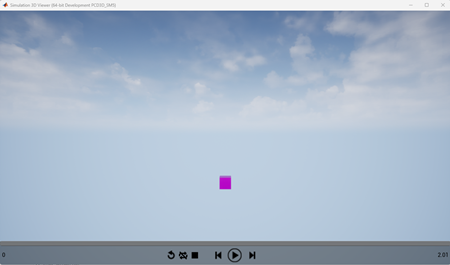
Simulation 3D viewer window with buttons

 Install scenes on demand for 3D simulation

Starting in R2025a, you can download and install any prebuilt 3D scenes available in the Unreal Engine environment for 3D simulation.

To install a scene and simulate in it using Simulink:

  1. Add a Simulation 3D Scene Configuration block to your Simulink model.

  2. Set the Scene source parameter to Default Scenes.

  3. View the currently available scenes in the Scene name parameter. To install a new scene, click Install.
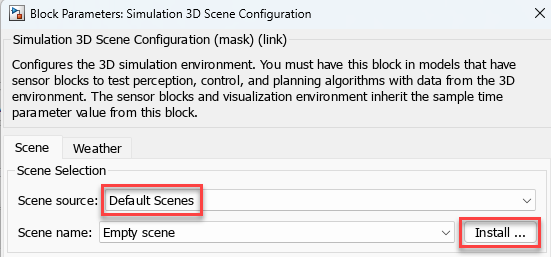
    Simulation 3D Scene Configuration block parameters dialog box with install option.

  4. In the Add-on Installer dialog box, select the scenes you want to install.
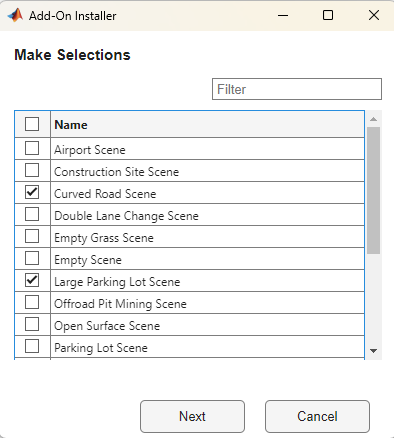
    Installer dialog box with scenes selected

  5. To download and install the scenes, click Next and follow the prompts. MATLAB restarts after installing the scenes.

  6. You can now select the installed scenes from the Scene name parameter.

To install a scene and simulate in it using MATLAB:

  1. Enter this command in MATLAB.

    sim3d.utils.installUnrealEngineScene

  2. In the Add-on installer dialog box, select the scene.

  3. Click Next and follow the prompts. MATLAB restarts after the scene is installed.

  4. Create a sim3d.World object.

  5. Set the Scene argument to the scene name.

For more information on Unreal Engine environment 3D scenes, see 3D Scenes for Simulation in Unreal Engine Environment.

 Compatibility Considerations

You can install these scenes using the Install option in the Simulation 3D Scene Configuration block. Previously, these scenes were default scenes.

Visualize actor path in 3D environment using sim3d.graphics.PathMarker object

You can now visualize the trajectory of an actor in the 3D environment using the sim3d.graphics.PathMarker actor object. Set the ControlActorName argument to specify the actor to trace. You can control different aspects of the object, including shape, size, and color.

You can also use the sim3d.graphics.PathMarker actor object to visualize the reference path in the 3D environment that an actor follows. To visualize the reference path, set the WayPoints argument of the object. The WayPoints is an n-by-3-by-2 matrix that is a three-dimensional array. Use this array to set the reference path locations in the 3D environment. n is the number of waypoints. The first page of the three-dimensional array sets the relative translation. The second page sets the relative rotational values.

In Simulink, use the Simulation 3D Actor block to create and add the sim3d.graphics.PathMarker actor to the 3D environment.

Link sim3d.Actor objects with physics-based constraints using sim3d.Joint object

You can use the sim3d.Joint object to connect two sim3d.Actor objects and control their movement relative to one another. You can constrain the actors to simulate the dynamics of a multibody assembly with approximate physics. You can control the movement of connected actors in X, Y, and Z axes by specifying the type of joint as one of these options.

  • Weld — Constrains the linear and rotational motion of the actors

  • Spherical — Allows relative rotation of actors in all directions around a single pivot point

  • RevoluteX — Allows rotation of actors around the X-axis

  • RevoluteY — Allows rotation of actors around the Y-axis

  • RevoluteZ — Allows rotation of actors around the Z-axis

  • PrismaticX — Allows sliding motion of actors along the X-axis

  • PrismaticY — Allows sliding motion of actors along the Y-axis

  • PrismaticZ — Allows sliding motion of actors along the Z-axis

  • CylindricalX — Allows rotation and sliding motion of actors along the X-axis

  • CylindricalY — Allows rotation and sliding motion of actors along the Y-axis

  • CylindricalZ — Allows rotation and sliding motion of actors along the Z-axis

Capture 3D simulations as video files

You can capture 3D simulations as video files using the sim3d.io.VideoWriter object for MATLAB and the Simulation 3D Video Writer block for Simulink. To save the video file at a specific location, you can specify the file path along with the filename.

To capture a 3D simulation as a video file, specify the filename and file format. You can also specify the recording interval and the file action. The file action provides these options.

  • Preserve — Protects existing video files from being overwritten

  • Overwrite — Permits overwriting of the video file

Create multiple views of the 3D environment using Simulation 3D Scene Configuration block

Starting in R2025a, you can create and save multiple custom views of the 3D environment using the Simulation 3D Scene Configuration block. The Custom option of the Scene view parameter now enables these parameters, which you can use to customize the view.

  • Name

  • Translation

  • Rotation

To save the custom viewpoint, click Save Viewpoint.
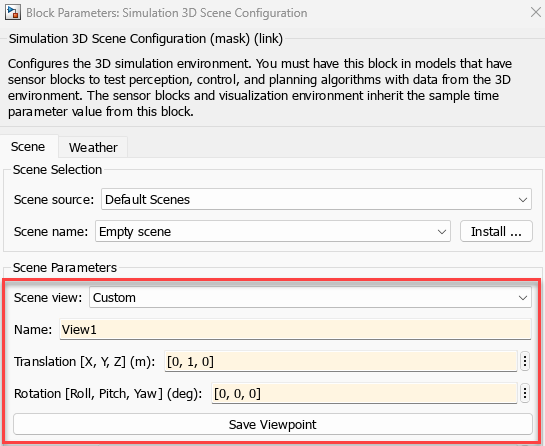
Simulation 3D Scene Configuration block parameters dialog box with the new scene parameters when scene view is specified as custom.

Once you save a custom view, you can select it from the Scene view parameter to set the view of the 3D environment. You can also edit the viewpoint and click Save Viewpoint, or click Delete Viewpoint to delete the viewpoint.
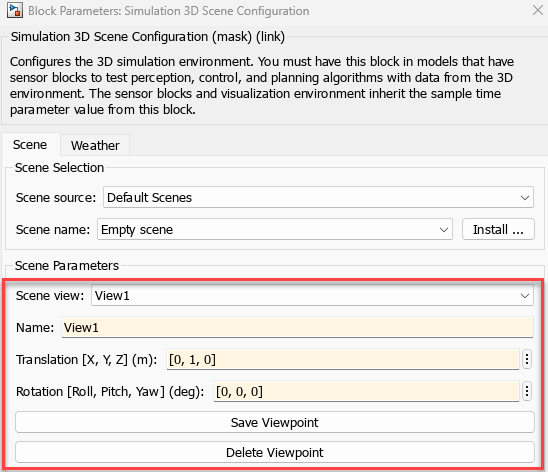
Simulation 3D Scene Configuration block parameters dialog box with the scene parameters when scene view is specified as viewpoint.

Previously, the Custom option for the Scene view parameter only allowed you to set the translation and rotation of the viewpoint.

Improve target detection for actor types using Simulation 3D Radar Data Generator block

Starting in R2025a, you can improve the target detection of the Simulation 3D Radar Data Generator block for specific actor types in the 3D environment. The sensor launches oversampled rays toward the specified actor type for improved detection. Set the Actor types to oversample parameter in the block to disable or enable improved target detection around specific actor types.

  • None — Disable improved target detection.

  • Simulation 3D Vehicles — Enable improved target detection around vehicle actor types in the 3D environment.

  • Simulation 3D Actors — Enable improved target detection around actors that are created using classes or blocks.

  • All Actors — Enable improved target detection around any actor in the sensor field of view.
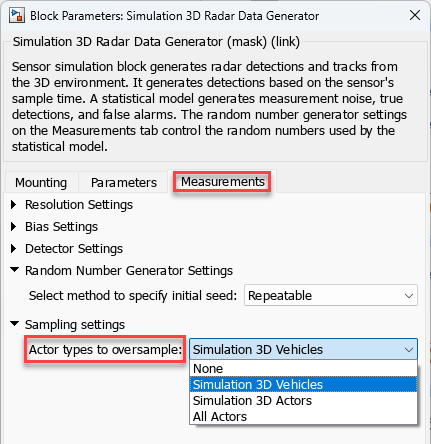
Block mask settings to enable improved target detection.

 Functionality being removed or changed

Set the orientation of actors and sensors in 3D environment using coordinate systems, including SAE and ISO 8855

Behavior change

You can now set the coordinate system of objects in the 3D environment. The table lists the classes and blocks that offer the option to set the coordinate system using the CoordinateSystem argument and the Coordinate system parameter.

You can set the coordinate system of objects in the 3D environment to one of these options.

  • Default

  • AERO

  • ISO8855

  • MATLAB

  • SAE

  • VRML

For more information on the coordinate systems, see Coordinate Systems in Simulink 3D Animation.

Use renamed blocks to interface hardware input devices

The hardware interface blocks have been renamed and moved to a new Simulink library change. The table shows the new names and library paths of the affected blocks.

R2024b and Earlier

Starting in R2025a

Block Name: Joystick Input

Simulink library path: Simulink 3D Animation / Virtual Reality

Block Name: Simulation 3D Joystick

Simulink library path: Simulink 3D Animation / Simulation 3D / Hardware Interface

Block Name: Space Mouse Input

Simulink library path: Simulink 3D Animation / Virtual Reality

Block Name: Simulation 3D Space Mouse

Simulink library path: Simulink 3D Animation / Simulation 3D / Hardware Interface

Classes that interface with hardware input devices with the virtual world will be removed

Warns

The classes that interface with hardware input devices with the virtual world will be removed. The table lists the hardware device, the affected classes, and their alternate functionality.

Hardware Device

Class

Alternate Functionality

Joystickvrjoysticksim3d.io.Joystick
Space Mousevrspacemousesim3d.io.SpaceMouse

R2024b

New Features, Bug Fixes

 Simulation 3D Environment Upgrade: Run 3D simulations using Unreal Engine 5.3

The 3D simulation engine that comes installed with Simulink 3D Animation has been updated to Unreal Engine 5.3. Previously, the product used Unreal Engine 5.1.

For more information, see Unreal Engine Simulation Environment Requirements and Limitations.

 sim3d classes: Use environment, actor, and sensor classes to create and interact with 3D environment

Use these sim3d classes to create and interact with the 3D environment.

TypeClassDescription
Environmentsim3d.World

Create a 3D environment that is rendered by using the Unreal Engine from Epic Games.

sim3d.environment.WeatherConfiguration

(new for R2024b) Configure the weather conditions, including rain, fog, and snow, and set the position of the sun and clouds in a scene.

sim3d.environment.GeospatialConfiguration (Aerospace Blockset)

(new for R2024b) Stream 3D maps and configure the Cesium® ion™ stream.

Simulations with the sim3d.environment.GeospatialConfiguration object require Aerospace Toolbox or UAV Toolbox.

Actorssim3d.Actor

Create an empty actor in 3D environment.

sim3d.vehicle.ground.PassengerVehicle

(new for R2024b) Create a four-wheeled passenger vehicle that follows ground.

sim3d.person.Bicyclist

(new for R2024b) Create a bicyclist that follows ground.

sim3d.person.Pedestrian

(new for R2024b) Create a pedestrian that follows ground.

Sensorssim3d.sensors.MainCamera

Define perspective in the Simulation 3D Viewer window.

sim3d.sensors.IdealCamera

Implement an ideal camera.

Use the read function to extract data from the 3D environment.

sim3d.sensors.Camera

(new for R2024b) Implement a camera with a lens.

Use the read function of the object to extract data from the 3D environment.

sim3d.sensors.FisheyeCamera

(new for R2024b) Implement a camera with a fisheye lens.

Use the read function of the object to extract data from the 3D environment.

Simulations with the sim3d.sensors.FisheyeCamera object require Computer Vision Toolbox™.

sim3d.sensors.RaytraceSensor

(new for R2024b) Implement ray tracing to get the positions, surface normals, surface identifiers, and distances for objects in the scene.

Use the read function of the object to extract data from the 3D environment.

sim3d.sensors.Lidar

(new for R2024b) Implement a lidar sensor.

Use the read function of the object to extract data from the 3D environment.

sim3d.sensors.UltrasonicSensor

(new for R2024b) Generate detections from range measurements taken by an ultrasonic sensor.

Use the read function of the object to extract data from the 3D environment.

3D Environment: Use sim3d.World functions to implement custom views

Starting in R2024b, you can create multiple views with the createViewport function. The createViewport function now creates a viewport structure that includes the default view of the Simulation 3D Viewer and any custom views as fields. Previously, the createViewport function created a viewport structure with a single field, Main.

Additionally, you can also use these functions of the sim3d.World object to manage the views:

  • setView — Set one of the views in the viewport structure as the current view in the Simulation 3D Viewer window.

  • deleteViewport — Remove a custom view from the viewport structure.

3D Simulation: Programmatically control and interact with simulations

Starting in R2024b, you can use simulation pacing to slow down a 3D simulation and investigate system behavior. Use these properties of the sim3d.World object to control simulation pacing.

You can also programmatically interact with the simulation using new functions:

  • close — End simulation and close the Simulation 3D Viewer window.

  • view — Open the Simulation 3D Viewer window to view the 3D environment.

Simulation 3D Actor Block: Create light and annotations in 3D environment

You can now create these actors in the 3D environment using the Simulation 3D Actor block:

Light Actor: Project pattern, texture, or image onto surfaces

Starting in R2024b, you can use these properties of the sim3d.Light object to project a pattern, texture, or image onto surfaces, using the light source as a projector and adjusting the size of the projection.

  • LightFunction

  • LightFunctionScale

R2024a

New Features, Bug Fixes, Compatibility Considerations

 Simulation 3D Environment Upgrade: Run 3D simulations using Unreal Engine 5.1

The 3D simulation engine that comes installed with Simulink 3D Animation has been updated to Unreal Engine 5.1. Previously, the product used Unreal Engine 4.27.

For more information, see Unreal Engine Simulation Environment Requirements and Limitations.

 Simulation 3D Environment Upgrade: Run 3D simulations on Linux platforms

The 3D visualization engine that comes installed with Simulink 3D Animation has been updated to run on Linux® platforms. Previously, the 3D visualization ran on only Windows® platforms.

For more information, see Unreal Engine Simulation Environment Requirements and Limitations.

 Simulation 3D Blocks: Use sensor and actor blocks to create and interact with 3D environment

Use these blocks to create and interact with the 3D environment.

Block TypeNameDescription
Environment and UtilitiesSimulation 3D Scene Configuration

Implements a 3D environment that is rendered by using the Unreal Engine from Epic Games.

Simulation 3D Actor Transform Get

Provides the actor translation, rotation, and scale.

Simulation 3D Actor Transform Set

Sets the actor translation, rotation, and scale.

ActorsSimulation 3D Actor

Creates a generic actor.

Simulation 3D Vehicle with Ground Following

(new for R2024a) Implements vehicle that follows ground.

Simulation 3D Bicyclist

(new for R2024a) Implements bicycle actor.

Simulation 3D Pedestrian

(new for R2024a) Implements pedestrian actor.

SensorsSimulation 3D Camera

(new for R2024a) Implements a camera with a lens.

Simulation 3D Fisheye Camera

(new for R2024a) Implements a camera with a fisheye lens.

Simulating models with the Simulation 3D Fisheye Camera block requires Computer Vision Toolbox.

Simulation 3D Ray Tracer

(new for R2024a) Implements ray tracing to get the positions, surface normals, surface identifiers, and distances for objects in the scene.

Simulation 3D Lidar

(new for R2024a) Implements a lidar sensor.

Simulation 3D Ultrasonic Array

(new for R2024a) Generates detections from range measurements taken by an array of ultrasonic sensors with tunable acoustic parameters.

Simulation 3D Ultrasonic Sensor

(new for R2024a) Generates detections from range measurements taken by an ultrasonic sensor.

Simulation 3D Radar Data Generator

(new for R2024a) Generates radar sensor detections and tracks.

Simulating models with the Simulation 3D Radar Data Generator block requires Radar Toolbox.

Simulation 3D Camera Get

Implements an ideal camera.

Simulation 3D Scene Configuration Block: Use additional weather configurations to simulate adverse weather conditions

Starting in R2024a, you can configure the Simulation 3D Scene Configuration block to design enhanced weather scenarios within a 3D visualization environment. Additional weather configurations include:

  • Sun position based on geolocation

  • Snowfall conditions

  • Volumetric cloud parameters

  • Raindrop interaction on camera sensors

3D Environment: Use prebuilt scenes to display 3D environment

You can now use these prebuilt scenes to display the 3D environment.

3D Environment: Interact with 3D environment using new sim3d.World functions

Use these new functions to interact with the sim3d.World object.

  • save — save the world object.

  • load — to load a saved world object.

  • pause — to pause the simulation and analyze the model performance.

  • resume — to resume the simulation.

Light Actor: Create light in the 3D environment

Use the sim3d.Light object to create a light actor in the 3D environment to illuminate specific regions within the environment.

Annotation Actors: Create arrows and text in the 3D environment

You can now use these annotation actors to create linear arrows and text in the 3D environment.

  • Use the sim3d.graphics.Arrow object to create arrows for visualization of relevant vector data during simulation.

  • Use the sim3d.graphics.Text object to create text in the 3D environment to display relevant information during simulation.

 Functionality being removed or changed

Apps to edit 3D virtual reality world and record 3D animation via VRML or X3D will be removed

Still runs

These apps that allow you to edit virtual reality worlds and record 3D animation in virtual reality worlds will be removed in a future release.

Instead, use the sim3d classes and Simulation 3D blocks to create, interact with, and link virtual worlds with MATLAB and Simulink. The simulated 3D environment is visualized using the Unreal Engine from Epic Games. To get started, see Create 3D Simulations in Unreal Engine Environment.

R2023b

New Features, Bug Fixes, Compatibility Considerations

Simulation 3D Scene Configuration Block: Import RoadRunner scene as Unreal Engine scene

The Simulation 3D Scene Configuration block now provides the option to simulate custom scenes built in RoadRunner. Use the Scene source parameter to specify the source of scene as RoadRunner. Then, in the Project parameter, specify the Filmbox (.fbx) file corresponding to the desired RoadRunner scene. You can obtain the Filmbox (.fbx) file by exporting the scene from RoadRunner.

For an example on how to import a RoadRunner scene in to Unreal Engine simulation environment, see Import RoadRunner Scene into Unreal Engine Using Simulink.

Simulation 3D Scene Configuration Block: Camera view improvements, including controls for visualizing the virtual world

The Simulation 3D Scene Configuration block now provides the option to view the virtual world scene from a camera positioned at a custom viewpoint. To set the custom viewpoint, set Scene view parameter to Custom and specify the Initial viewer translation and Initial viewer rotation to position the camera at the specified location. When the simulation starts, you can view the virtual world in a free camera mode at the specified viewpoint.

When the Scene view parameter is set to Scene Origin or Custom, you can use keyboard shortcuts and mouse controls for camera features, including to record camera viewpoints, attach camera to actors, and orbit around the actor. You can also control the camera when the simulation is paused.

Simulation 3D Viewer: Interact with virtual world during simulation

The user interface in the Simulation 3D Viewer allows you to interact with the actors and the virtual world during simulation. To interact with an actor, right-click the actor to display a context menu for the actor and world. From the context menu for the actor, select Properties to display the Actor Editor. You can now view and modify the actor properties during run time.
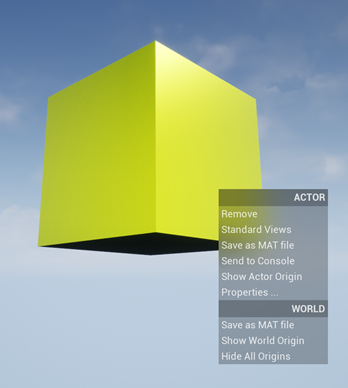
Box actor in virtual world with context menu for actor and world.

For more information about interacting with actors and how to navigate in virtual world, see Interact with Actors and Virtual World.

Actor Object: Orient actor using coordinate systems, including SAE and ISO 8855

You can represent actor orientation using the CoordinateSystem property of the sim3d.Actor object.

For an example on how an actor moves and rotates in a specific coordinate system, see View Actor Orientation in MATLAB Coordinate System.

Examples: Use physical properties to report events and animate actors in the virtual world

These examples show how to use sim3d.World properties and sim3d.Actor physical properties to animate actors, report events like collision between actors in a virtual world, and access actor properties.

 Functionality being removed or changed

Functions and blocks that build, interact with, and link virtual reality worlds via VRML or X3D will be removed

Still runs

These functions and blocks that allow you to build virtual reality worlds, import models, and link virtual reality worlds to MATLAB and Simulink will be removed in a future release.

Instead, use the sim3d classes and Simulation 3D blocks in Unreal Engine Scenario Applications to create, interact with, and link virtual worlds with MATLAB and Simulink. The 3D simulation environment is visualized using the Unreal Engine from Epic Games. To get started, see Get Started Creating Virtual World with Actors.

R2023a

New Features, Bug Fixes

Use Unreal Engine events to develop control algorithms in MATLAB and Simulink

You can use Unreal Engine event data to develop control algorithms in MATLAB and Simulink. The sim3d.Actor object and Simulation 3D Actor block communicate events in the simulation 3D environment, including when:

  • You click an actor.

  • An actor collides or overlaps with another actor.

  • You initialize an event callback for an actor.

The sim3d.World object contains event information such as:

  • Actors hit in collisions.

  • Actors that are clicked during a simulation.

Run 3D simulations using Unreal Engine 4.27

The simulation 3D environment that comes installed with Simulink 3D Animation is an Unreal Engine application. The application has been updated to Unreal Engine 4.27. Previously, the toolbox used Unreal Engine 4.26.

For more information, see Unreal Engine Simulation Environment Requirements and Limitations.

R2022b

New Features, Bug Fixes

Unreal Engine scenario simulation

Starting in R2022b, you can cosimulate actors controlled by Simulink and MATLAB with actors that are controlled by Unreal Engine. You can access advanced features available in Unreal Engine such as collision detection, the PhysX physics engine, and setting lighting and atmospheric conditions etc. through the MATLAB and Simulink interfaces of the Simulink 3D Animation toolbox.

  • Use the sim3d.Actor object and the Simulation 3D Actor block to instantiate and specify the appearance of objects by defining meshes programmatically or from CAD files. Control, access and remove objects in the scene, and set visual, spatial and physical properties of the objects.

  • Use the sim3d.World object to create user-defined virtual reality worlds and run the cosimulation using Unreal Engine. Use the createViewport function of sim3d.World to define a perspective or view of sim3d.sensors.MainCamera in the Unreal Engine executable window.

  • Use the sim3d.sensors.IdealCamera object to create a virtual camera. The object function image returns the virtual camera image in the 3D simulation environment.

R2022a

No New Features or Changes

R2021b

No New Features or Changes

R2021a

New Features, Bug Fixes

VR Source and VR Sink block masks show thumbnail preview

The VR Source and VR Sink block masks now show a thumbnail preview of the virtual world associated with the blocks.

Custom Simulink Toolstrip

The VR Source, VR Sink, and VR To Video blocks now have a custom Simulink 3D Animation toolstrip that can be used to set the most frequently accessed parameters.
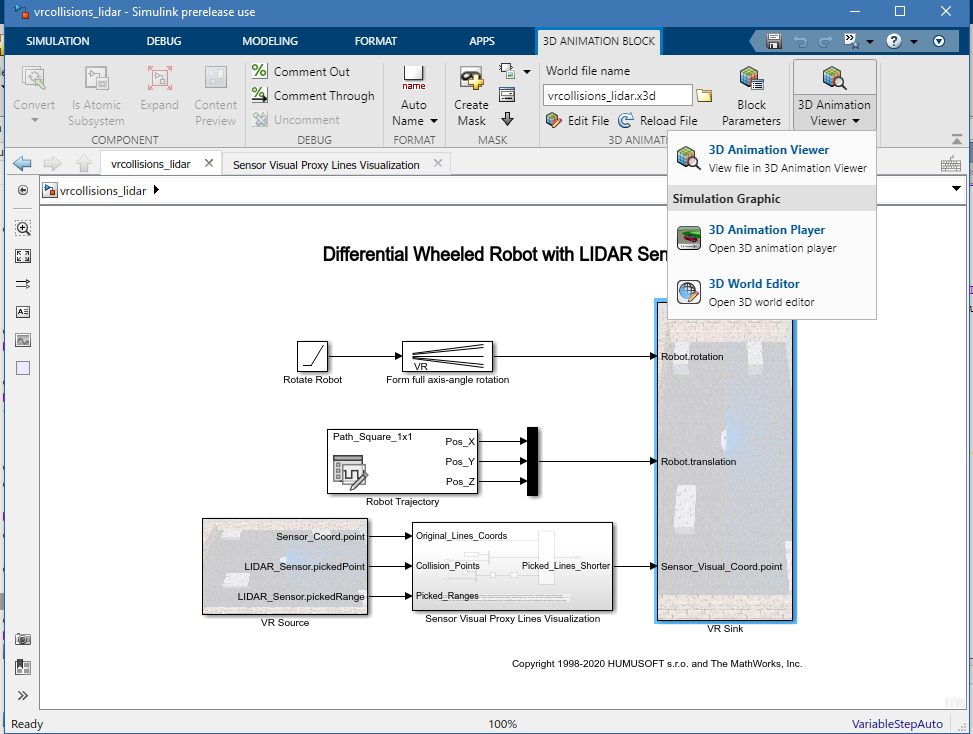
View of SImulink desktop with custom 3D animation toolstrip at the top