Supported Third-Party Tools and Hardware
R2026bThird-Party Synthesis Tools and Version Support
SoC Blockset™ for AMD supports these third-party FPGA synthesis tools:
AMD® Vivado® Design Suite 2025.1 — For memory requirements for this tool, see System Memory Recommendations from the AMD website
AMD ISE 14.7
AMD ISE is not supported for FPGA data capture or AXI manager.
AMD ISE is required for FPGA boards in the Spartan®-6, Virtex®-4, Virtex-5, and Virtex-6 families.
AMD Vitis® HLS 2025.1
To use third-party synthesis tools with SoC Blockset for AMD, a supported synthesis tool must be installed, and the synthesis tool executable must be on the system path.
Third-Party Support for Software Generation
SoC Blockset for AMD supports this third-party software generation tool:
Linux® Buildroot 2017.05.1
PetaLinux 2023.1, except for these boards:
RFSoC Applications
These RFSoC boards support a different PetaLinux version:
Zynq® UltraScale+™ RFSoC ZCU111 Evaluation Kit, which supports PetaLinux 2021.2
Zynq UltraScale+ RFSoC DFE ZCU670 Evaluation Kit, which supports PetaLinux 2023.2
Vision Applications
These MPSoC boards support PetaLinux for vision applications with UVC USB cameras or Basler USB 3.0 cameras. The boards support Linux Buildroot 2017.05.1 for vision applications with other supported add-on cards, and PetaLinux 2023.1 for all other SoC applications:
Zynq UltraScale+ MPSoC ZCU102 Evaluation Kit
Zynq UltraScale+ MPSoC ZCU106 Evaluation Kit
Supported AMD Devices
SoC Blockset for AMD supports execution on AMD devices shown in this table. The table also lists the supported add-on cards for these devices.
| Device Family | Board | Add-On Card | IP Core Generation | SoC Modeling and Generation | FPGA Verification and Debug | Deep Learning | Available Reference Designs | Comments |
|---|---|---|---|---|---|---|---|---|
AMD Versal® | Versal AI Core Series VCK190 Evaluation Kit | ✓ | ✓ | |||||
AMD Zynq UltraScale+ RFSoC | Zynq UltraScale+ RFSoC ZCU111 Evaluation Kit | ✓ | ✓ | ✓ | ||||
Zynq UltraScale+ RFSoC ZCU208 Evaluation Kit | ✓ | ✓ | ✓ | |||||
Zynq UltraScale+ RFSoC ZCU216 Evaluation Kit | ✓ | ✓ | ✓ | |||||
Zynq UltraScale+ RFSoC DFE ZCU670 Evaluation Kit | ✓ | ✓ | FTDI JTAG is not supported MTS mode in the RF Data Converter block is not supported | |||||
AMD Zynq UltraScale+ MPSoC | Zynq UltraScale+ MPSoC ZCU102 Evaluation Kit | ✓ | ✓ | ✓ | ✓ | |||
| FMCOMMS2/3/4 | ✓ | ✓ |
| |||||
| FMC-HDMI-CAM | ✓ | ✓ |
| |||||
| UVC USB cameras | ✓ | USB Camera Receive Path | ||||||
| Basler USB 3.0 cameras | ✓ | USB Camera Receive Path | ||||||
Zynq UltraScale+ MPSoC ZCU106 Evaluation Kit | ✓ | ✓ | ✓ | |||||
| FMC-HDMI-CAM | ✓ | ✓ |
| |||||
| IMX274MIPI-FMC | ✓ | MIPI Receive path | ||||||
| UVC USB cameras | ✓ | USB Camera Receive Path | ||||||
| Basler USB 3.0 cameras | ✓ | USB Camera Receive Path | ||||||
AMD Zynq | Zynq-7000 SoC ZC702 Evaluation Kit | ✓ | ✓ | |||||
| FMC-HDMI-CAM | ✓ |
| ||||||
| Zynq-7000 SoC ZC706 Evaluation Kit | ✓ | ✓ | ✓ | ✓ | ||||
| FMCOMMS2/3/4 | ✓ | ✓ |
| |||||
| FMCOMMS5 | ✓ | ✓ |
| |||||
| FMC-HDMI-CAM | ✓ | ✓ |
| |||||
| ZedBoard™ | ✓ | ✓ | ✓ | |||||
| FMCOMMS2/3/4 | ✓ | ✓ |
| |||||
| FMC-HDMI-CAM | ✓ | ✓ |
| |||||
| PicoZed™ | FMC-HDMI-CAM | ✓ | ✓ |
| ||||
| Analog Devices® RF SOM — ADRV9361-Z7035 | ADRV1CRR-FMC | ✓ |
| |||||
| ZYBO™ | ✓ | ✓ | ||||||
| MiniZed™ | ✓ | |||||||
AMD Artix®-7 | Artix-7 35T Arty FPGA Evaluation Kit | ✓ | ✓ | ✓ | ||||
Digilent® Nexys™ 4 Artix-7 | ✓ | |||||||
AMD Kintex®-7 | Kintex-7 FPGA KC705 Evaluation Kit | ✓ | ✓ | ✓ | ||||
AMD Kintex UltraScale™ | Kintex UltraScale FPGA KCU105 Evaluation Kit | ✓ | ||||||
AMD Kintex UltraScale+ | Kintex UltraScale+ FPGA KCU116 Evaluation Kit | ✓ | ||||||
AMD Spartan-7 | Digilent Arty S7-25 | ✓ | ||||||
AMD Virtex-7 | Virtex-7 FPGA VC707 Evaluation Kit | ✓ | ✓ | |||||
| Virtex-7 FPGA VC709 Connectivity Kit | ✓ | |||||||
AMD Virtex UltraScale | Virtex UltraScale FPGA VCU108 Evaluation Kit | ✓ | ||||||
AMD Virtex UltraScale+ | Virtex UltraScale+ FPGA VCU118 Evaluation Kit | ✓ |
You can also create a custom hardware platform through board definition and custom reference design. To learn how to define a custom board and reference design, see Register a Custom Board (HDL Coder) and Register a Custom Reference Design (HDL Coder). For example, see Define Custom Board and Reference Design for AMD Workflow (HDL Coder).
Supported RFSoC Devices for RF Data Converter
SoC Blockset for AMD supports execution of the RF Data Converter block on AMD Zynq UltraScale+ RFSoC devices shown in this table.
| Generation | Device | Notes |
|---|---|---|
Gen 1 | ZU25DR | |
ZU27DR | ||
ZU28DR | ||
ZU29DR | ||
Gen 2 | ZU39DR | |
Gen 3 | ZU47DR | |
ZU48DR | ||
ZU49DR | ||
DFE | ZU63DR | MTS mode is not supported |
ZU64DR | ||
ZU65DR | ||
ZU67DR |
FPGA Board Connections
JTAG Connection
You can run FPGA-in-the-loop, FPGA data capture, or AXI manager over a JTAG cable to your board. However, each feature requires exclusive use of the JTAG cable, so you cannot run more than one feature at the same time. To allow other tools access to the JTAG cable, such as programming the FPGA, and AMD ChipScope, you must discontinue the JTAG connection in MATLAB®. To release the JTAG cable:
FPGA-in-the-loop — Close the Simulink® model, or call the
releasemethod of the System object™.FPGA data capture — Close the FPGA Data Capture tool, release the System object, or close the Simulink model.
AXI manager — Call the
releasemethod of the object.
However, the nonblocking capture mode enables you to simultaneously use FPGA data capture and AXI manager, which share a common JTAG interface. For more information, see Simultaneous Use of FPGA Data Capture and AXI Manager.
The JTAG clock frequency depends on the type of cable and the maximum clock frequency supported by the FPGA or SoC board.
| Required Hardware | Required Software | JTAG Clock Frequency |
|---|---|---|
Digilent download cable
|
| 33 MHz |
FTDI USB-JTAG cable
| Install these D2XX drivers:
For the installation guide, see D2XX Drivers from the FTDI Chip website. | 15 MHz |
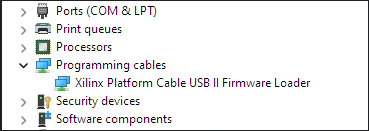
| Platform Cable USB II | Run the driver installer before you use the cable by following these steps:
For more information about driver installation, see Platform Cable USB II Data Sheet (DS593) from the AMD website. | 12 MHz |
Note
When simulating your FPGA design through JTAG cable with Simulink or MATLAB, you cannot use any debugging software that requires access to JTAG, such as Vivado Logic Analyzer.
Ethernet Connection
You can run FPGA-in-the-loop, FPGA data capture, or AXI manager over an Ethernet connection. To use FPGA data capture and AXI manager over an Ethernet connection in a single HDL project, connect the FPGA data capture and AXI manager IPs to the same Ethernet MAC Hub IP using different port addresses.
On Zynq SoC devices you can access the Ethernet interface only through the processing system (PS). To implement Ethernet communication between the host and the hardware board, operation system (OS) and related software applications must run on the PS. Use the hardware setup app to guide you in setting up the SD card and boot the board with a compatible OS.
| Required Hardware | Supported Interfaces | Required Software |
|---|---|---|
|
| There are no software requirements for an Ethernet connection, but ensure that the firewall on the host computer does not prevent UDP communication. |
Note
FPGA data capture and AXI manager support GMII, MII, and SGMII interfaces only. For SGMII interface, you must first properly configure and verify correct usage of the Ethernet 1G/2.5G PCS/PMA or SGMII IP provided by AMD. Then connect the IP to the provided Ethernet MAC Hub. See Ethernet MAC Hub IP.
RMII is supported with Vivado versions older than 2019.2.
Ethernet connection to Virtex-7 VC707 is not supported for Vivado versions older than 2013.4.
AXI manager in HDL Workflow Advisor supports programmable logic (PL) Ethernet only. PS Ethernet is not supported.
FPGA data capture in HDL Workflow Advisor supports the GMII and MII interfaces. The SGMII interface is not supported.
PCI Express Connection
FPGA-in-the-loop over a PCI Express® connection is supported only for 64-bit Windows operating systems.
PCI Express connection for FPGA-in-the-loop and AXI manager is supported for Vivado 2017.4 or newer versions.
USB Ethernet Connection
You can run FPGA-in-the-loop, FPGA data capture, or AXI manager over a USB Ethernet connection.
Use a USB 3.0 or USB 2.0 cable based on the type of USB cable your hardware board supports. If you use a USB 2.0 cable for a board that supports USB 3.0, the cable provides lesser data throughput.
| Required Hardware | Required Software |
|---|---|
| USB 3.0 or USB 2.0 cable |
|
Supported Devices for Verification and Debug
SoC Blockset for AMD supports FIL simulation, FPGA data capture, and AXI manager on the devices shown in the following table. The board definition files for these boards are in the SoC Blockset Support Package for AMD FPGA and SoC Devices (Install Support for AMD FPGA and SoC Devices). You can add other FPGA boards for use with FIL, FPGA data capture, and AXI manager with FPGA board customization (FPGA Board Customization).
| Device Family | Board | Ethernet | JTAG | PCI Express | USB Ethernet | Comments | ||||||||||
|---|---|---|---|---|---|---|---|---|---|---|---|---|---|---|---|---|
| FIL | Free-Running FIL | FPGA Data Capture | AXI Manager | FIL | FPGA Data Capture | AXI Manager | FIL | FPGA Data Capture | AXI Manager | FIL | Free-Running FIL | FPGA Data Capture | AXI Manager | |||
AMD Artix-7 | Digilent Nexys 4 Artix-7 | ✓ | ✓ | ✓ | ✓ | |||||||||||
| Artix-7 35T Arty FPGA Evaluation Kit | ✓ | ✓ | ✓ | ✓ | ✓ | ✓ | ||||||||||
AMD Kintex-7 | Kintex-7 FPGA KC705 Evaluation Kit | ✓ | ✓ | ✓ | ✓ | ✓ | ✓ | ✓ | ✓ | |||||||
AMD Kintex UltraScale | Kintex UltraScale FPGA KCU105 Evaluation Kit | ✓ | ✓ | ✓ | ✓ | ✓ | ✓ | ✓ | ||||||||
AMD Kintex UltraScale+ | Kintex UltraScale+ FPGA KCU116 Evaluation Kit | ✓ | ✓ | ✓ | ✓ | For more information, see PCI Express AXI Manager. | ||||||||||
AMD Spartan-6 | Spartan-6 SP605 Development Board | ✓ | ||||||||||||||
| Spartan-6 SP601 Development Board | ✓ | |||||||||||||||
| XUP Atlys Spartan-6 | ✓ | |||||||||||||||
AMD Spartan-7 | Digilent Arty S7-25 | ✓ | ✓ | ✓ | ||||||||||||
AMD Versal | Versal AI Core Series VCK190 Evaluation Kit | ✓ | ✓ | ✓ | ✓ | ✓ | ✓ | This board supports PS Ethernet. | ||||||||
AMD Virtex UltraScale | Virtex UltraScale FPGA VCU108 Evaluation Kit | ✓ | ✓ | ✓ | ✓ | ✓ | ✓ | ✓ | ||||||||
AMD Virtex UltraScale+ | Virtex UltraScale+ FPGA VCU118 Evaluation Kit | ✓ | ✓ | ✓ | ✓ | ✓ | ✓ | ✓ | ||||||||
AMD Virtex-7 | Virtex-7 FPGA VC707 Evaluation Kit | ✓ | ✓ | ✓ | ✓ | ✓ | ✓ | ✓ | ✓ | |||||||
| Virtex-7 FPGA VC709 Connectivity Kit | ✓ | ✓ | ✓ | ✓ | ✓ | |||||||||||
AMD Virtex-6 | Virtex-6 FPGA ML605 Evaluation Kit | ✓ | ||||||||||||||
AMD Virtex-5 | Virtex ML505 Development Board | ✓ | ||||||||||||||
| Virtex ML506 Development Board | ✓ | |||||||||||||||
| Virtex ML507 Development Board | ✓ | |||||||||||||||
| Virtex XUPV5–LX110T Development Board | ✓ | |||||||||||||||
AMD Virtex-4 | Virtex ML401 Development Board | ✓ |
Note Support for Virtex-4 device family will be removed in a future release. | |||||||||||||
| Virtex ML402 Development Board | ✓ | |||||||||||||||
| Virtex ML403 Development Board | ✓ | |||||||||||||||
AMD Zynq | Zynq-7000 SoC ZC702 Evaluation Kit | ✓ | ✓ | ✓ | ✓ | ✓ | ✓ | ✓ | ✓ | ✓ | ✓ | ✓ | This board supports PS Ethernet. | |||
| Zynq-7000 SoC ZC706 Evaluation Kit | ✓ | ✓ | ✓ | ✓ | ✓ | ✓ | ✓ | ✓ | ✓ | ✓ | ✓ | This board supports PS Ethernet. | ||||
| ZedBoard | ✓ | ✓ | ✓ | ✓ | ✓ | ✓ | ✓ | ✓ | ✓ | ✓ | ✓ | Use the USB port marked "PROG" for programming. This board supports PS Ethernet. | ||||
ZYBO Zynq-7000 Development Board | ✓ | ✓ | ✓ | |||||||||||||
| PicoZed SDR Development Kit | ✓ | ✓ | ✓ | |||||||||||||
| MiniZed | ✓ | ✓ | ||||||||||||||
AMD Zynq UltraScale+ | Zynq UltraScale+ MPSoC ZCU102 Evaluation Kit | ✓ | ✓ | ✓ | ✓ | ✓ | ✓ | ✓ | ✓ | ✓ | ✓ | ✓ | This board supports PS Ethernet. | |||
Zynq UltraScale+ MPSoC ZCU104 Evaluation Kit | ✓ | ✓ | ✓ | |||||||||||||
Zynq UltraScale+ MPSoC ZCU106 Evaluation Kit | ✓ | ✓ | ✓ | |||||||||||||
Zynq UltraScale+ RFSoC ZCU111 Evaluation Kit | ✓ | ✓ | ✓ | ✓ | ✓ | ✓ | ✓ | ✓ | ✓ | ✓ | ✓ | This board supports PS Ethernet. | ||||
Zynq UltraScale+ RFSoC ZCU208 Evaluation Kit | ✓ | ✓ | ✓ | ✓ | ✓ | ✓ | ✓ | ✓ | ✓ | ✓ | ✓ | This board supports PS Ethernet. | ||||
Zynq UltraScale+ RFSoC ZCU216 Evaluation Kit | ✓ | ✓ | ✓ | ✓ | ✓ | ✓ | ✓ | ✓ | ✓ | ✓ | ✓ | This board supports PS Ethernet. | ||||
Limitations
For FPGA development boards that have more than one FPGA device, only one such device can be used with FIL.
FIL over PCI Express connection is supported only for 64-bit Windows operating systems.
Supported FPGA Device Families for Board Customization
SoC Blockset for AMD supports the following FPGA device families for board customization; that is, when you create your own board definition file. See FPGA Board Customization.
For board customization, only the JTAG and Ethernet interfaces are supported. The PCI Express and USB Ethernet interfaces are not supported. The availability of interfaces varies by board and depends on the specific custom board you select.
You can select and set up an interface for board customization by using the New FPGA Board Wizard tool. For more information about supported interfaces for board customization, see FPGA-in-the-Loop Interface.
| Device Family | Restrictions |
|---|---|
| Artix 7 | |
| Kintex 7 | |
Kintex UltraScale | |
Kintex UltraScale+ | |
| Spartan 6 | JTAG is not supported |
| Spartan 7 | |
| Virtex 4 | JTAG is not supported Note Support for Virtex-4 device family will be removed in a future release. |
| Virtex 5 | JTAG is not supported |
| Virtex 6 | JTAG is not supported |
| Virtex 7 | |
Virtex UltraScale | |
Virtex UltraScale+ | |
| Zynq 7000 | Ethernet is not supported |
Zynq UltraScale+ | Ethernet is not supported |
| Versal AI Core | Ethernet is not supported |
SoC Board Support Package
The SoC Blockset Support Package for AMD FPGA and SoC Devices support package contains the definition files for all supported boards. To generate executables and execute on hardware, download this support package.
To download the SoC Blockset Support Package for AMD FPGA and SoC Devices, on the MATLAB Home tab, in the Environment section, click Add-Ons > Get Hardware Support Packages.
See Also
SoC Builder | Hardware Implementation Pane Overview

