Generate IDE Projects from Simulink Models for STM32
R2026bGenerate STM32CubeIDE or Keil uVision projects directly from Simulink models by using STM32 Microcontroller Blockset. This workflow enables you to move from Model-Based design to an external integrated development environment (IDE), where you can build, debug, and extend the generated C code. Use IDE project generation to inspect code structure, integrate additional handwritten C code, or continue development in STM32CubeIDE or Keil uVision while maintaining Simulink as the source for algorithm design and code generation.
Prerequisites
Before you begin, complete these requirements:
Install STM32™ Microcontroller Blockset
Complete the hardware and software setup described in Hardware Setup for STM32 Microcontroller Blockset
Install STM32CubeIDE or Keil uVision on your system
Open Example Model
Open the example stm32_gettingstarted.slx model used for this
workflow.
Enable IDE Project Generation
Enable IDE project generation so that Simulink produces IDE-compatible project files during the build. To enable this option:
In the Simulink model, open Model Settings (Ctrl+E).
In the Configuration Parameters dialog box, select Target hardware resources Generation > Build options.
Select Generate IDE project.
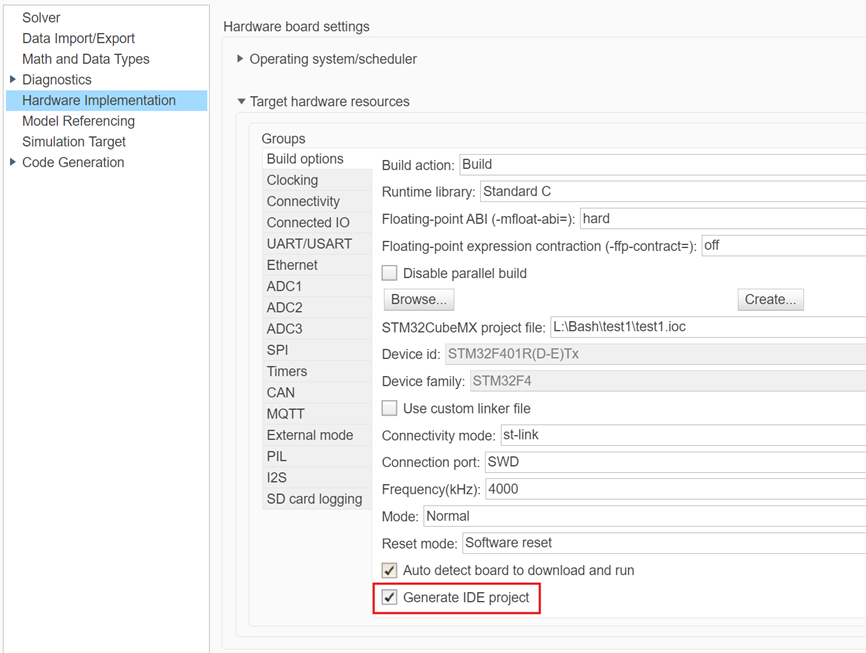
This setting instructs Simulink to generate IDE project files in addition to building the executable.
Select Toolchain and Target IDE
The generated IDE project format depends on the selected toolchain. To select or change the toolchain:
In Model Settings, select Code Generation.
From the Toolchain list, choose one of the following options:
| Selected Toolchain | Generated IDE Project |
|---|---|
| GNU Tools for STM32 | STM32CubeIDE project |
| Armclang Compiler | Keil uVision project |
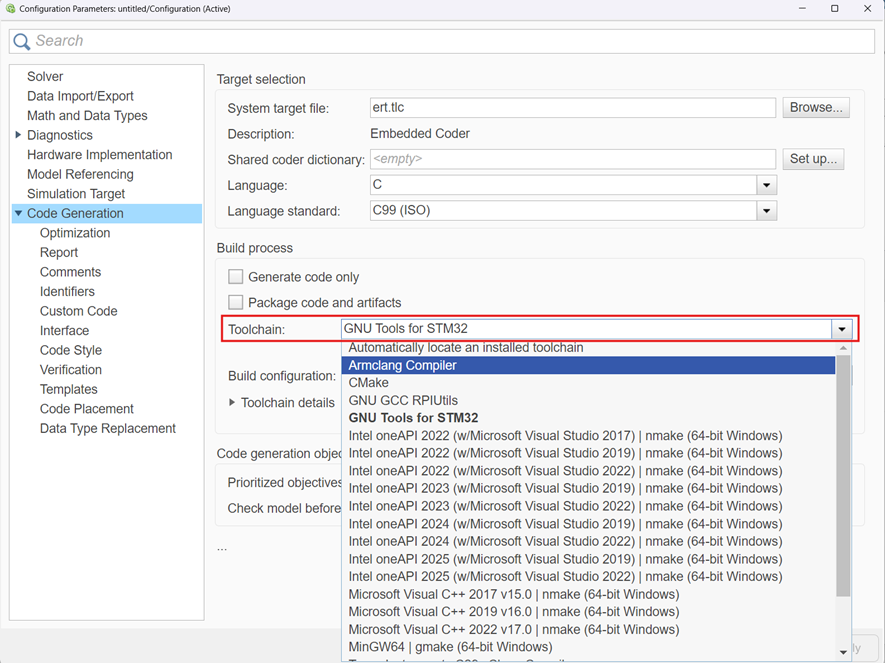
Simulink generates the appropriate IDE project based on this selection.
Build Model and Generate IDE Project
Generate code, build the executable, and create the IDE project.
To build the model, in the Simulink toolstrip, click Build Model.
During the build process, Simulink:
Generates C code from the model
Builds and loads the executable on the STM32 hardware
Creates an IDE project in the build folder
To view detailed build output, click View Diagnostics to open the Diagnostic Viewer.
Open Generated IDE Project
IDE Available on System Path
If STM32CubeIDE or Keil uVision is available on the system path, click the project
hyperlink in the Diagnostic Viewer. The IDE opens automatically with the generated project.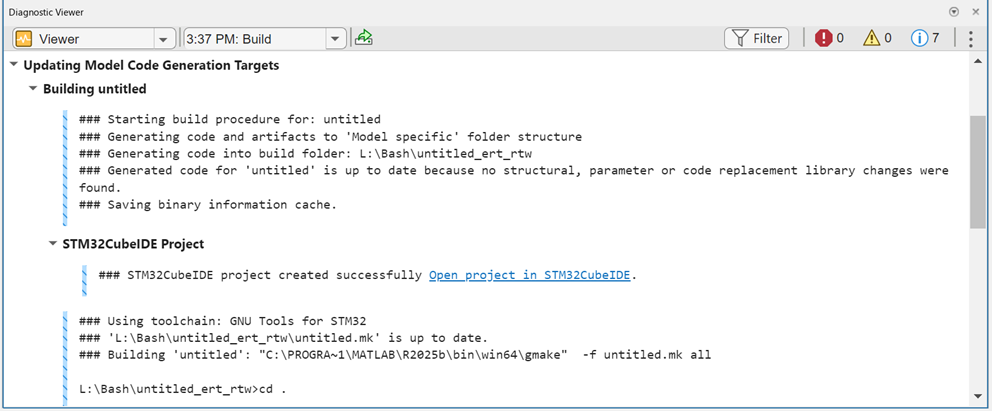
IDE Not Available on System Path
If the IDE is not found, add it to the system path and rebuild the model.
On Windows:
setenv("PATH", getenv("PATH") + ";<Path to STM32CubeIDE/Keil uVision>")
On Linux:
setenv("PATH", getenv("PATH") + ":<Path to STM32CubeIDE/Keil uVision>")
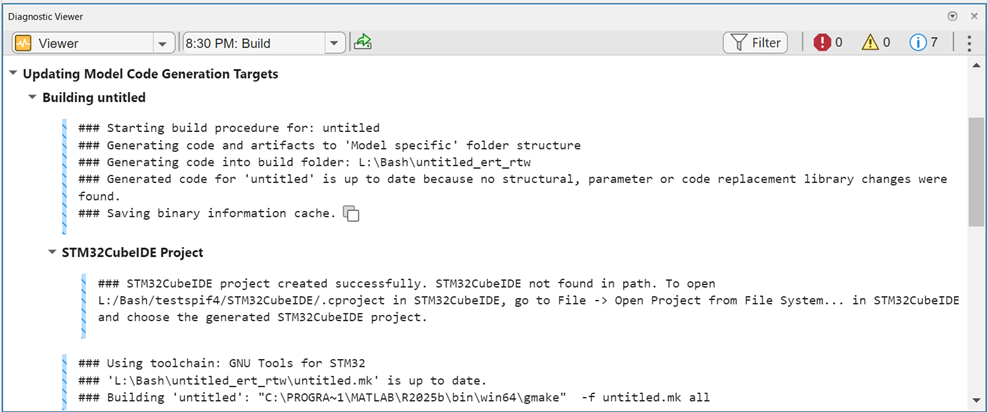
After updating the path, rebuild the model and open the project again.
Work with Generated IDE Project
After the project opens in STM32CubeIDE or Keil uVision:
Generated source files appear in the project structure
The project builds successfully
You can inspect, debug, and extend the generated code
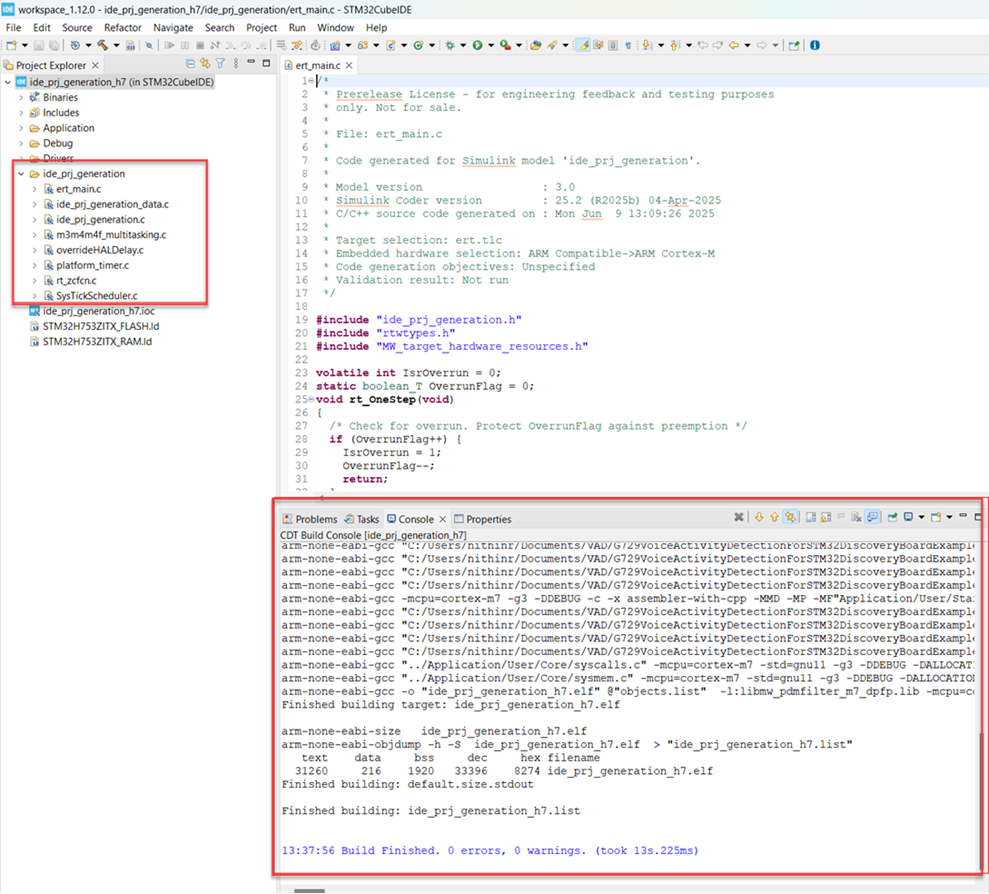
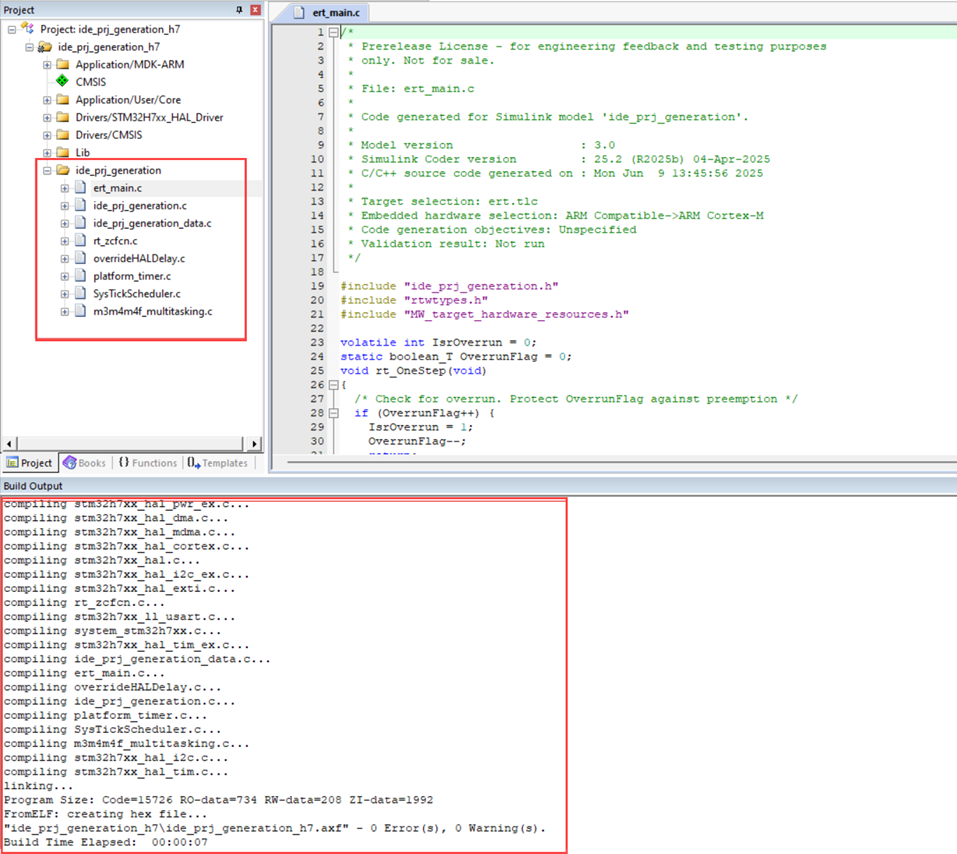
Use this workflow to continue development in an IDE while maintaining Simulink as the source for algorithm design and code generation.
Choose IDE-Based Development Workflow
Export Simulink Code to an IDE
Use IDE project generation when you want to:
Continue application development in C or C++
Integrate handwritten C code with generated code
Inspect or modify generated source files
Use IDE-based build, analysis, or refactoring tools
Debug Simulink-Generated Code Without Modification
Use Debug Simulink Generated Code using STM32CubeIDE when you want to:
Debug runtime behavior without changing generated code
Inspect hardware registers or memory buffers
Monitor low-level execution behavior

