Generate Simulink Block Libraries and Data Dictionaries for AUTOSAR-Based applications
This optional step of the example shows how to use the included metadata files and MATLAB® scripts to generate new data dictionaries, Simulink® API blocks, Simulink libraries with API blocks, and to update existing library and block configurations.
The example includes Simulink AUTOSAR XML (ARXML) libraries and metadata files for analog‑to‑digital converter
(ADC), digital input/output (DIO), and universal asynchronous receiver/transmitter (UART))
blocks. You can update existing block descriptions, metadata files, and generate new Simulink
libraries using the automate_blockspec function included in the
SupportFiles folder of the example.
Generate Simulink Libraries Using API Metadata Files
The Basic Software Module Description (BSWMD) ARXML files do not contain interface details such as block mask parameters, input port, and output port definitions. The metadata files hold these interface details which are essential to generate preconfigured or ready-to-use Simulink blocks. If the metadata file is not available for any block, you must configure the properties and dimensions of the Simulink C Function Block. For more information, see C Function and Use Simulink Strings Inside C Function Block to Model Scrolling Display.
This example includes metadata files corresponding to three peripheral blocks (ADC, UART, and DIO). Depending on your application, you can add your own metadata files or update the existing ones.
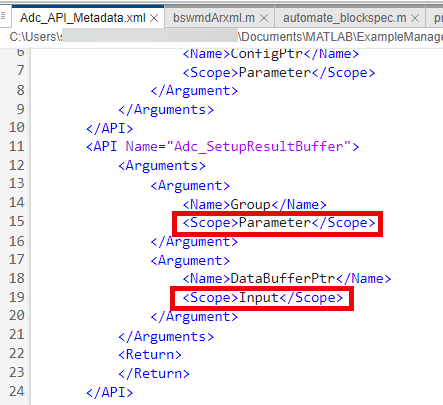
For example, observe the below screenshot of the ADC peripheral's metadata file. The API block Adc_SetupResultBuffer is defined as a group parameter with an input port DataBufferPtr.
After updating existing metadata files or adding new metadata files, use the
automate_blockspec function to generate Simulink library with the
defined specifications. For example, to generate library using the metadata file of ADC,
execute these commands.
bswArxmlPath   = '...\...\ADC_Bswmd.arxml';         % Path to Bswmd.arxml file
metaDataPath   = '...\...\ADC_API_Metadata.xml';    % Path to metadata file
targetFolder   = '...\...\TargetFolder';            % Path to folder where Simulink library will be created
automate_blockspec('ARXMLFile', bswArxmlPath, ...
                   'MetaDataFile', metaDataPath, ...
                   'TargetFolder', targetFolder);
To generate Simulink libraries using bswmdArxml class, see Generate Simulink Blocks for MCAL APIs. You can
then update the MCU_AutosarArchitecture model with the generated
Simulink blocks.
Update processAllModules Function for New Simulink Blocks
The example uses ADC, UART, and DIO block APIs for the motor control application.
Depending on your application requirement, you can add more modules in the
processAllModules function included in the
SupportFiles folder.
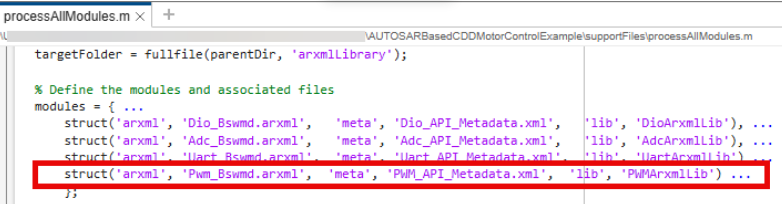
To add a PWM block, after creating corresponding API metadata files and ARXML files in EB Tresos Studio in Configure MCAL Modules and Generate Code in EB Tresos Studio, update the function as shown below.
Generate Simulink Data Dictionary and Map to Model
To generate a new Simulink data dictionary and import it to the existing Simulink model:
Run
importARXML2slddto generate a new Simulink data dictionary in thebswmdDictionaryfolder included in this example. This script usesarxml.importer(AUTOSAR Blockset) to import the ARXML files.To map this dictionary to the
MCU_AutosarArchitecturemodel, in the Modeling tab, select Model Explorer.Under Simulink Root, expand MCU_AutosarArchitecture. Right-click Model Workspace, click Import, and select bswmdDictionary.

