Grid-based Tracking for Urban Scenario using Lidar-Radar Fusion
This example demonstrates how to track multiple moving vehicles in urban settings using a grid-based tracker that fuses real-world lidar and Doppler radar data. The tracker performs early fusion of measurements and uncertainties to estimate a dynamic occupancy grid and track extended objects with arbitrary shapes in a unified global frame.
Introduction
Tracking objects in dynamic environments is a fundamental challenge in perception for robotics and autonomous vehicles. Traditional point-object trackers assume that each object generates only a single detection per sensor per scan, requiring object-level detection to be extracted and fused. However, this approach is susceptible to errors caused by partial occlusions and imperfect clustering, which can degrade tracking accuracy and situational awareness of autonomous systems. On the other hand, extended-object trackers associate sensor measurements directly with the object-level hypothesis maintained by the tracker, requiring complex measurement models of the object extents specific to each sensor modality.
Grid-based tracking using a Dynamic Occupancy Grid Map (DOGM) offers a streamlined alternative by processing raw sensor data directly into a discretized 2D spatial grid. This method jointly estimates occupancy probabilities and cell-wise dynamic states, enabling unified representation of both static and moving elements in the environment. By leveraging early fusion, DOGM eliminates reliance on predefined object models while preserving a rich and adaptable environmental context.
Lidar is widely used in autonomous driving due to its ability to produce dense, high-resolution point clouds making it well suited for constructing occupancy grids and achieving precise spatial localization. However, lidar does not provide direct motion information, so object dynamics must be inferred over time from positional changes. Radars, on the other hand, can produce point clouds that contain range-rate measurements derived from the Doppler effect, providing direct insight into object velocity. This facilitates faster and more accurate convergence of velocity estimates. To mitigate the sparsity of radar data, trackerGridRFS System object™ supports projecting measurement uncertainty onto a 2D grid, improving occupancy estimation. By fusing radar and lidar at the input level within a 2D grid, this approach achieves precise positional and dynamic estimation of grid cells, enhancing situational awareness in highly dynamic environments.
For grid-based tracking using simulated lidar sensors, refer to Grid-Based Tracking in Urban Environments Using Multiple Lidars example. Similarly, for grid-based tracking using simulated radar sensors, refer to Grid-Based Tracking in Urban Environments Using Multiple Radars example.
Load and Explore Recorded Data
This example uses approximately twenty seconds of recorded urban driving data collected from multiple onboard sensors—including camera, lidar, radar, and odometry. You begin by downloading the dataset using the helperDownloadDataset supporting function, which automatically downloads the data and converts to a struct format. In the following section, you will explore the dataset in more detail and visualize the raw sensor inputs to understand the environment.
if ~exist('scenarioSensorData','var')
scenarioSensorData = helperDownloadDataset();
end
Warning: Permission denied to overwrite file "C:\Users\user\AppData\Local\Temp\1\FrontCamera".
Warning: Permission denied to overwrite file "C:\Users\user\AppData\Local\Temp\1\Radar".
Warning: Permission denied to overwrite file "C:\Users\user\AppData\Local\Temp\1\VehicleOdometry".
The dataset is stored in the scenarioSensorData variable, which is a struct containing raw sensor data from radar, camera, lidar, and odometry. You will examine the format of the data stored for each sensor and display it.
disp(scenarioSensorData);
       Radar: [1×1 struct]
      Camera: [1×1 struct]
       Lidar: [1×1 struct]
    Odometry: [1×1 struct]
The Radar measurements consist of the following fields:
PointClouds-An array of structures, each representing a radar scan. These contain Cartesian locations, Doppler velocities, and additional metadata.Timestamps-A vector of timestamps corresponding to each radar measurement.
disp(scenarioSensorData.Radar.PointClouds(1));
       Timestamp: 1.7054e+09
               x: [65×1 single]
               y: [65×1 single]
               z: [65×1 single]
    radial_speed: [65×1 single]
             RCS: [65×1 single]
           Noise: [65×1 single]
           power: [65×1 single]
             snr: [65×1 single]
The Camera measurements consist of the following fields:
Images- A cell array of high-resolution 2D RGB images, each stored as auint8matrix.Timestamps- A numeric array specifying the capture time in seconds of each image frame.
Read and display the first camera image from the dataset using imshow.
img = scenarioSensorData.Camera.Images{1};
figure;
imshow(img);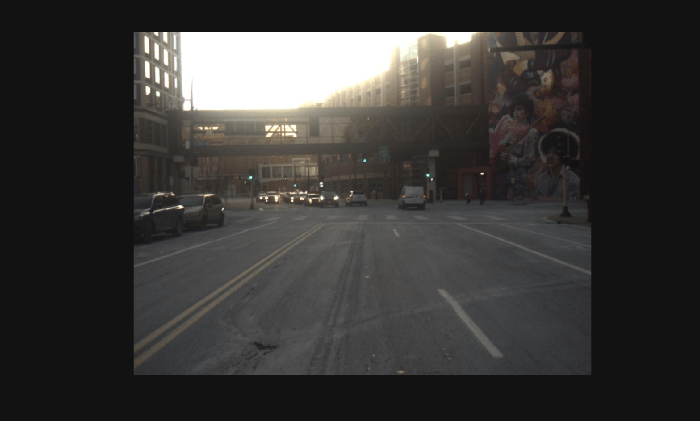
The Lidar measurements contains the following fields:
PointClouds- A structure array where each entry is apointCloud(Computer Vision Toolbox) object containing raw 3D spatial measurements.Timestamps- A numeric array of time values in seconds indicating when each point cloud was captured.
The point cloud in this dataset is stored as an unorganized point cloud. Unlike organized point clouds, which resemble 2D images with structured rows and columns, unorganized point clouds consist of a flat list of 3D coordinate points, where each point represents a distinct location in space. This format is typical for lidar sensors that perform 360-degree scans and do not enforce a fixed angular resolution grid. Certain algorithms, such as ground plane extraction, require the point cloud data to be in an organized format. In this example, you will learn how to convert unorganized point clouds into organized point clouds for more efficient viewing and preprocessing. For additional information on the differences between these formats, refer to the What Are Organized and Unorganized Point Clouds? (Lidar Toolbox) documentation.
Read and display the first lidar point cloud from the dataset using pcshow (Computer Vision Toolbox).
ptCloud = scenarioSensorData.Lidar.PointClouds{1};
figure;
pcshow(ptCloud);
title("Lidar Point Cloud");
xlim([10 60]);
ylim([-15 15]);
zlim([-1 6]);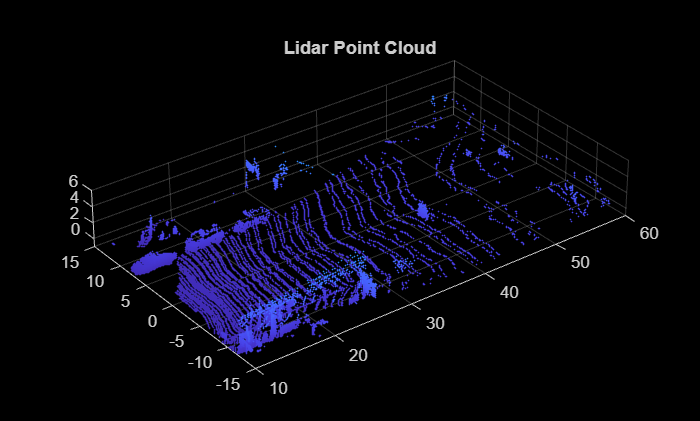
The first lidar point cloud captures a detailed urban environment, featuring parked vehicles along both curbs, incoming traffic, and structural elements such as lampposts and roadside buildings. To enhance the usability of this data for tracking, ground plane points must be removed using segmentation techniques. In addition, elevated structural elements should also be eliminated to reduce clutter and improve detection precision. Use the helperProcessLidarPoints function to remove ground points from the raw point cloud. This helper method does the following operations on the raw point cloud:
Reads the point cloud from the dataset using
pcread(Computer Vision Toolbox).Offsets the mounting angle to correctly align the point cloud using
pctransform(Computer Vision Toolbox).Organize the point cloud using lidar parameters with
pcorganize(Lidar Toolbox).Segment the point cloud into ground and non-ground points using
segmentGroundSMRF(Lidar Toolbox).Denoise the point cloud to remove any outliers using
pcdenoise(Computer Vision Toolbox).
You can use pcshowpair (Computer Vision Toolbox) to visually compare the original and segmented lidar point cloud. The point cloud, with ground plane points removed, is displayed in green, while the original point cloud appears in magenta.
ptCloud = scenarioSensorData.Lidar.PointClouds(1);
[nonGroundPtCloud,originalPtCloud] = helperProcessLidarPoints(ptCloud);

figure;
pcshowpair(originalPtCloud{end},nonGroundPtCloud{end},'MarkerSize',30);
title('Original vs Ground-Segmented Point Cloud Comparision');
xlim([15 30]);
ylim([-10 10]);
zlim([-1 5])
view([-90 25]);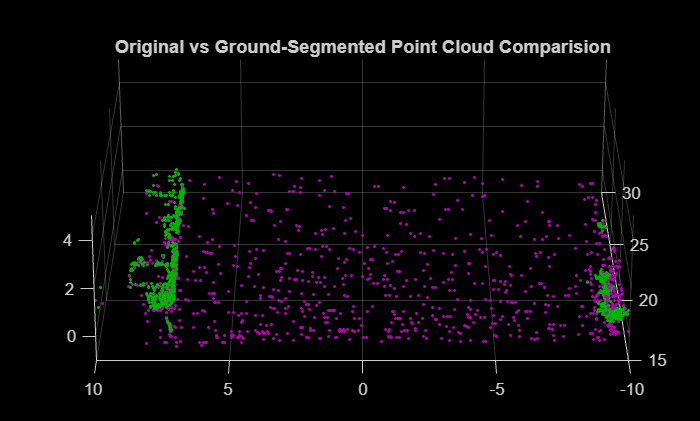
The Odometry measurements contains the following fields:
Vehicle- A structure array with timestamped measurements including ego speed, orientation, and yaw rate. Ego speed is derived from the GPS sensor, while orientation (as quaternion) and angular velocity (yaw rate) are obtained from the vehicle's onboard inertial measurement unit (IMU).Timestamps- A numeric array of time values in seconds indicating when each measurement was recorded.
disp(scenarioSensorData.Odometry.Vehicle(1));
          Speed: [6000×1 double]
    Orientation: [6000×4 double]
        YawRate: [6000×1 double]
Load and display sample rates for all sensors using the helperLoadSensorSampleRate function.
sampleRate = helperLoadSensorSampleRate(scenarioSensorData);
fprintf(['Radar: %.2f Hz \n' ...
'LiDAR: %.2f Hz \n' ...
'Camera: %.2f Hz \n' ...
'Odometry: %.2f Hz \n'], ...
sampleRate.Radar,sampleRate.Lidar,sampleRate.Camera,sampleRate.Odometry);
Radar: 18.20 Hz
LiDAR: 10.06 Hz
Camera: 33.63 Hz
Odometry: 100.02 Hz
Synchronize Sensor Data
Each sensor updates at a different rate, with lidar being the slowest. To synchronize sensor measurements, use the helperStreamData function to retrieve the latest sensor data from all sensors between two successive lidar timestamps.
timestamps = scenarioSensorData.Lidar.Timestamps;
currentData = helperStreamData(scenarioSensorData,timestamps(1),timestamps(2));
Visualize Sensor Data
Next, use the synchronized sensor data to visualize the urban environment with the helperVisualizeDataset function. Begin by creating a viewer to display raw sensor data from both the camera and the lidar point cloud.
f = figure('Name','Sensor Data Viewer','Units','normalized','Position',[0.1 0.1 0.8 0.8]);
t = tiledlayout(f,1,2,'Padding','tight','TileSpacing','tight');
ax1 = nexttile(t,1);
ax2 = nexttile(t,2);

t0 = timestamps(1);
numStepsToView = 100;

for i = 2:numStepsToView
    % Fetch data between two time intervals
    currData = helperStreamData(scenarioSensorData,timestamps(i-1),timestamps(i));

    % Update display
helperVisualizeDataset(ax1,ax2,currData,timestamps(i),t0);
end
Warning: Hardware-accelerated graphics is unavailable. Displaying fewer markers to preserve interactivity.
Warning: Hardware-accelerated graphics is unavailable. Displaying fewer markers to preserve interactivity.
Warning: Hardware-accelerated graphics is unavailable. Displaying fewer markers to preserve interactivity.
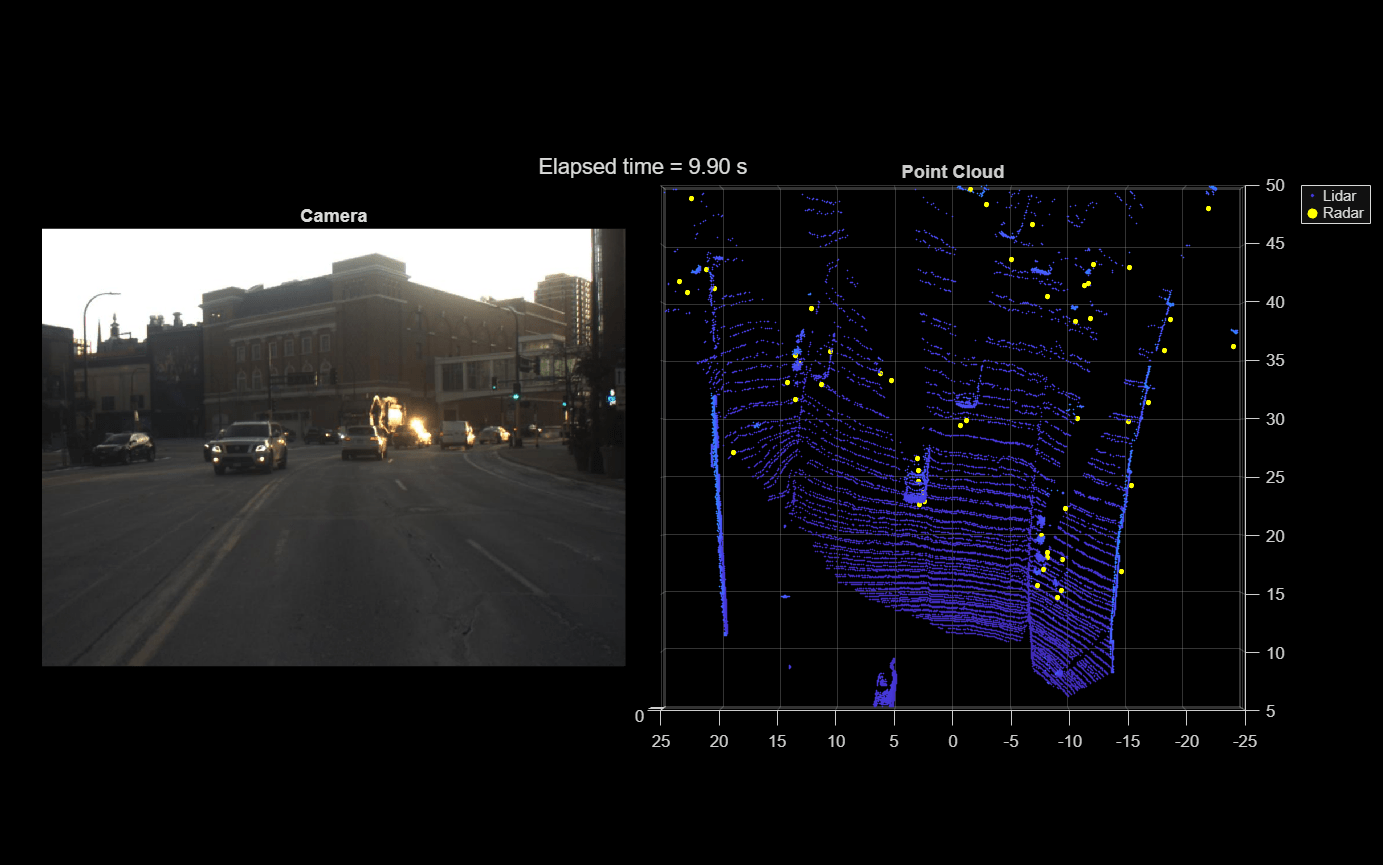
The camera data appears on the left whereas the lidar and radar point clouds appear on the right. This urban scene includes parked vehicles, incoming traffic, and pedestrians. All sensors are front-facing and each have distinct fields of view. The radar sensor's azimuth field of view spans [-50,50] degrees, while the lidar sensor captures a broader range of [-90,90] degrees. Notably, the lidar point cloud is dense, whereas the radar point cloud marked in yellow appears sparse.
Grid Tracker Setup
The first step of defining the tracker is setting up sensor configurations as trackingSensorConfiguration objects. The sensor configurations allow you to specify sensor specific parameters such as mounting position and orientation, sensor limits, sensor resolution, clutter density. In addition, you can provide the tracker, parameters for the sensor transform function using the SensorTransformParameters field in sensor configuration. It is a structure of arrays to represent transform from the scenario frame to the sensor frame wherein the first structure specifies transform from tracking coordinate frame to ego frame, and the second structure specifies transform from ego frame to sensor frame. Because sensor mounting is defined relative to the ego vehicle, the spatial relationship between sensors and the world changes as the vehicle moves—making accurate ego motion estimation essential for computing correct transforms and enabling reliable tracking. In this section, you will use the sensor specification and ego motion estimation to define the sensor configuration for radar and lidar.
Ego motion Estimation
Odometry data includes GPS measurements in latitude, longitude, and altitude, which are converted to the local ENU (East-North-Up) frame using the first GPS fix as the origin. Velocity, orientation (in quaternion form), and angular velocity are provided by the onboard IMU. The helperEstimateEgoMotion helper function processes this data to compute the ego vehicle's position and orientation in the scenario frame.
% Initialize ego motion
egoMotion = struct('Time',timestamps(1),...
'PositionalDisplacement',[0 0 0],...
'RotationalDisplacement',[0 0 0],...
'Speed',0,...
'YawRate',0);

% Estimate ego motion between two time intervals
sensorData = helperStreamData(scenarioSensorData,timestamps(1),timestamps(2));

% Reference odometry pose relative to scenario
lla0 = scenarioSensorData.Odometry.GPS(1,:);

% Estimate ego motion
egoMotion = helperEstimateEgoMotion(egoMotion,sensorData.Odometry,lla0);
Sensor Configuration
Next, configure the sensor configurations using the sensor specifications and ego motion. Use the helper functions helperGetRadarConfiguration and helperGetLidarConfigurations to define configuration for radar and lidar sensor respectively.
Define sensor configuration for radar at the first odometry timestamp.
radarConfig = helperGetRadarConfiguration(egoMotion);
Define sensor configuration for lidar at the first odometry timestamp.
lidarConfig = helperGetLidarConfiguration(egoMotion);
Combine radar and lidar sensor configuration of the trackingSensorConfiguration object cell array.
sensorConfigs = [radarConfig;lidarConfig];
Define Tracker
Define the grid-based tracker trackerGridRFS System object™. Specify properties related to grid size, resolution, number of new and total particles, velocity limits of targets, track management properties. The sensor configuration updates the sensor transform parameters with time because the sensors mounted offset of the ego frame origin experiences velocity relative to the ego frame even though the position might not change. Set the IsValidTime property to true to use sensor data to update tracks.
% Construct tracker using sensor configurations. You can define the rest of
% the properties before using the tracker.
tracker = trackerGridRFS(SensorConfigurations=sensorConfigs,...
    HasSensorConfigurationsInput=true);
The tracker uses a two-dimensional grid for the intermediate representation of the environment. The grid is defined by 3 attributes: its length, its width, and the resolution. The length and width describe the span of the grid in local X and local Y direction of the ego vehicle respectively. The resolution defines the number of cells per meter on the grid, determining how finely the environment is discretized. A higher resolution results in smaller cells and a denser grid to allow for more detailed spatial representation. In this example, a 120 meter by 60 meter grid with a resolution of 4 cells per meter is used to represent the environment.
% Grid definition
tracker.GridLength = 120; % meters
tracker.GridWidth = 40; % meters
tracker.GridResolution = 2.5; % 1/meters
In addition to defining the grid, you also define the relative position of the ego vehicle by specifying the origin of the grid (left corner) with respect to the origin of the ego vehicle. In this example, the ego vehicle is located at the center of the grid.
tracker.GridOriginInLocal = [-tracker.GridLength/2 -tracker.GridWidth/2];
The tracker uses particle-based methods to estimate the state of each grid cell and further classify them as dynamic or static. It uses a fixed number of persistent particles on the grid which defines the distribution of existing targets. It also uses a fixed number of particles to sample the distribution for newborn targets. These birth particles get sampled in different grid cells based on the probability of birth. Further, the velocity and other unknown states like turn-rate and acceleration (applicable when MotionModel of the tracker is not constant-velocity) of the particles is sampled uniformly using prior information supplied using prior limits. A resampling step assures that the number of particles on the grid remain constant.
% Particle filtering
tracker.NumParticles = 2e5; % Number of persistent particles
tracker.NumBirthParticles = 2e4; % Number of birth particles
tracker.VelocityLimits = [-25 25;-15 15]; % To sample velocity of birth particles (m/s)
tracker.BirthProbability = 0.025; % Probability of birth in each grid cell
The tracker uses the Dempster-Shafer approach to define the occupancy of each cell. The dynamic grid estimates the belief mass for occupancy and free state of the grid. During prediction, the occupancy belief mass of the grid cell updates due to prediction of the particle distribution. The DeathRate controls the probability of survival (Ps) of particles and results in a decay of occupancy belief mass during prediction. As the free belief mass is not linked to the particles, the free belief mass decays using a pre-specified, constant discount factor. This discount factor specifies the probability that free regions remain free during prediction.
% Track initialization
tracker.ProcessNoise = 3*eye(2); % Process noise of particles for prediction as variance of [ax;ay] (m/s^2)
tracker.DeathRate = 1e-3; % Per unit time. Translates to Ps = 0.9999 for 10 Hz
tracker.FreeSpaceDiscountFactor = 1e-2; % Per unit time. Translates to a discount factor of 0.63 (1e-2^dT) for 10 Hz
After estimation of state of each grid cell, the tracker classifies each grid cell as static or dynamic by using its estimated velocity and associated uncertainty. Further, the tracker uses dynamic cells to extract object-level hypothesis using the following technique:
Each dynamic grid cell is considered for assignment with existing tracks. A dynamic grid cell is assigned to its nearest track if the negative log-likelihood between a grid cell and a track falls below an assignment threshold. A dynamic grid cell outside the assignment threshold is considered unassigned. The tracker uses unassigned grid cells at each step to initiate new tracks. Because multiple unassigned grid cells can belong to the same object track, a DBSCAN clustering algorithm is used to assist in this step. Because there are false positives while classifying the cells as static or dynamic, the tracker filters those false alarms in two ways. First, only unassigned cells which form clusters with more than a specified number of points (MinNumPointsPerCluster) can create new tracks. Second, each track is initialized as a tentative track first and is only confirmed if it is detected M out of N times.
% Track management
tracker.AssignmentThreshold = 5.5; % Maximum distance or negative log-likelihood between cell and track
tracker.MinNumCellsPerCluster = 9; % Minimum number of grid cells per cluster for creating new tracks
tracker.ClusteringThreshold = 2; % Minimum Euclidean distance between two cells for clustering
tracker.ConfirmationThreshold = [4 5]; % Threshold to confirm tracks
tracker.DeletionThreshold = [4 4]; % Threshold to delete confirmed tracks
Run Tracker with Sensor Data
After setting up the tracker, initialize the HelperDisplay class object to enable real-time visualization of the dynamic map generated by the tracker alongside the synchronized camera image.
display = HelperDisplay(scenarioSensorData.Camera);
Run the tracker on the recorded sensor data using the grid-based tracker.
for i = 2:size(timestamps,1)

    % Timestamp intervals
    t0 = timestamps(i-1);
    t1 = timestamps(i);

    % Fetch sensor data between t0 and t1
    [rawSensorData,isAvail] = helperStreamData(scenarioSensorData,t0,t1);

    % Estimate ego motion
    egoMotion = helperEstimateEgoMotion(egoMotion,rawSensorData.Odometry,lla0);

    % Update tracker if sensor measurement is available
    if isAvail
        % Update sensor configurations
        radarConfig = helperGetRadarConfiguration(egoMotion);
        lidarConfig = helperGetLidarConfiguration(egoMotion);

        % Combine sensor configurations
        sensorConfigs = [radarConfig;lidarConfig];

        % Pack sensor data
        [sensorData,sensorConfigs] = helperPackSensorData(rawSensorData,sensorConfigs,t1);

        % Call the tracker
        tracks = tracker(sensorData,sensorConfigs,t1);
    end

    % Update display
updateViewer(display,tracker,tracks,egoMotion,t1,i);
end
Warning: Hardware-accelerated graphics is unavailable. Displaying fewer markers to preserve interactivity.
Warning: Hardware-accelerated graphics is unavailable. Displaying fewer markers to preserve interactivity.
Warning: Hardware-accelerated graphics is unavailable. Displaying fewer markers to preserve interactivity.
Results
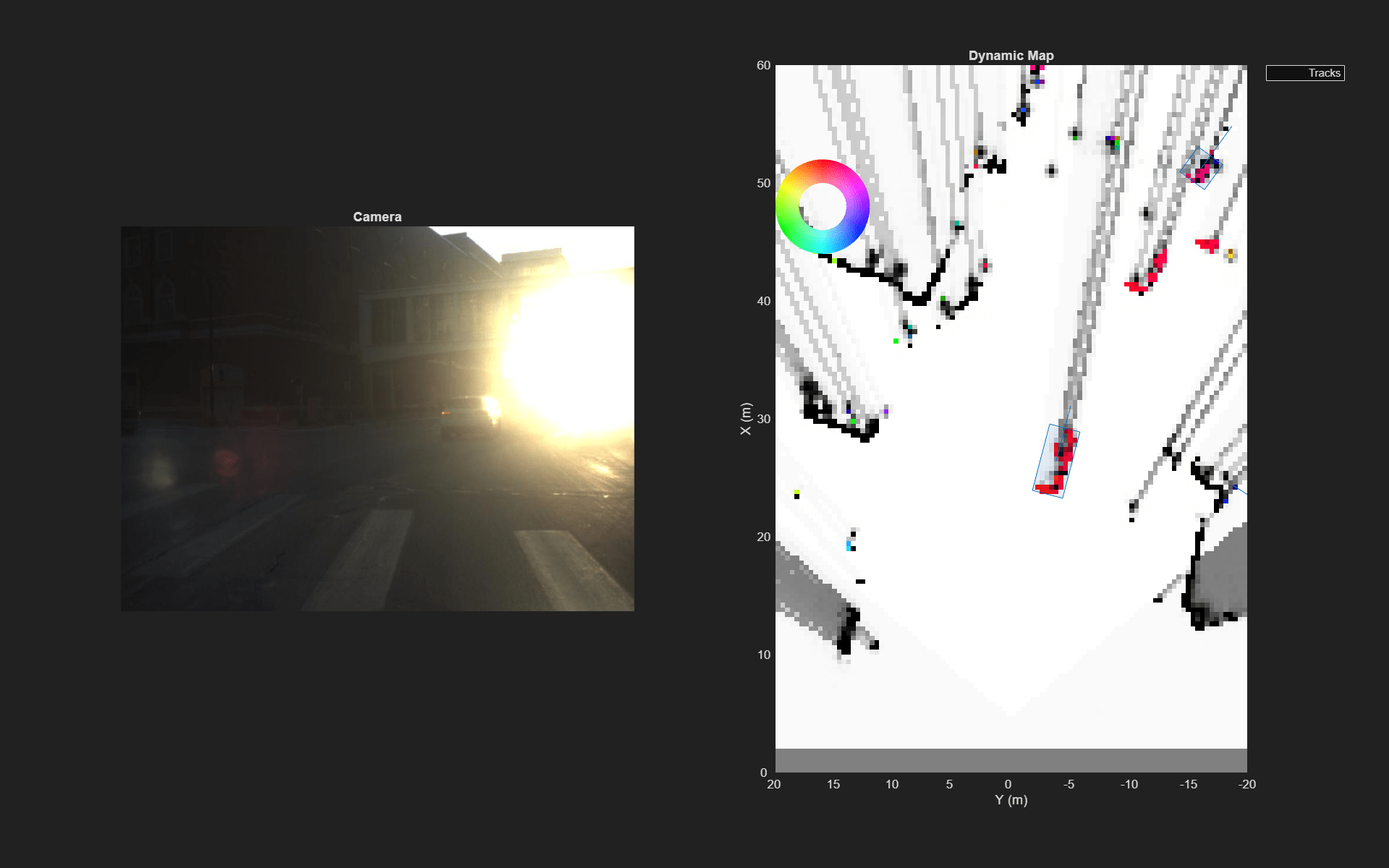
The animation below presents a snapshot of camera imagery alongside dynamic occupancy grid map marked with estimated object tracks from the tracker. Dynamic cells are shown using colored cells to indicate cell velocity of the cell corresponding to objects relative to the tracking coordinate frame. Vehicles of various shapes and sizes as well as smaller entities such as pedestrians are successfully detected and tracked throughout the highly dynamic and dense urban scenario.
Next, you will examine a selection of notable tracked objects from the scene and briefly assess the performance of the tracker.
Pedestrian
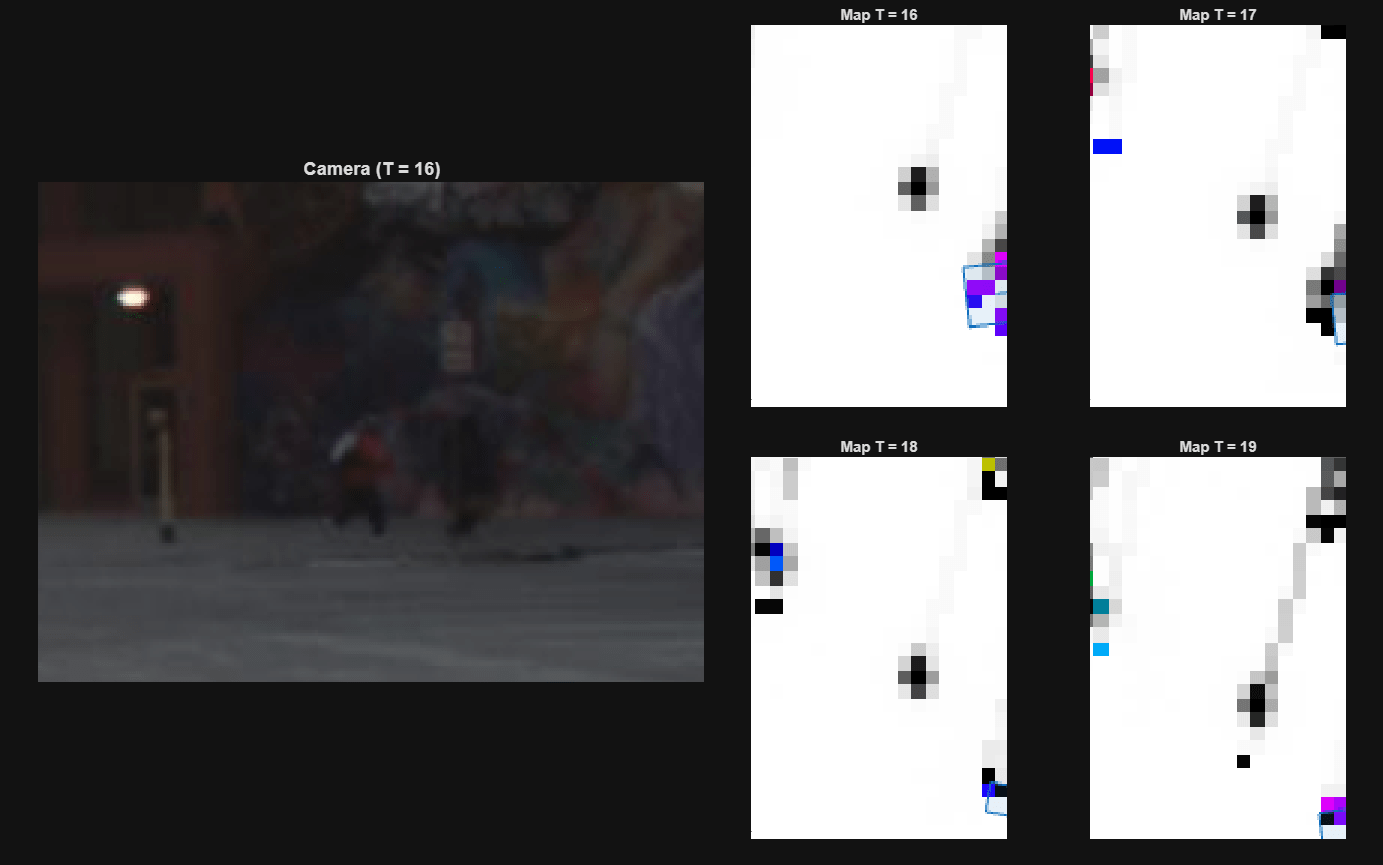
The following snapshots depict two pedestrians walking side by side along the curb, briefly changing direction as they move. The tracker effectively identifies dynamic cells for both individuals, displaying them in shades of purple to represent their movement. For the pedestrian on the right, radar uncertainty is evident—one purple cell reflects the detected position, while an adjacent light purple cell highlights the uncertainty spread at time 67. Although the dynamic cells are accurately colored and distinguish the motion of each pedestrian, the tracker groups them into a single track due to the configured clustering threshold. This behavior is expected when the threshold permits merging based on spatial proximity and velocity alignment.
display.showSnapshot(1);
Incoming Truck
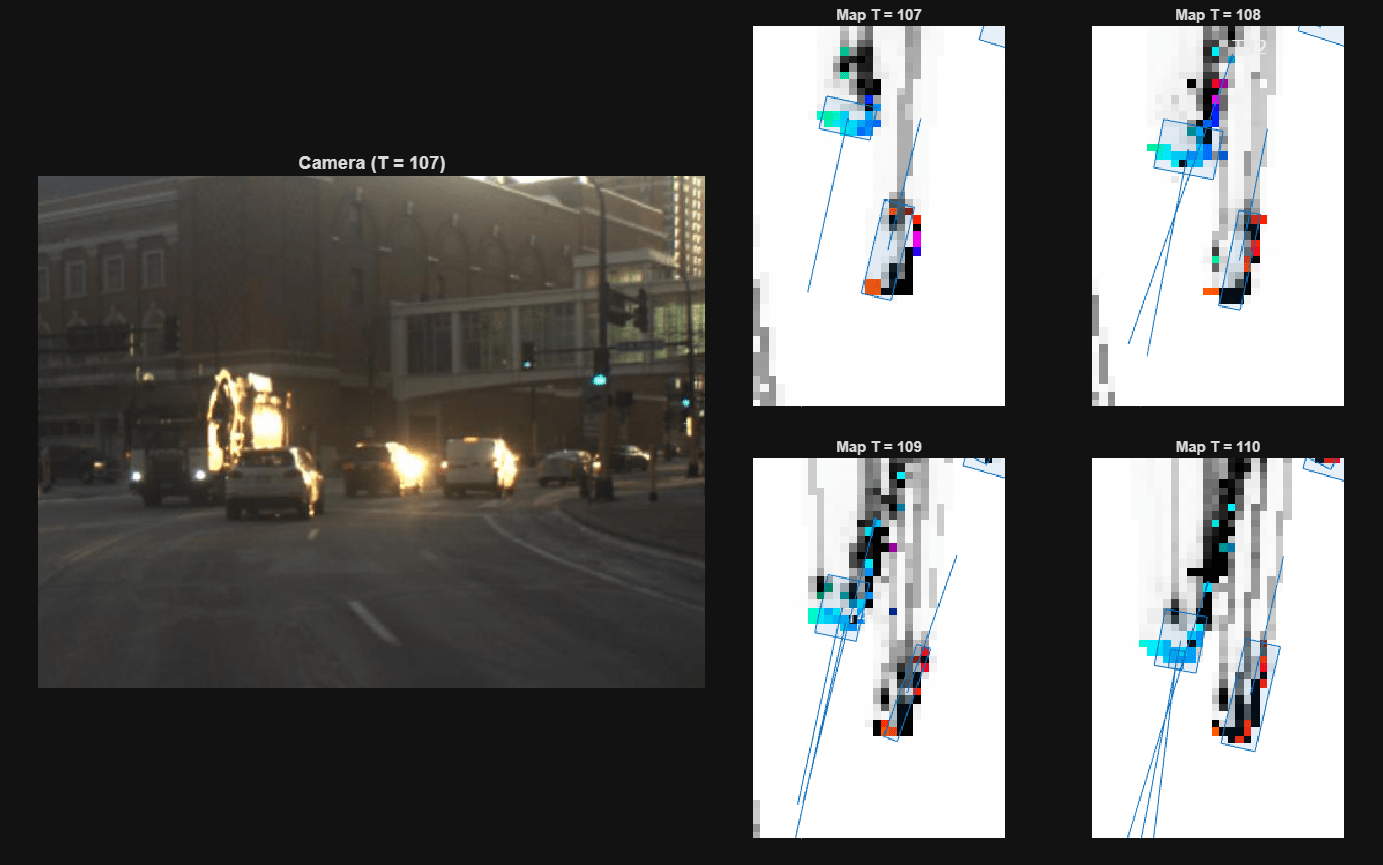
As the truck approaches a turn in the road, it veers close to the lead vehicle occupying the ego lane. At this moment, two dynamic grid cells positioned near each other maintain distinct velocity indications demonstrating the tracker's robust association logic. The persistent color differentiation of the cells suggests accurate tracking despite spatial proximity. A sudden change in the truck's velocity is promptly reflected through the orientation update of its bounding box, driven by the radar's radial velocity input. Despite the scene's congestion, the tracker maintains stable tracks across multiple objects, closely aligning with sensor observations. However, such crowded conditions highlight the importance of properly configuring the AssignmentThreshold. If set too loosely, dynamic cells may be incorrectly grouped into existing tracks, resulting in false associations. To improve reliability in dense environments, the threshold should be carefully tuned, or the grid resolution increased allowing for finer granularity and better object separation.
display.showSnapshot(2);
Summary
In this example, you learned how to set up the grid-based tracker by defining the sensor configurations using ego motion estimates derived from odometry data to track multiple objects in a highly dynamic urban scenario. In this process, you learned how to preprocess lidar data by removing the ground plane and fusing it with radar measurements at the input level—leveraging lidar's spatial precision and radar's doppler velocity information. You also learned to address sparse radar detections by projecting uncertainty onto the occupancy grid, resulting in more robust object representation of the dynamic objects in the urban environment.
References
[1] Nuss, Dominik, et al. "A random finite set approach for dynamic occupancy grid maps with real-time application." The International Journal of Robotics Research 37.8 (2018): 841-866.
[2] D. Nuss, T. Yuan, G. Krehl, M. Stuebler, S. Reuter and K. Dietmayer, "Fusion of laser and radar sensor data with a sequential Monte Carlo Bayesian occupancy filter," 2015 IEEE Intelligent Vehicles Symposium (IV), Seoul, Korea (South), 2015, pp. 1074-1081, doi: 10.1109/IVS.2015.7225827.
Supporting Functions
helperVisualizeDataset creates a figure displaying raw camera, lidar, and radar data side by side for comparison.
helperDownloadDataset downloads dataset and converts it into a struct format. It internally uses loadCameraData, loadRadarData, loadLidarData, and loadOdometry data helper methods to load sensor data from the downloaded data path into a struct format.
function data = helperDownloadDataset()

% Download dataset from supporting files
dataFolder = tempdir;
dataFileName = "UrbanDrivingMultiSensorData.zip";
url = "https://ssd.mathworks.com/supportfiles/fusion/data/" + dataFileName;
filePath = fullfile(dataFolder,dataFileName);
if ~isfile(filePath)
    disp('Downloading UrbanDrivingMultiSensorData.zip (249 MB) ...');
    websave(filePath,url);
end
unzip(filePath,dataFolder);
% datasetFolder = fullfile(dataFolder,"UrbanDrivingMultiSensorData");
dataPath = fullfile(dataFolder,'1');

% Load data into a struct
data = struct;

% Load radar data
data = loadRadarData(data,dataPath);

% Load camera data
data = loadCameraData(data,dataPath);

% Load lidar data
data = loadLidarData(data,dataPath);

% Load Vehicle Odometry Data
data = loadOdometryData(data,dataPath);
end
helperEstimateEgoMotion to estimate ego motion from the last odometry transformation using current sensor data.
function egoMotion = helperEstimateEgoMotion(egoMotion,odometry,lla0)

% Rotation to ego frame
yaw0 = -133.7514; % degrees
R = [cosd(-yaw0) -sind(-yaw0);
    sind(-yaw0) cosd(-yaw0)];

% Get orientation from IMU
quats = odometry.Vehicle.Orientation(end,:);
eul = quat2eul(quats); % [yaw pitch roll]
yawIMU = eul(end,1); % radians

% Convert current GPS to ENU
xyzENU = lla2enu(odometry.GPS(end,:),lla0,'flat');

% Convert ENU to ego frame
xyzEgo = R * xyzENU(1:2)';

% Populate ego motion struct
egoMotion.Time = odometry.Timestamps(end);
egoMotion.PositionalDisplacement(1:2) = xyzEgo.';
egoMotion.RotationalDisplacement(3) = rad2deg(yawIMU) - yaw0;
egoMotion.Speed = odometry.Vehicle.Speed(end);
egoMotion.YawRate = odometry.Vehicle.YawRate(end);
end
helperStreamData to fetch sensor data from radar, camera, lidar, and odometry between any two timestamps.
function [currentData,isAvail] = helperStreamData(data,t1,t2)

% Lidar data
t = data.Lidar.Timestamps;
valid = t > t1 & t <= t2;
currentData.Lidar.PointClouds = data.Lidar.PointClouds(valid);
currentData.Lidar.Timestamps = data.Lidar.Timestamps(valid);

% Radar data
t = data.Radar.Timestamps;
valid = t > t1 & t <= t2;
currentData.Radar.PointClouds = data.Radar.PointClouds(valid);
currentData.Radar.Timestamps = data.Radar.Timestamps(valid);

% Camera data
t = data.Camera.Timestamps;
valid = t > t1 & t <= t2;
currentData.Camera.Images = data.Camera.Images(valid);
currentData.Camera.Timestamps = data.Camera.Timestamps(valid);

% Vehicle odometry data
t = data.Odometry.Timestamps;
valid = t > t1 & t <= t2;
currentData.Odometry.Vehicle.Speed = data.Odometry.Vehicle.Speed(valid);
currentData.Odometry.Vehicle.YawRate = data.Odometry.Vehicle.YawRate(valid);
currentData.Odometry.Vehicle.Orientation = data.Odometry.Vehicle.Orientation(valid,:);
currentData.Odometry.GPS = data.Odometry.GPS(valid,:);
currentData.Odometry.Timestamps = data.Odometry.Timestamps(valid);

% Boolean to record available lidar measurement
isAvail = ~isempty(currentData.Lidar.Timestamps);
end
helperGetRadarConfiguration creates trackingSensorConfiguration object for radar using radar specifications.
function config = helperGetRadarConfiguration(egoPose,varargin)

% Radar specifications
radarSpecification.SensorIndex = 1;
radarSpecification.MountingLocation = [4.68465 0.01270 -0.11430];
radarSpecification.MountingAngles = [0 -1 0.2];
radarSpecification.FieldOfView = [100 15];
radarSpecification.MaxRange = 120;
radarSpecification.MaxRangeRate = 85;
radarSpecification.DetectionProbability = 0.9;

isAvailable = true;
if nargin>1
    isAvailable = varargin{1};
end

% Create configuration object
config = trackingSensorConfiguration(SensorIndex = radarSpecification.SensorIndex, ...
    IsValidTime = isAvailable);

% Provide detection limits (FOV of the sensors)
config.SensorLimits(1,:) = radarSpecification.FieldOfView(1)*[-1/2 1/2];
config.SensorLimits(2,:) = radarSpecification.FieldOfView(2)*[-1/2 1/2];
config.SensorLimits(3,:) = radarSpecification.MaxRange*[0 1];
config.SensorLimits(4,:) = radarSpecification.MaxRangeRate*[-1 1];

% Provide sensor resolution for range-rate
config.SensorResolution(4,:) = 0.2;

% Provide radar mounting with respect to ego
sensorVelocity = cross(radarSpecification.MountingLocation(:),[0,0,egoPose.YawRate]);
config.SensorTransformParameters(1).OriginPosition = radarSpecification.MountingLocation(:);
config.SensorTransformParameters(1).OriginVelocity = sensorVelocity(:);
config.SensorTransformParameters(1).Orientation = rotmat(quaternion(radarSpecification.MountingAngles(:)','eulerd','ZYX','frame'),'frame');
config.SensorTransformParameters(1).IsParentToChild = true;
config.SensorTransformParameters(1).HasVelocity = true;

% Provide ego pose with respect to a static reference frame
egoYaw = egoPose.RotationalDisplacement(3);
egoVelocity = egoPose.Speed .* [cosd(egoYaw) sind(egoYaw) 0];
config.SensorTransformParameters(2).OriginPosition = egoPose.PositionalDisplacement(:);
config.SensorTransformParameters(2).OriginVelocity = egoVelocity(:);
config.SensorTransformParameters(2).Orientation = rotmat(quaternion([egoPose.RotationalDisplacement(3) 0 0],'eulerd','ZYX','frame'),'frame');
config.SensorTransformParameters(2).IsParentToChild = true;

% Detection probability of the radar
config.DetectionProbability = radarSpecification.DetectionProbability;
end
helperGetLidarConfiguration creates trackingSensorConfiguration object for lidar using lidar specifications.
function config = helperGetLidarConfiguration(egoPose,varargin)

% Lidar Specifications
lidarSpecification.SensorIndex = 2;
lidarSpecification.MaxNumMeasurements = 20;
lidarSpecification.MountingLocation = [2.12090 0.01270 1.10712];
lidarSpecification.MountingAngles = [0 2 0.2];
lidarSpecification.ElevationLimits = [-25 25];
lidarSpecification.AzimuthLimits = [-90 90];
lidarSpecification.MaxRange = 150;
lidarSpecification.DetectionProbability = 0.9;
lidarSpecification.DimensionAccuracy = 0.25;
lidarSpecification.CenterAccuracy = 0.25;
lidarSpecification.OrientationAccuracy = 5;
lidarSpecification.DetectionProbability = 0.9;
lidarSpecification.NumFalsePositivesPerScan = 2;
lidarSpecification.NumNewTargetsPerScan = 1;

isAvailable = true;
if nargin>1
    isAvailable = varargin{1};
end

% Create configuration object
config = trackingSensorConfiguration(SensorIndex = lidarSpecification.SensorIndex, ...
    IsValidTime = isAvailable);

% Provide detection limits (FOV of the sensors)
config.SensorLimits(1,:) = lidarSpecification.AzimuthLimits;
config.SensorLimits(2,:) = lidarSpecification.ElevationLimits;
config.SensorLimits(3,:) = lidarSpecification.MaxRange*[0 1];

% Provide lidar mounting with respect to ego
sensorVelocity = cross(lidarSpecification.MountingLocation(:),[0,0,egoPose.YawRate]);
config.SensorTransformParameters(1).OriginPosition = lidarSpecification.MountingLocation(:);
config.SensorTransformParameters(1).OriginVelocity = sensorVelocity(:);
config.SensorTransformParameters(1).Orientation = rotmat(quaternion(lidarSpecification.MountingAngles(:)','eulerd','ZYX','frame'),'frame');
config.SensorTransformParameters(1).IsParentToChild = true;

% Provide ego pose with respect to a static reference frame
egoYaw = egoPose.RotationalDisplacement(3);
egoVelocity = egoPose.Speed .* [cosd(egoYaw) sind(egoYaw) 0];
config.SensorTransformParameters(2).OriginPosition = egoPose.PositionalDisplacement(:);
config.SensorTransformParameters(2).OriginVelocity = egoVelocity(:);
config.SensorTransformParameters(2).Orientation = rotmat(quaternion([egoPose.RotationalDisplacement(3) 0 0],'eulerd','ZYX','frame'),'frame');
config.SensorTransformParameters(2).IsParentToChild = true;

% Detection probability of the radar
config.DetectionProbability = lidarSpecification.DetectionProbability;
end
helperPackSensorData packs sensor data into format accepted by the tracker.
function [sensorData,sensorConfigs] = helperPackSensorData(data,configs,t)

% Initialize arrays
sensorData = struct(SensorIndex = {},...
    Time = {},...
    Measurement = {},...
    MeasurementNoise = {},...
    MeasurementParameters = {});

% Initialize cell array
sensorConfigs = cell(2,1);

% Number of sensors
numSensors = numel(configs);

% Extract radar measurement
pc = data.Radar.PointClouds(end);
[az,el,r] = cart2sph(pc.x,pc.y,pc.z);
dets = [rad2deg(az),rad2deg(el),r,pc.radial_speed];
meas{1} = double(dets.');

% Extract lidar measurement
rawPtCloud = helperProcessLidarPoints(data.Lidar.PointClouds); % remove ground plane
dets = rawPtCloud{end}.Location;
meas{2} = dets.';

% Populate sensor data
for i = 1:numSensors
    sensorData(i).Time = t;
    sensorData(i).SensorIndex = configs(i).SensorIndex;
    sensorData(i).Measurement = meas{i};
    sensorData(i).MeasurementNoise = diag([0.2 0.1 0.2 0.1]);
    sensorData(i).MeasurementParameters = configs(i).SensorTransformParameters;

    if i==2
        sensorData(i).MeasurementNoise = [];
        sensorData(i).MeasurementParameters(1).Frame = fusionCoordinateFrameType(1);
    end

    % Format config to cell array
    sensorConfigs{i} = configs(i);
end
end
helperLoadSensorSampleRate loads dataset specific sensor sample rates for lidar, radar, and camera.
function sampleRate = helperLoadSensorSampleRate(data)

% Sensor timestamps
radarTimestamps = data.Radar.Timestamps;
lidarTimestamps = data.Lidar.Timestamps;
cameraTimestamps = data.Camera.Timestamps;
odomTimestamps = data.Odometry.Timestamps;

% Sample rates
radarSampleRate = numel(radarTimestamps)/(radarTimestamps(end) - radarTimestamps(1));
lidarSampleRate = numel(lidarTimestamps)/(lidarTimestamps(end) - lidarTimestamps(1));
cameraSampleRate = numel(cameraTimestamps)/(cameraTimestamps(end) - cameraTimestamps(1));
odomSampleRate = numel(odomTimestamps)/(odomTimestamps(end) - odomTimestamps(1));

% Pack sensor sample rate
sampleRate.Radar = radarSampleRate;
sampleRate.Lidar = lidarSampleRate;
sampleRate.Camera = cameraSampleRate;
sampleRate.Odometry = odomSampleRate;
end
helperProcessLidarPoints removes ground plane using segmentation from raw point cloud.
function [processedPtClouds,originalPtClouds] = helperProcessLidarPoints(ptClouds)

% Transform Parameters
rotationAngles = [0 2 0.2]; % lidarSpec.MountingAngles
translation = [0 0 1.10712]; % lidarSpec.MountingLocation
tform = rigidtform3d(rotationAngles,translation);
reverseTform = rigidtform3d(-1.*rotationAngles,-1.*translation);

% Lidar Parameters
vResolution = 1200; %64
vFOV = [12.5 -12.5];
hResolution = 1025;
params = lidarParameters(vResolution,vFOV,hResolution);

% Allocate memory
processedPtClouds = cell(numel(ptClouds),1);
originalPtClouds = cell(numel(ptClouds),1);

% Process point cloud
for i = 1:numel(ptClouds)

    % Read point cloud
    ptCloud = ptClouds{i};

    % Transform point cloud to offset rotation from mounting angle
    ptCloud = pctransform(ptCloud,tform); % transform

    % Store original point cloud
    originalPtClouds{i} = ptCloud;

    ptCloud = pctransform(ptCloud,tform); % transform

    % Organize point cloud
    ptCloud = pcorganize(ptCloud,params);

    % Remove ground plane
    [groundPtsIdx,~,~] = segmentGroundSMRF(ptCloud); % segment
    nonGroundPtCloud = select(ptCloud,~groundPtsIdx,'OutputSize','full'); % select nonground points
    nonGroundPtCloud = pcdenoise(nonGroundPtCloud); % denoise

    % Remove elevated infrastructure
    validPtsIdx = nonGroundPtCloud.Location(:,3)<=1.5 & nonGroundPtCloud.Location(:,3)>=0.2;
    nonGroundPtCloud = select(nonGroundPtCloud,validPtsIdx);

    % Reverse transform the point cloud
    nonGroundPtCloud = pctransform(nonGroundPtCloud,reverseTform);

    % Store processed point cloud
    nonGroundPtCloud = pcdenoise(nonGroundPtCloud); % denoise
    processedPtClouds{i} = nonGroundPtCloud;

end
end

