Configure Server Connection in OPC UA Explorer App
R2026bComplete these steps to configure the OPC UA Explorer app to communicate with an OPC UA server.
To open the OPC UA Explorer app, on the MATLAB Apps tab, navigate to the Test & Measurement section and select OPC UA Explorer.
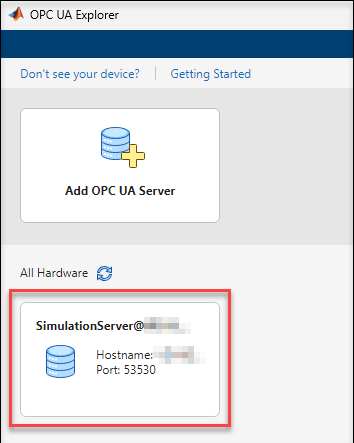
If you have registered any servers after setting up a Local Discovery Server (LDS) for the host computer, the All Hardware section lists the registered servers. For more information, see Install a Local Discovery Server for OPC UA Server Discovery.
To add a new client connection, click Add OPC UA Server.
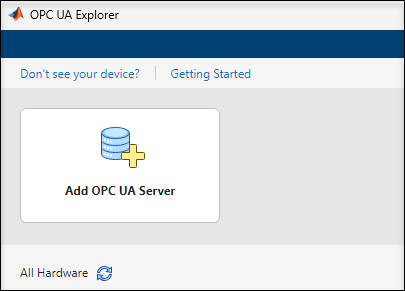
In the Configure tab, configure the connection to your server by setting the parameters on the toolstrip.

Specify a valid OPC UA discovery URL or the hostname of the machine running the OPC UA servers in the Server URL editable field.
To scan for servers available at the specified Server URL, click the scan icon
 .
.Select the OPC UA server for communication from the Server drop-down list.
By default, the app configures the client with the highest available security policy on the server. To change the security policy, select an option from the Security Policy drop-down list. For more information on security policies, see OPC UA Authentication and Message Encryption.
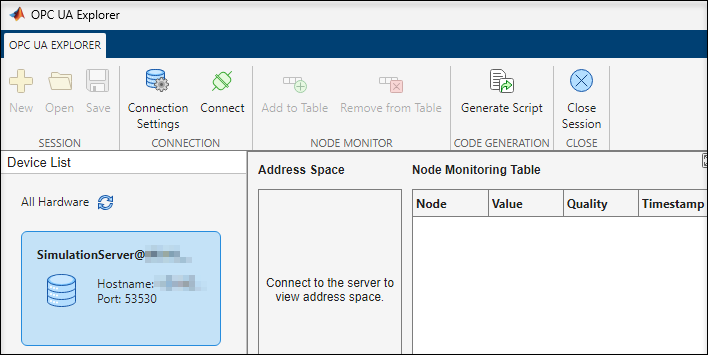
Once you have configured the client, click Confirm Parameters. The OPC UA Explorer tab appears, and your server is added and selected by default in the Device List on the left side of the app.
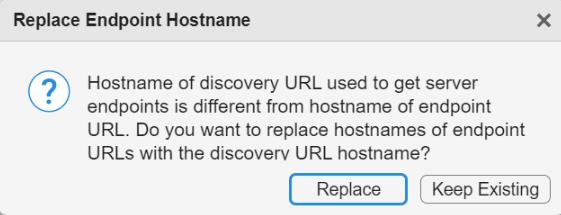
When the hostname of the server's discovery URL is different from the hostname of the endpoint URL, the app provides an option to replace the endpoint URL with the discovery URL hostname.
By default, these options are enabled in the OPC UA Explorer tab:
Connection Settings: Edits the security policy and displays connection parameters. You can use this option to update the security policy for any server selected from the Device List. This option is available only when the app is disconnected from the server.
Connect: Connects to the selected OPC UA server.
Generate Script: Generates script for the actions in the current OPC UA explorer session
Close Session: Closes the current session and redirects to the app start page.
When you click Connect on the app toolstrip, the app displays the three types of user identity tokens supported by the OPC UA servers in the Connect OPC UA Client dialog box. For more information, see User Authentication.
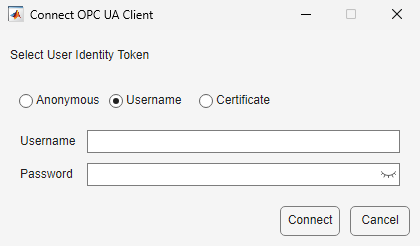
Select the appropriate user identity token, fill in the details, and click Connect.
Anonymous: Requires no input from user.
Username: Specify a valid Username and Password.
Certificate: Specify a Certificate File (*.DER file), a Private Key File (*.PEM file), and a Private Key Password.
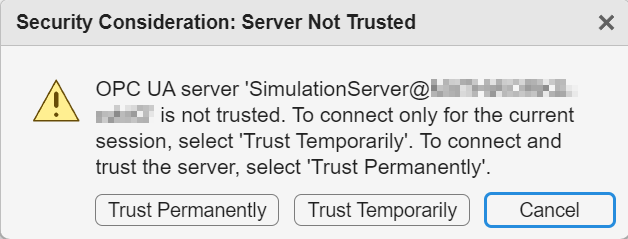
If the app attempts to connect with a server whose certificate is not included in the MATLAB® OPC UA client's trusted certificate store, select one of these options from the security considerations dialog box. For more information, see OPC UA Certificate Management.
Trust Permanently: This option adds the server certificate to the MATLAB OPC UA client's trusted certificate store and allows you to connect any MATLAB OPC UA Explorer session on the local system to the server.
Trust Temporarily: This option allows you to connect to the server only for the current OPC UA Explorer session.
Cancel: This option allows you to cancel the connection request for the specified server.
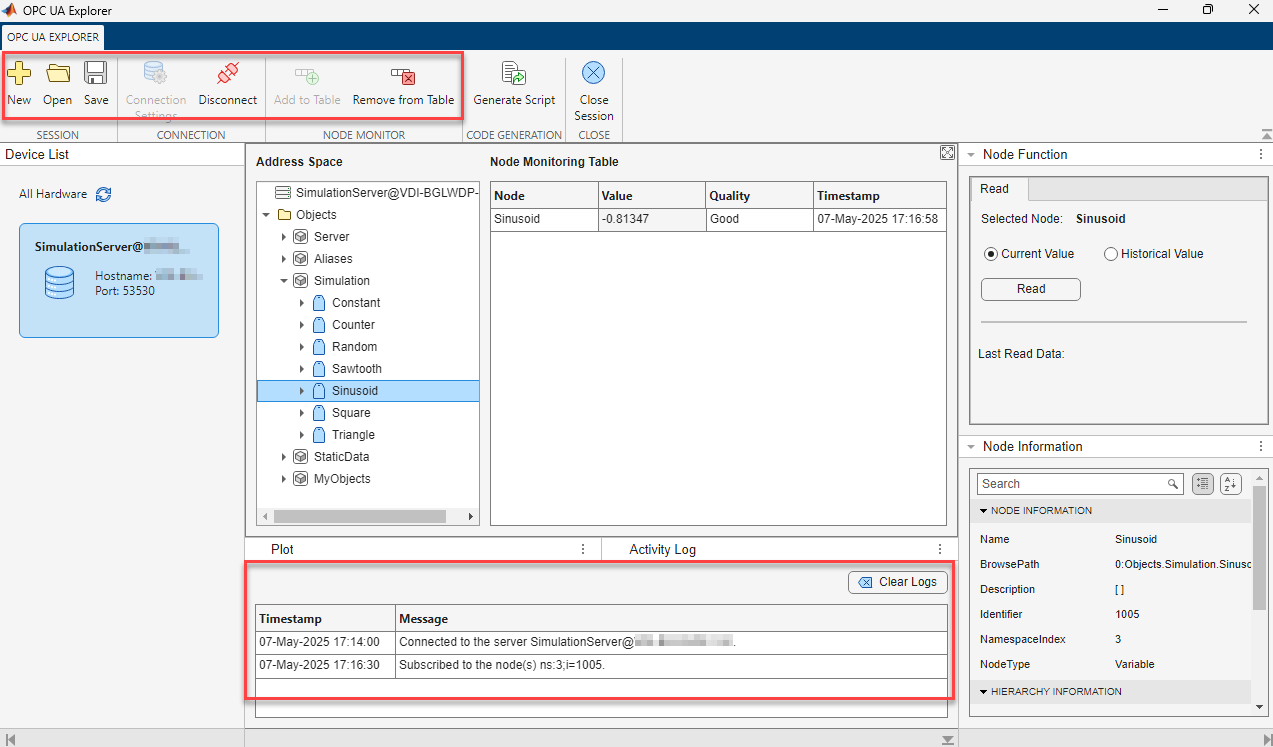
Once the app successfully connects with the OPC UA server, the Connect option changes to Disconnect and the session options New and Open are enabled. You can now select nodes from the Address Space and communicate with the server. To monitor specific node data, you can add or remove nodes from the Node Monitoring Table using the Add to Table and Remove from Table options. The Activity Log pane at the bottom of the window shows each action performed in the current session, along with the corresponding timestamps.
If you close and reopen the app, the configured server is available in the All Hardware section. To start communication with this server in a new session, click the card with the configured server name and then connect to the server.