Configurer l’installation depuis un dépôt Artifactory
R2026bArtifactory®, de l’éditeur JFrog®, est un gestionnaire de dépôts d’artefacts qui supporte la gestion des versions, le contrôle des accès et l’intégration CI/CD. L’outil en ligne de commande MATLAB® Package Manager (mpm) permet aux utilisateurs de télécharger et d’installer des produits et des support packages MathWorks® depuis le dépôt Artifactory de votre organisation. Cette rubrique explique comment configurer l’installation depuis le dépôt Artifactory de votre organisation pour les produits et les support packages MathWorks.
Limitations
Dans les environnements hors ligne, mpm ne peut pas installer de support packages contenant des packages tiers depuis Artifactory. Pendant l’installation, mpm tente de télécharger ces packages tiers depuis les sites de fournisseurs au lieu de les récupérer sur Artifactory. Si les sites de fournisseurs sont inaccessibles, mpm génère une erreur. Pour installer des support packages contenant des packages tiers en dehors d’Artifactory, consultez Installer les support packages sur un ordinateur hors ligne.
Workflow de configuration de l’installation
Pour configurer l’installation de produits et support packages MathWorks depuis le dépôt Artifactory de votre organisation :
Configurez la structure de dossiers du dépôt dans Artifactory (étape à effectuer une seule fois).
Créez le fichier de configuration JSON requis pour installer les produits et les support packages depuis le dépôt (étape à effectuer une seule fois).
Téléchargez les produits et les support packages depuis MathWorks avec
mpm download.Chargez les produits dans le dépôt Artifactory de votre organisation.

Répétez les étapes 3 et 4 ci-dessus pour chaque nouvelle version ou mise à jour des produits et support packages MathWorks.
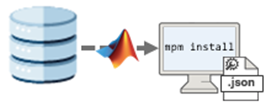
Les utilisateurs peuvent ensuite installer les produits depuis le dépôt en utilisant mpm install et le fichier de configuration.
Configurer la structure de dossiers du dépôt (étape à effectuer une seule fois)
Configurez le dépôt Artifactory utilisé pour stocker les produits et support packages MathWorks.
Dans Artifactory, créez un nouveau dépôt ou réutilisez un dépôt existant. Dans les deux cas, le type de dépôt doit être défini sur Generic. Exemple d’URL de dépôt :
https://artifactory.example.com/artifactory/my-repoDans le dossier de niveau supérieur de votre dépôt Artifactory, créez un sous-dossier
MathWorkspour y stocker les versions de MathWorks.MathWorks/Dans les étapes ultérieures où vous téléchargerez les versions des produits et des support packages depuis MathWorks, vous chargerez ces dernières dans le sous-dossier
MathWorks. Chaque version et mise à jour est stockée dans un sous-dossier distinct sous le dossierMathWorks(par exempleR20XXaU0,R20XXaU1et ainsi de suite). La structure de dossiers suivante représente un dépôt où plusieurs versions et mises à jour ont été chargées :MathWorks/ R20XXaU0/ R20XXaU1/ R20XXaU2/ ... R20XXbU0/ R20XXbU1/ R20XXbU2/ ...
Créer le fichier de configuration du dépôt (étape à effectuer une seule fois)
Créez le fichier de configuration JSON permettant aux utilisateurs d’installer les produits et les support packages. Ce fichier contient les informations sur le dépôt qui sont nécessaires à l’installation.
Créez un fichier JSON. Par exemple :
my_repo_config.json.Copiez le contenu suivant dans le fichier JSON :
{
  "repository_configuration": [
    {
      "name": "my-repo",
      "url": "https://my-artifactory-instance/my-repo",
      "type": "artifactory",
      "repository_layout": {
        "mathworks_products": "MathWorks"
      },
      "auth": {
        "type": "token",
        "access_token": "${ARTIFACTORY_ACCESS_TOKEN}"
      }
    }
  ]
}
Modifiez les champs du fichier JSON en fonction de votre dépôt.
"name": nom de votre dépôt Artifactory."url": URL de votre dépôt Artifactory."type": type de dépôt. À l’heure actuelle, le seul type de dépôt supporté est"artifactory"."repository_layout": disposition des dossiers de votre dépôt Artifactory. Chaque sous-champ derepository_layoutdéfinit un sous-dossier stockant les softwares MathWorks installables. Sous-champs supportés :"mathworks_products": nom du sous-dossier contenant les versions des produits et support packages MathWorks. Supposons par exemple que votre fichier de configuration contiennent les valeurs de champ suivantes :Si vous installez les produits et les support packages pour la version... "url": "https://my-artifactory-instance/my-repo", ... "repository_layout": { "mathworks_products": "MathWorks" }, ...R2026bU0,mpmles récupère depuis l’URL suivante :https://my-artifactory-instance/my-repo/MathWorks/R2026bU0
"auth": informations d’authentification pour accéder au dépôt. Sous-champs supportés :"type": type d’authentification. À l’heure actuelle, le seul type supporté est"token"."access_token": jeton utilisé pour authentifier les utilisateurs qui accèdent au dépôt. Une fois que vous avez obtenu un jeton d’accès auprès de votre administrateur informatique, définissez-le dans la variable d’environnementARTIFACTORY_ACCESS_TOKEN. Suivez la procédure de votre organisation pour définir les variables d’environnement. Exemple de syntaxe :ARTIFACTORY_ACCESS_TOKEN=abc123xyz456Ensuite, spécifiez le nom de la variable d’environnement dans le champ
access_tokendu fichier JSON avec la syntaxe suivante :"access_token": "${ARTIFACTORY_ACCESS_TOKEN}"Vous pouvez également spécifier le jeton d’accès directement dans le fichier JSON. Par exemple :
"access_token": "abc123xyz456"Considérations de sécurité : le fait de spécifier le jeton d’accès directement dans le fichier JSON expose des informations d’identification sensibles en texte clair. Pour réduire le risque d’exposition des informations d’identification dans les fichiers de configuration, spécifiez le jeton d’accès sous forme de variable d’environnement.
Enregistrez le fichier JSON à un emplacement accessible aux utilisateurs, par exemple un lecteur partagé. Si les utilisateurs peuvent télécharger des fichiers depuis votre dépôt Artifactory, vous pouvez charger le fichier dans le dépôt Artifactory.
Télécharger les produits depuis MathWorks
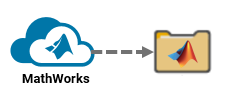
Utilisez mpm pour télécharger les produits et support packages d’une version spécifique que vous souhaitez charger dans Artifactory. Vous ne pouvez pas charger des logiciels MathWorks téléchargés depuis d’autres sources comme des images ISO ou DMG.
Obtenez la dernière version de
mpmen suivant les instructions indiquées dans Obtenir MATLAB Package Manager.Téléchargez les produits avec
mpm download. Par exemple, téléchargez la version R2026b initiale (mise à jour 0) de Simulink® et Deep Learning Toolbox™ Model for ResNet-50 Network pour une utilisation sur les plateformes Linux® (glnxa64), Windows® (win64) et Mac (maca64). Remplacez<USER>par le nom d’utilisateur de votre ordinateur.mpmtélécharge également les produits obligatoires : MATLAB et Deep Learning Toolbox.Linux ou Mac :
./mpm download --release=R2026bU0 --destination=/home/<USER>/Downloads/R2026bU0 --platforms=glnxa64 win64 maca64 --products=Simulink Deep_Learning_Toolbox_Model_for_ResNet-50_NetworkWindows:
.\mpm.exe download --release=R2026bU0 --destination=C:\Users\<USER>\Downloads\R2026bU0 --platforms=glnxa64 win64 maca64 --products=Simulink Deep_Learning_Toolbox_Model_for_ResNet-50_NetworkPour télécharger un grand nombre de produits et support packages, utilisez l’option
--inputfileafin de les spécifier dans un fichier d’entrée. Pour plus de détails, consultez l’exemple Télécharger des produits à l’aide d’un fichier d’entrée sur la page de référence dempm download.
Le dossier R2026bU0 a la structure suivante :
R2026bU0/
  archives/
  mpm/
  ProductFilesInfo.xml
Le dossier R2026bU0 contient les fichiers et sous-dossiers suivants :
archives: sous-dossier contenant les produits et support packages téléchargés.mpm: sous-dossier contenant les versions téléchargées dempm, une pour chaque plateforme spécifiée dans l’option--platformsdempm. Les utilisateurs peuvent installer les produits et les support packages avec ces versions dempm, comme indiqué dans l’exemple de structure suivant :mpm/ glnxa64/ mpm maca64/ mpm win64/ mpm.exeProductFilesInfo.xml: fichier de métadonnées contenant des informations sur les produits et les support packages.
Charger les produits dans Artifactory
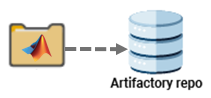
Chargez les produits et support packages téléchargés à la section précédente dans Artifactory. Comme Artifactory ne supporte pas le chargement de dossiers, vous devez d’abord compresser le dossier téléchargé dans un fichier ZIP. Ne modifiez pas la structure ni le contenu de ce dossier avant de le compresser et de le charger.
Utilisez l’outil de votre choix pour compresser le dossier de version téléchargé dans un fichier ZIP. Par exemple, accédez au dossier téléchargé et utilisez
zip(Linux ou Mac) outar(Windows) pour compresser son contenu dans un fichier ZIP dans le dossier parentDownloads.Linux ou Mac :
cd /home/<USER>/Downloads/R2026bU0
zip -r ../R2026bU0.zip ./*
cd ..
Windows (invite de commande) :
cd C:\Users\<USER>\Downloads\R2026bU0
tar -a -c -f ..\R2026bU0.zip *
cd ..
Selon le nombre de produits et support packages téléchargés, ce processus peut prendre plusieurs minutes. Le fichier ZIP compressé doit contenir les sous-dossiers et le fichier indiqués dans l’exemple suivant :
R2026bU0.zip
  archives/
  mpm/
  ProductFilesInfo.xml
Dans le dossier
MathWorksde votre dépôt Artifactory, créez un sous-dossier dans lequel charger le fichier ZIP. Pour créer ce sous-dossier, utilisez JFrog CLI ou l’outil de votre choix. L’exemple ci-dessous montre comment créer le dossier en utilisant l’outil en ligne de commandecurlpour effectuer des requêtes web HTTPS.Linux ou Mac :
curl --user <USER>:<PASSWORD> \
     --request PUT \
     "https://my-artifactory-instance/my-repo/MathWorks/R2026bU0/"
Windows (invite de commande) :
curl --user <USER>:<PASSWORD> ^
     --request PUT ^
     "https://my-artifactory-instance/my-repo/MathWorks/R2026bU0/"
La commande
curlcomprend les options suivantes :--user <USER>:<PASSWORD>: spécifiez vos nom d’utilisateur et mot de passe Artifactory. Sinon, si vous utilisez un jeton d’accès, remplacez--user <USER>:<PASSWORD>par l’en-tête supplémentaire suivant :--header "Authorization: Bearer <TOKEN>"--request PUT: utilisez une requêtePUT, car le chargement modifie le dépôt.https://my-artifactory-instance/my-repo/MathWorks/R2026bU0/: spécifiez l’endpoint d’URL du dossier tel qu’il apparaîtra dans Artifactory. Ajoutez une barre oblique à la fin de l’URL. Utilisez le format d’URL suivant :https://my-artifactory-instance/my-repo/MathWorks/R20XXyUn/https://my-artifactory-instance/my-repo/est l’URL de votre dépôt Artifactory telle que déterminée par le champ"url"du fichier de configuration de celui-ci.MathWorks/est le sous-dossier qui stocke les versions des produits et support packages MathWorks, tel que déterminé par le sous-champ"mathworks_products"du champ"repository_layout"du fichier de configuration de votre dépôt.R20XXyUn/est le dossier d’une version, oùR20XXyest le nom de la version (par exempleR2026b) etUnle numéro de la mise à jour (par exempleU0,U1et ainsi de suite).
Chargez le fichier ZIP dans le dossier de la version du produit que vous venez de créer dans votre dépôt Artifactory. Utilisez JFrog CLI ou l’outil de votre choix. L’exemple ci-dessous montre comment charger le fichier ZIP avec
curl.Linux ou Mac :
curl --user <USER>:<PASSWORD> \
     --header "X-Explode-Archive:true" \
     --request PUT \
     --upload-file /home/<USER>/Downloads/R2026bU0.zip \
     "https://my-artifactory-instance/my-repo/MathWorks/R2026bU0/"
Windows (invite de commande) :
curl --user <USER>:<PASSWORD> ^
     --header "X-Explode-Archive:true" ^
     --request PUT ^
     --upload-file "C:\Users\<USER>\Downloads\R2026bU0.zip" ^
     "https://my-artifactory-instance/my-repo/MathWorks/R2026bU0/"
La commande
curlcomprend les options suivantes :--user <USER>:<PASSWORD>: spécifiez vos nom d’utilisateur et mot de passe Artifactory. Sinon, si vous utilisez un jeton d’accès, remplacez--user <USER>:<PASSWORD>par l’en-tête supplémentaire suivant :--header "Authorization: Bearer <TOKEN>"--header "X-Explode-Archive:true": spécifiezX-Explode-Archive:truedans l’en-tête de la requête pour décompresser le dossier après l’avoir chargé.--request PUT: utilisez une requêtePUT, car le chargement modifie le dépôt.--upload-file ...: spécifiez le chemin d’accès au fichier ZIP.https://my-artifactory-instance/my-repo/MathWorks/R2026bU0/: spécifiez l’endpoint d’URL du dossier créé à l’étape précédente.
Installer des produits et des support packages depuis Artifactory
Pour permettre aux utilisateurs d’installer des produits et des support packages depuis votre dépôt Artifactory, donnez-leur les éléments suivants :
Une copie du fichier de configuration du dépôt (par exemple
my_repo_config.json).Une version de
mpmcompatible avec leur plateforme. Les utilisateurs peuvent télécharger la copie dempmchargée dans le dépôt ou bien téléchargermpmdepuis les serveurs web MathWorks en suivant les instructions indiquées dans Obtenir MATLAB Package Manager.
L’exemple de commande mpm install suivant installe les produits depuis le dépôt Artifactory en utilisant un fichier de configuration stocké à un emplacement partagé.
Linux ou Mac :
./mpm install --repo-config=/usr/share/my_repo_config.json --release=R2026bU0 --destination=/home/<USER>/matlab --products=Simulink Deep_Learning_Toolbox_Model_for_ResNet-50_NetworkWindows (exécuter en tant qu’administrateur) :
.\mpm.exe install --repo-config="Z:\share\my_repo_config.json" --release=R2026bU0 --destination="C:\Users\<USER>\matlab" --products=Simulink Deep_Learning_Toolbox_Model_for_ResNet-50_NetworkPour installer un grand nombre de produits et support packages, utilisez l’option --inputfile afin de les spécifier dans un fichier d’entrée. Pour plus de détails, consultez l’exemple Installer des produits et support packages depuis un dépôt Artifactory avec un fichier d’entrée sur la page de référence de mpm install.
Les utilisateurs peuvent également utiliser mpm dans un fichier Dockerfile pour intégrer MATLAB dans les pipelines CI/CD. Pour un exemple, consultez Create MATLAB Container Image (Créer une image de conteneur MATLAB) sur GitHub®.

