Visualize Custom Messages from ROS or ROS 2 Bag Files
The ROS Data Analyzer app enables you to visualize custom ROS and ROS 2 messages by converting them into supported standard message types using the Adapter Manager. Adapters specify how the app converts data from a custom message into a format that supported visualizers can display.
Note
To visualize custom messages, MATLAB® must recognize the message definitions. If the messages are not already
registered, generate the message package using the rosgenmsg function for ROS or ros2genmsg
function for ROS 2. You can verify that MATLAB recognizes the custom message types by listing them using rosmsg
list or ros2
msg list.
Supported Message Type Conversions for Visualization
The ROS Data Analyzer app visualizes custom messages by converting them into supported standard message types. You can create adapters only for custom messages whose data can be meaningfully mapped to a supported standard message type that has an associated visualizer. Typically, these are custom messages that contain image-based or spatial data suitable for visualization.
| Target Standard Message Type | Supported Visualizer |
|---|---|
| Image Viewer |
sensor_msgs/PointCloud2 | Point Cloud Viewer 3D Viewer |
sensor_msgs/LaserScan | Laser Scan Viewer 3D Viewer |
nav_msgs/Odometry | Odometry Viewer |
| Map Viewer |
| Marker Viewer 3D Viewer |
Tip
Adapters can also modify or transform standard message data before visualization. For example, you can apply the conversion logic of an active adapter to image data before rendering it in the Image viewer.
When to Use Message Adapters
Use message adapters to convert, modify, or transform message data at visualization, without changing the contents of the input ROS or ROS 2 bag file.
Adapters allow you to apply restructuring logic or processing algorithms, such as field remapping, filtering, or data transformation, so that you can visualize data using the supported visualizers in the app. You can update adapter logic and immediately revisualize the data, which makes adapters useful for iterative analysis and experimentation.
The following examples illustrate how adapters support different visualization workflows.
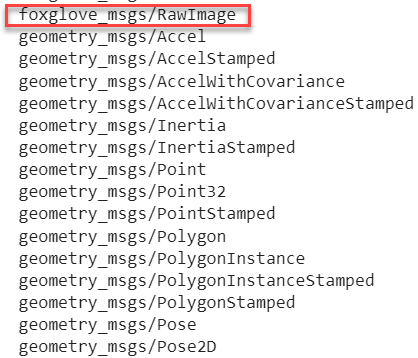
 Convert Custom Foxglove Image Messages for Visualization
Specify Message Adapter Store Location
From the Message Adapters tab in the app toolstrip, click Create to specify a path to store adapter files if you are creating or working with adapters for the first time. The app saves this folder as a preference and reuses it in future sessions.
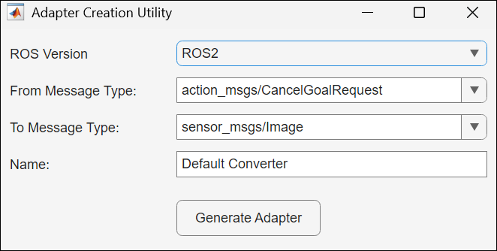
After you select the adapter store location, the app opens the Adapter Creation Utility dialog box to generate the adapter.
You can also create adapters without opening the bag file containing the custom messages.
Define Message Conversion and Generate Adapter
In the Adapter Creation Utility dialog box:
Select the ROS Version based on whether you are working with a ROS bag file or ROS 2 bag file.
Select the From Message Type to specify the custom message type in use.
Select the To Message Type to specify the supported standard message type for conversion.
Enter a name for the adapter.
Click Generate Adapter to generate the MATLAB plugin file (.m), that opens in the MATLAB Editor. Edit this file to implement the conversion logic that maps your custom message fields to the target visualization message type.
The Adapter Manager updates automatically as we remove or edit an existing adapter.
Manage Adapters Using Adapter Manager
From the Message Adapters tab, click Manage to open Adapter Manager. The Adapter Manager displays all the registered message adapters in a table. For each adapter, the table shows the source message type, the target message type after conversion, the ROS version, and the adapter name.
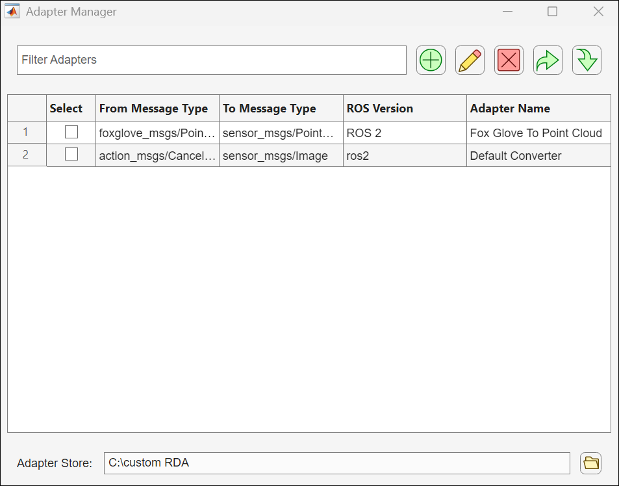
Use the Adapter Manager to:
Create new adapters in the adapter store.
Edit adapters to update conversion logic in the associated MATLAB plugin file (.m).
Remove selected adapters from the list.
Export selected adapters for sharing by packing them in a ZIP file.
Import adapters from ZIP files.
Filter adapters by name or message type using the search bar.
Change the adapter store location using the folder icon next to the Adapter Store option that lists the current path to store adapters.
The Adapter Manager updates automatically when you remove or edit an existing adapter.
Visualize Custom Messages
After you register an adapter, the app adds the custom message types to the Topic List.
Open a supported visualizer and specify an adapter in the Active Adapter to apply the appropriate message conversion. After you apply the adapter, select the custom message from the Select Data Source drop-down list to visualize the data.

