saveAndRegister
R2026bDescription
saveAndRegister(
saves the configuration object and registers the configuration using the specified
resources folder so custom thresholds appear in the testing dashboards. Use this
function to save your changes and make the custom threshold set available in the Model
Testing, SIL Code Testing, and PIL Code Testing dashboards in a single step.config,ResourcesLocation=folder)
Examples
Create a custom threshold set, save the configuration to a JSON file, and register it so the threshold set appears in the testing dashboards.
Copy a shipping threshold set to create a custom configuration.
config = metric.config.Configuration.copyThresholdSet( ...
    SourceThresholdSetId="ReqBasedTesting", ...
    TargetThresholdSetId="MyTestingThresholds");
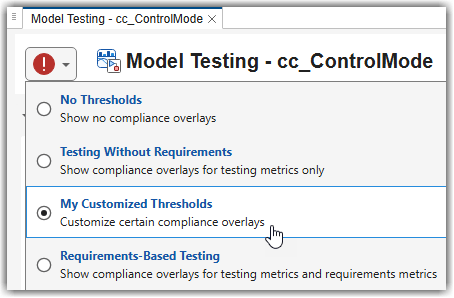
config.ThresholdSets.Name = "My Customized Thresholds";
Set the file path for the configuration. The file must be in a location accessible to MATLAB, such as a folder on the MATLAB search path, in a MATLAB project, or in a MATLAB package. To save the configuration in a MATLAB project, save the file in the project root folder.
proj = currentProject;
p = proj.RootFolder;
config.FileName = fullfile(p,"MyConfig.json");
Save and register the configuration. The ResourcesLocation
specifies the folder where MATLAB looks for registered configurations.
saveAndRegister(config,ResourcesLocation=p)
The custom threshold set now appears in the threshold settings in the top-left corner of the Model Testing, SIL Code Testing, and PIL Code Testing dashboards.
Input Arguments
More About
Version History
Introduced in R2026b

