Compare Requirements Table Blocks in Simulink Models
R2026bThis example shows how to compare Requirements Table blocks in two Simulink® models. Use the Comparison Tool (Simulink) to inspect the changes highlighted in the Requirements Table block, in requirement rows, columns, and cell contents. For more information on Requirements Table blocks, see Requirements Table.
Model Setup
This example uses a Requirements Table block to define formal requirements for an electric vehicle charger locking system. The model CordLockReqTable_v1 defines an initial set of requirements, but the requirements are incomplete and contain inconsistencies such as overlapping conditions or missing details.
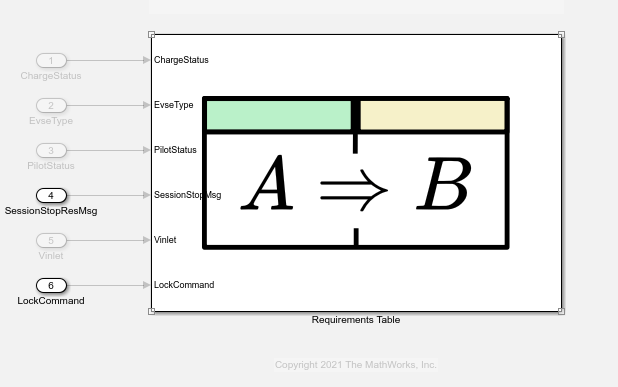
In the model CordLockReqTable_v2, the Requirements Table block includes additional details, corrected logic, and updated preconditions. These updates provide complete coverage of all input combinations, define consistent behavior, and handle edge cases.
Compare Requirements Table Blocks
Use the visdiff function to open and compare the two models CordLockReqTable_v1.slx and CordLockReqTable_v2.slx.
visdiff("CordLockReqTable_v1.slx","CordLockReqTable_v2.slx")
Alternatively, in the Files pane of MATLAB®, select CordLockReqTable_v1.slx and CordLockReqTable_v2.slx. Right-click either file and select Compare Selected Files/Folders. The Comparison Tool opens and displays the differences between the two models that contain Requirements Table blocks.
The Comparison Tool displays side-by-side differences for the selected model item and shows only the differences between the two models, not the complete model hierarchy. If a cell in the Requirements Table block contains multiline text, the Comparison tool displays a line-by-line comparison view.
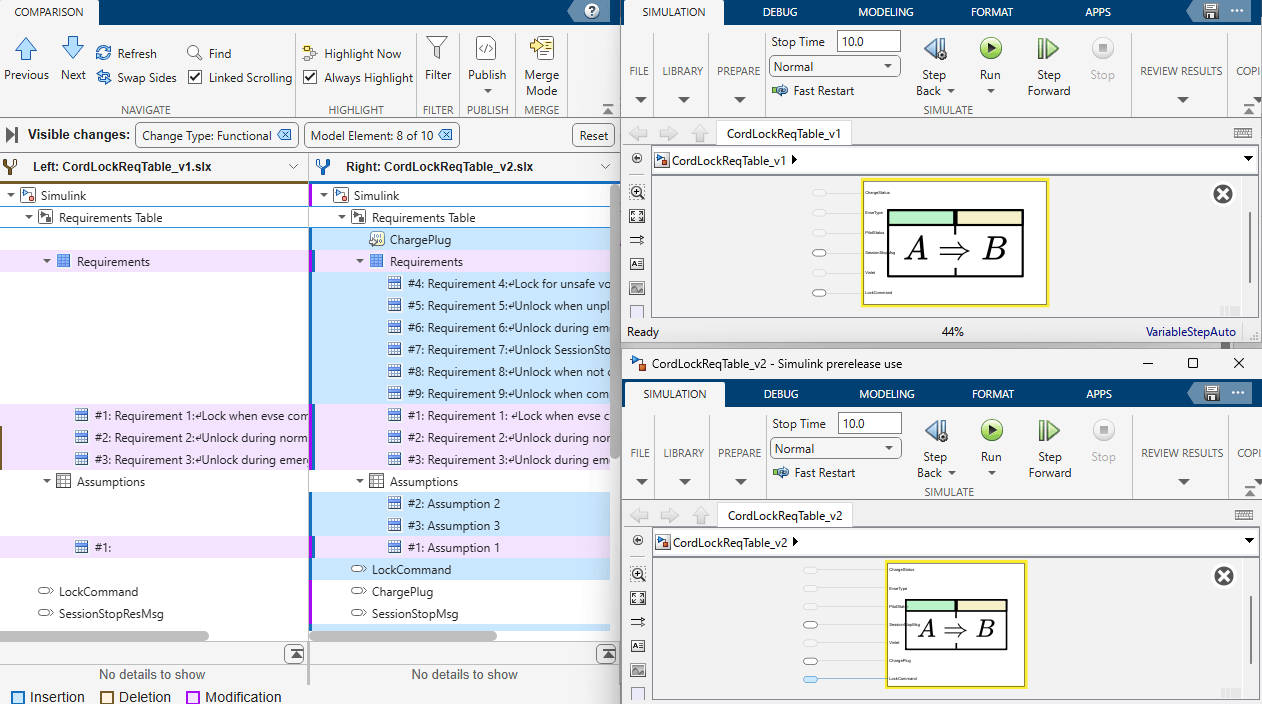
The Comparison Tool highlights modified items in purple, inserted items in blue, and deleted items in yellow. To highlight differences on the Simulink® canvas, select Always Highlight or click Highlight Now. The differences in the Requirements Table block appear under Requirements and Assumptions, with a node under each for each symbol.
Inspect Differences in Requirements Table Blocks
In the comparison tree, navigate to the Requirements Table block. Expand the Requirements Table node to view side-by-side differences.
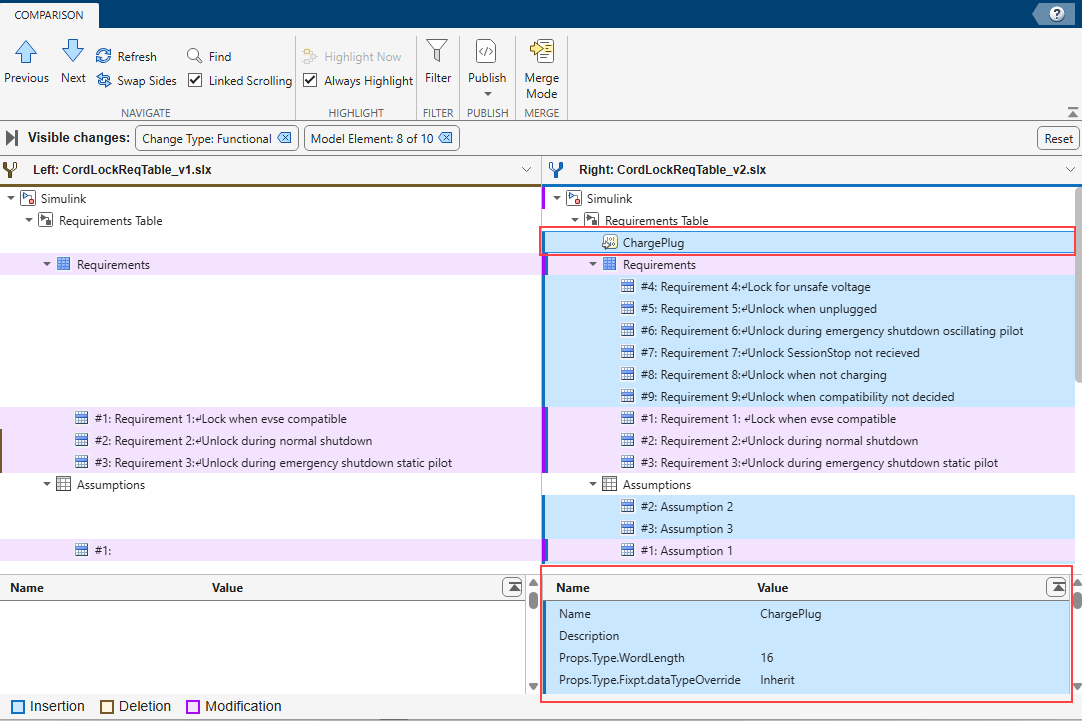
When you select the Requirements tab, the Comparison Tool highlights changes in the requirement rows in Requirements Table block. In particular, requirements #4 to #9 are added, and requirements #1 to #3 are modified in CordLockReqTable_v2.slx.
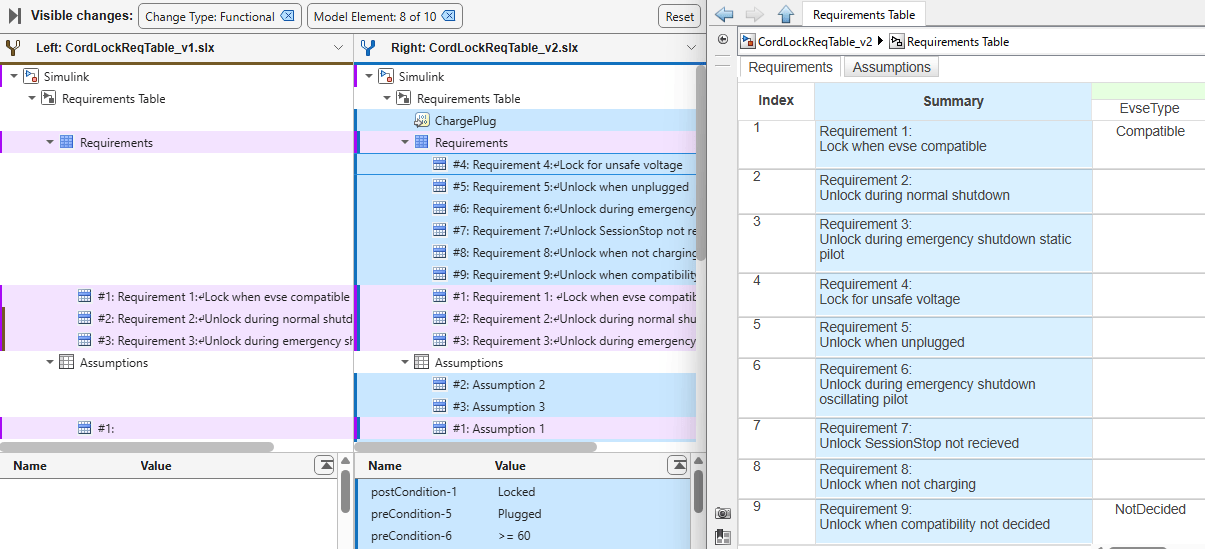
When you select the Assumptions tab, the Comparison Tool highlights modified values in the lower pane. Modified values in the details pane appear in purple.
In the Comparison Tool tree, select Assumption #1. Simulink® highlights Assumption #1 in the Requirements Block for both models. The second model shows Assumption #1 updated with Precondition PilotStatus == A and Postcondition ChargeStatus == NotCharging.
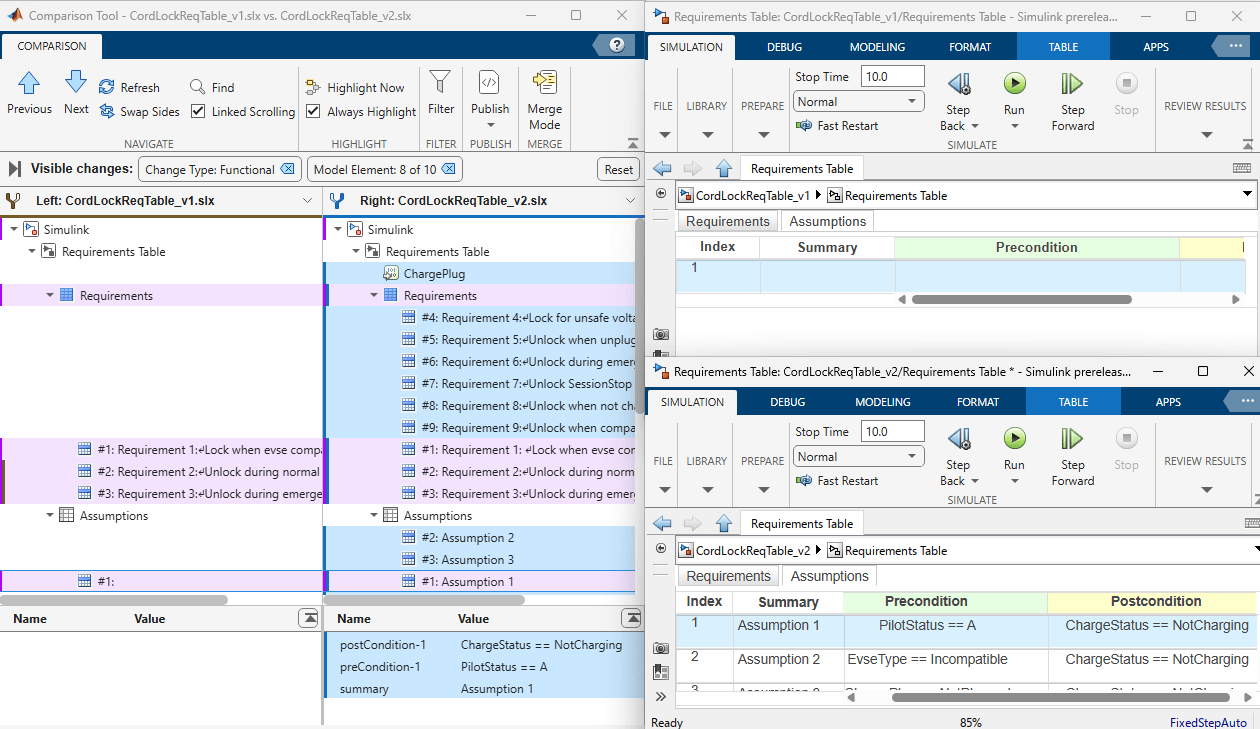
When you select the symbols node, the Comparison Tool highlights modified or inserted values for the node. Select ChargePlug data node in the Comparison Tool tree. The lower pane of the Comparison Tool shows the values of the ChargePlug data properties from the Symbols pane that were added to the updated model in blue.
Filter Results
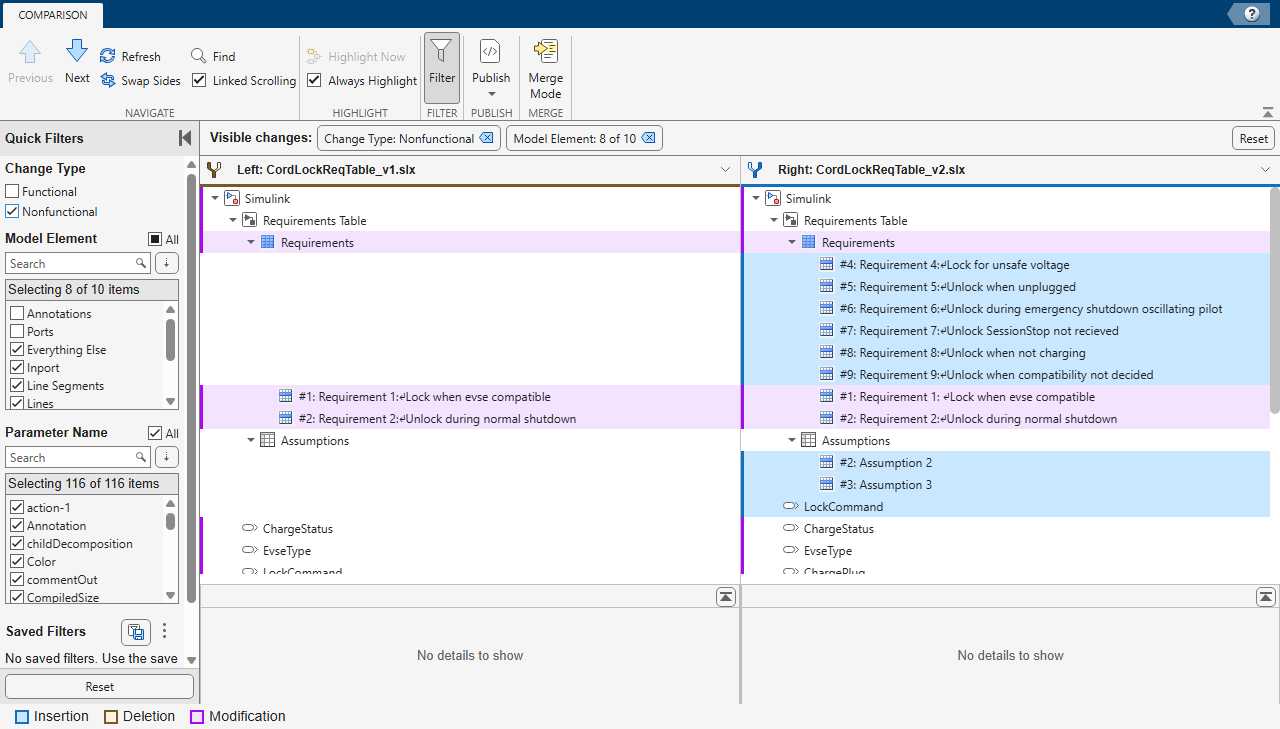
By default, the Comparison Tool hides nonfunctional changes such as repositioning of items, label placement, font and color settings, and display settings.
To focus on specific changes, use the Quick Filters pane. On the toolstrip, in the Filter section, click Filter. Clear the Functional filter and select Nonfunctional under Change type. The Comparison Tool hides changes made to Assumption #1.
Limitations
You can only compare the Requirements Table blocks by using the Comparison Tool. Merging changes and generating a report are not supported.
Comparing requirements-related data, such as requirements sets, keywords, or comments, is not supported.
The order of requirements and assumptions in the Comparison Tool may not match the order of requirement rows and assumptions in Requirements Table blocks.
See Also
Requirements Table | Comparison Tool (Simulink)

