Compare and Merge System Composer Architecture Models
R2026bThis example shows how to use the System Composer Comparison Tool to compare two System Composer™ architecture models. You can view and merge the System Composer architecture model differences in the resulting comparison report.
This example demonstrates how to use the Comparison Tool to:
Compare and review changes in architecture model files.
Visualize and highlight changes in the System Composer Editor.
Export the comparison results to send for peer review.
Use merge mode to port or restore changes in different architecture models.
The models in this example represent a mobile robot hardware architecture. For more information about the model, see Compose and Analyze Systems Using Architecture Models.
Compare Architecture Models
A colleague made changes to the architecture model scMobileRobotHardwareArchitecture and saved the resulting model as scMobileRobotHardwareArchitectureEdited. To compare the architecture model files, in the Files panel, select the two files. Right-click either file and select Compare Selected Files/Folders.
Alternatively, use the visdiff function to compare the scMobileRobotHardwareArchitecture and scMobileRobotHardwareArchitectureEdited models.
visdiff('scMobileRobotHardwareArchitecture','scMobileRobotHardwareArchitectureEdited');
Review Comparison Results
The Comparison Tool shows a report that only includes the differences between the two architecture models, not the complete model hierarchies.
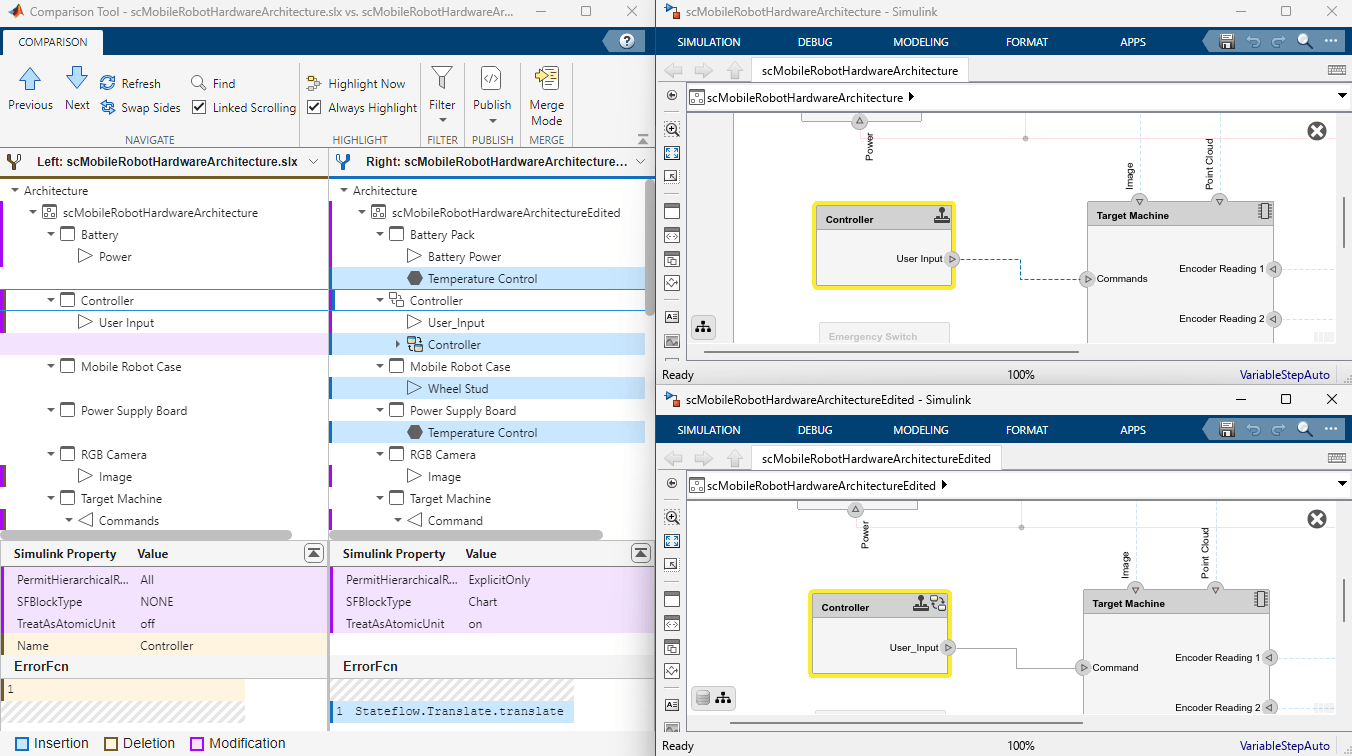
The report colors the modified items in purple, the inserted items in blue, and the deleted items in yellow.
Step Through Differences
To step through the differences in the report, use the Next and Previous navigation buttons on the Comparison tab:
The report goes through the changes one by one. If the selected item in the Left tree has a match, the item is also selected in the Right tree.
MATLAB® displays both models next to the report. If possible, the report highlights the selected items in both System Composer architecture models.
To control highlighting in models, on the Comparison tab, in the Highlight section, select or clear the check box Always Highlight. You can click the Highlight Now button to highlight the currently selected report node at any time.
To learn more about specific changes, in the comparison report, you can select a row. The tool shows the details in a pane on the bottom of the report. As you click each row of the comparison report, the corresponding open architecture models on the right are highlighted.
Compare Structural Differences
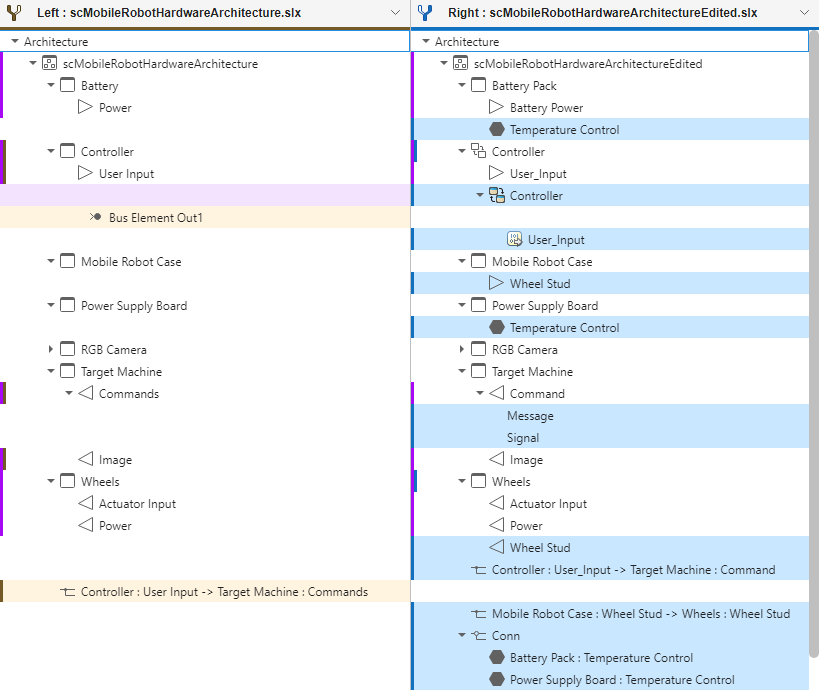
The Architecture section of the System Composer comparison report includes changes to components, ports, and connectors. This section also includes changes to component types, port types, and any owned interfaces added to ports. The comparison report displays:
A new physical port named
Temperature Controladded to thePower Supply Boardcomponent and connected to theBattery PackcomponentThe
Controllercomponent that is converted to a Stateflow® chart componentA new port named
Wheel Studconnected from theWheelscomponent to theMobile Robot CasecomponentA port on the
Target Machinecomponent renamed fromCommandstoCommandA new owned interface with elements
SignalandMessageowned by theCommandoutput port
Compare Interface Differences
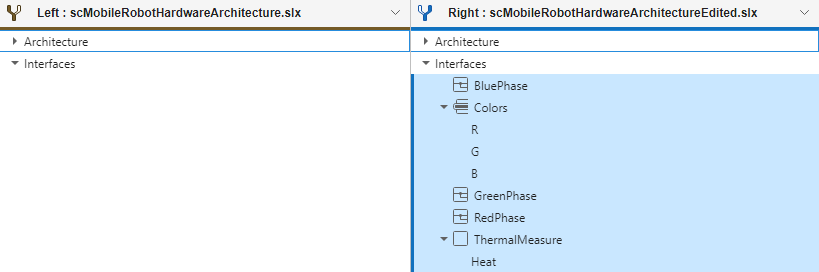
The Interfaces section of the System Composer comparison report includes changes to interfaces stored locally to the model. The comparison report displays:
Three new value type interfaces called
RedPhase,GreenPhase, andBluePhaseA new
Colorsdata interface with three data elements:R,G, andBA new physical interface named
ThermalMeasurewith the physical elementHeat
Tip: When you save interface definitions and other model data in a Simulink® data dictionary, you use the Comparison Tool to compare and merge architecture data of Simulink data dictionaries.
Compare View Differences
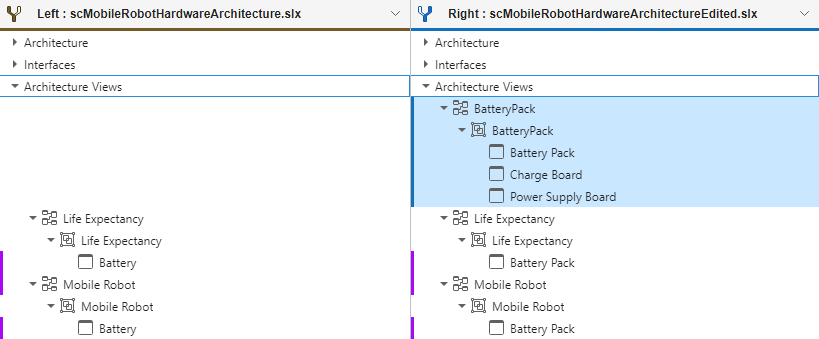
The Architecture Views section of the System Composer comparison report includes added or deleted architecture views and shows whether the view mode has changed between Component Diagram, Component Hierarchy, or Architecture Hierarchy. The comparison report displays:
The new
BatteryPackview and the components that are displayed within it:Power Supply Board,Battery Pack, andCharge BoardChanges to the existing views
Life ExpectancyandMobile Robotdue to renaming theBatterycomponent toBattery Pack
Export, Print, and Save Architecture Model Comparison Results
You can save architecture model comparison results as reports or workspace variables.
To save comparison results in a report, on the Comparison tab, click Publish and choose the report format: HTML, Word, PDF or PDF/A. PDF/A comparison reports are not supported on Linux®.
Merge Changes in Architecture Models
In the comparison report, you can use merge mode to port changes between architecture models using two-way merge.
To port changes in architecture models:
On the Comparison tab, click Merge Mode. The Comparison Tool expands the first change and opens a Target pane at the bottom of the report. This action also creates a third file,
targetFile, which can contain the changes from either the left model (scMobileRobotHardwareArchitecture) or right model (scMobileRobotHardwareArchitectureEdited).Use the buttons in the Target tree to select the differences to keep in the target file.
Click Next to navigate to the next difference.
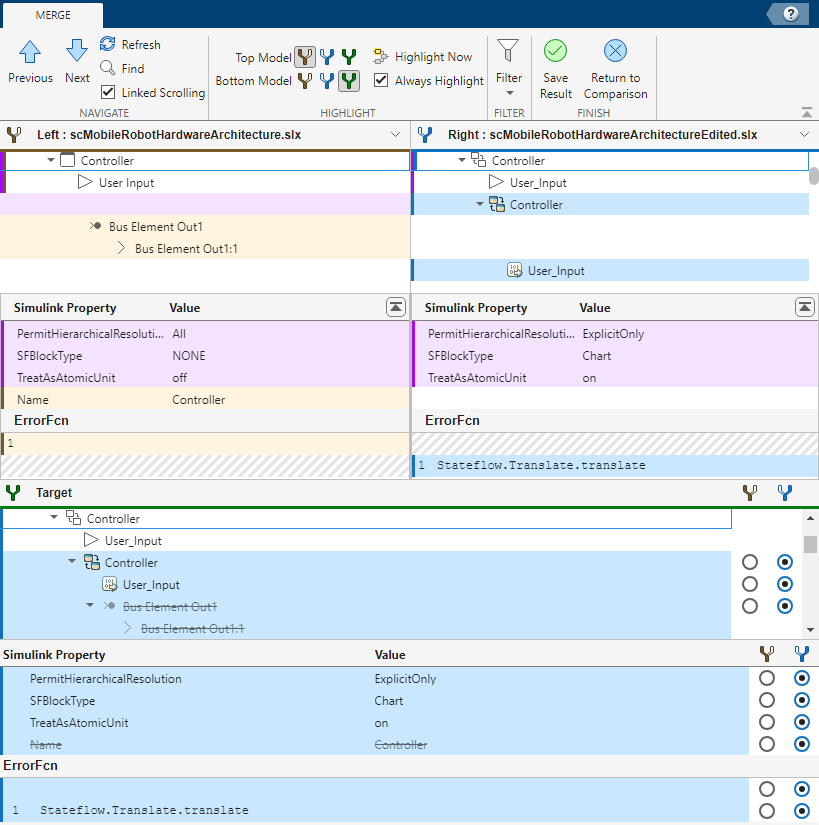
When you finish merging changes, save your choices in the temporary targetFile file using the Save Result button. To cancel all operations instead, click Return to Comparison without saving the file. Inspect your changes in the System Composer Editor.

