Simulate AUTOSAR Adaptive Software Component Model and Generate Code
R2026bAfter you configure your software component model, simulate it to verify the algorithm behavior, and then generate code. Code generation requires an Embedded Coder® license. To properly configure your model for code generation for this example, see Configure AUTOSAR Adaptive Software Component Ports and Interfaces.
Simulate AUTOSAR Adaptive Software Component Model
Simulate your AUTOSAR adaptive software component model. If not already open, open
your saved model my_autosar_LaneGuidance.
Simulate the model. After the simulation finishes, open the Simulation
Data Inspector to view the results. The software component provided port
elements HazardIndicator remain one throughout the simulation
because Simulink® provides a nominal execution environment where timely and successful
data delivery to the software component is assumed by the software so status
elements report SlSignalStatus.OK. To further validate software
component communication and execution behavior at run-time, create a test harness
(requires Simulink
Test™) or create an AUTOSAR software architecture model and reference your
AUTOSAR Adaptive software component model from a connected Adaptive
Component block (requires System Composer™).
Generate and Inspect C++ Code for AUTOSAR
Generate code and export ARXML for an AUTOSAR Adaptive software component model.
For each software component, the code generator produces algorithm and service
interface code. At the application level, the code generator produces a complete
main.cpp file and service implementation code. If you work in
a Linux environment or Windows Subsystem for Linux (WSL), you can also build an
executable and generate code in a single build action.
From model my_autosar_LaneGuidance open the AUTOSAR
Component Designer app. Generate code for the AUTOSAR Adaptive software
component model, from the AUTOSAR tab click the arrow next on
the Build button and click Generate
Code. The code generator produces C++ code and ARXML files and opens
a code generation report when the code generation process is finished.
The software saves the generated files to your current MATLAB® folder. For more information about the structure of generated files,
see Build Process Folder and File Structure and Naming (Embedded Coder). In this
tutorial, the my_autosar_LaneGuidance folder contains the folders
and files created by the code generator.
The my_autosar_LaneGuidance sub-folder contains the algorithm
code and ARXML files.
| Files | Description |
|---|---|
my_autosar_LaneGuidance.cpp | Contains entry points for the algorithm code |
my_autosar_LaneGuidance.h | Declares model data structures and provides a public interface to the algorithm entry points and data structures |
my_autosar_LaneGuidance_services.h | Declares access APIs that the algorithm calls and that are defined in the service implementation |
my_autosar_LaneGuidance.arxml | Contains elements and objects that represent AUTOSAR software components, ports, interfaces, data types, and packages |
my_autosar_LaneGuidance_ExecutionManifest.arxml | Provides deployment-related execution information |
my_autosar_LaneGuidance_ServiceInstanceManifest.arxml | Provides deployment-related service interface information |
The exe folder contains build and deployment files.
| Files | Description |
|---|---|
CMakeLists.txtExecutionManifest.jsonServiceInstanceManifest.json | Provides build configuration and deployment manifests for an executable. The JSON manifests specify execution scheduling and service instance configuration for deployment onto the AUTOSAR adaptive software platform. |
The services folder contains the service implementation and
main.cpp.
| Files or Sub-folder | Description |
|---|---|
main.cpp | Aggregates entry point scheduling data and calls the scheduler with this information. |
my_autosar_LaneGuidance_comm.cppmy_autosar_LaneGuidance_comm_private.h | Contains service implementation that calls into
ara::com entities and APIs representing the
model's communication elements. For the model used in this example,
these files implement port initialization and sender-receiver
communication. For models that use client-server communication, this
file also implements method request handling, response dispatching,
and fire-and-forget method calls. |
The aragen folder contains proxy and skeleton header files and
nested folders for C++ namespaces.
| Files Path | Description |
|---|---|
company/chassis/actuation/hazardinterface_common.h | Contains ara::com stub implementations used by
the skeleton header file |
company/chassis/actuation/hazardinterface_skeleton.h | Handles implementations for sender communication services, and
requires hazardinterface_common.h |
company/chassis/perception/sensorinterface_common.h | Contains ara::com stub implementations used by
the proxy header file |
company/chassis/perception/sensorinterface_proxy.h | Handles implementations for receiver communication services, and
requires sensorinterface_common.h |
The shared folder contains a shared data type definition of
enumerated data type SlSignalStatus.
| Files | Description |
|---|---|
SlSignalStatus.h | Defines the SlSignalStatus enumeration data
type used by status elements for communication error
handling. |
By default, AUTOSAR Blockset code generation uses platform types directly in the generated code. If
header file rtwtypes.h is needed to support code implementations
created in earlier releases, set configuration parameter Data type
replacement (Embedded Coder) to Use coder typedefs to generate
header file rtwtypes.h. (since R2023b)
Before R2023b: AUTOSAR Blockset code generation automatically created and required the
rtwtypes.h supporting file.
In this example, after generating code the software opens a code generation report. The report provides access to generated files in a navigation pane, and offers explanations of the generated code. In this example, use the Code Interface Report to review information about software component service communication interfaces.
The Code Interface Report documents initialization, termination, and periodic entry-point functions:
Initialization entry-point function —
void
                            my_autosar_LaneGuidance_initialize(void)
Termination entry-point function —
void
                            my_autosar_LaneGuidance_terminate(void)
Periodic entry-point function —
void
                            my_autosar_LaneGuidance_step(void)
The report also documents the receiver service and sender service entry-point functions, which are generated for each corresponding software component port element:
get_LeftSensor_LaneDistanceget_LeftSensor_TurnIndicatorget_LeftSensor_CarInBlindSpotget_RightSensor_LaneDistanceget_RightSensor_TurnIndicatorget_RightSensor_CarInBlindSpotset_HazardIndicator_Leftset_HazardIndicator_Right
For more information about code generation reports for applications and their contents, see Generate and Review Application Build Reports (Embedded Coder).
You can inspect code in the AUTOSAR Component Designer app by using the Code view. To open the Code view, on the AUTOSAR tab, click View Code. The Code view opens to the right of the model.
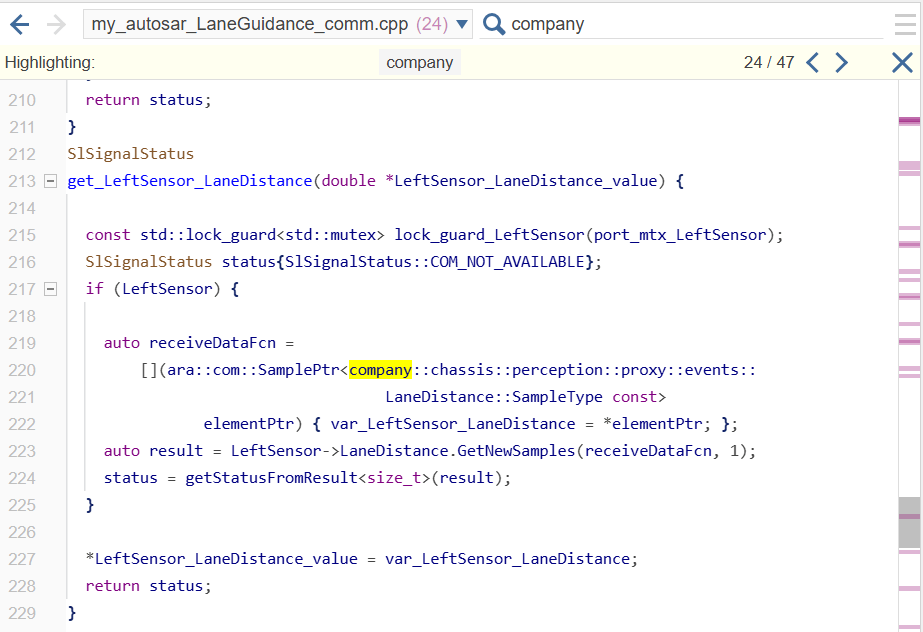
Select file my_autosar_LaneGuidance_comm.cpp and search for
company. The Code view highlights instances of
company, showing how the code generator uses the C++
namespaces you configured in the PortInterfaces data dictionary
in the generated service implementation code.
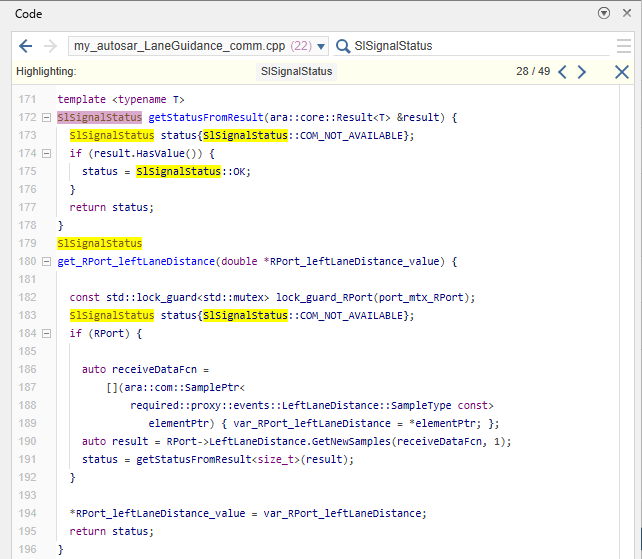
Verify that the status error handling appears in the generated service
implementation code. In the Code view, with
my_autosar_LaneGuidance_comm.cpp still selected, search for
SlSignalStatus. The service implementation functions
initialize status to SlSignalStatus::COM_NOT_AVAILABLE and set it
to SlSignalStatus::OK only when data is received from the
ara::com middleware. The return value of the receiver is the
generated counterpart to the status element in the model.
Review the generated main.cpp file. In the Code view, select
main.cpp, which contains:
A
TaskInfostructure that wraps themy_autosar_LaneGuidance_stepentry point as a task with a period of 0.2 seconds. This period matches the fixed-step size configured in the solver settings of the model.A single
ModelInfostructure that aggregates the initialize, step, and terminate entry points along with the task scheduler.A
main()function that passes theModelInfostructure to the scheduler. The scheduler manages execution of the algorithm.

For more information, see Model AUTOSAR Adaptive Software Components. To build executable applications from AUTOSAR Adaptive software component models, see Build Out of the Box Linux Executable from AUTOSAR Adaptive Model.

