Contenu principal

Integrate Simple MATLAB Function into .NET Application

R2026b

Note

The examples for the MATLAB® Compiler SDK™ product are in matlabroot\toolbox\dotnetbuilder\Examples\VSVersion\NET, where VSVersion specifies the version of Microsoft® Visual Studio® .NET you are using. You can load projects for all the examples by opening the following solution in Visual Studio:

matlabroot\toolbox\dotnetbuilder\Examples\VSVersion\NET\DotNetExamples.sln

The Simple Plot example shows you how to create a .NET assembly that calls a MATLAB function to display a plot. For an example that uses a MATLAB function to modify a structure array, see Phone Book.

In the following examples, you perform these steps to integrate a MATLAB function into a .NET application:

  • Use the MATLAB Compiler SDK product to convert a MATLAB function to a method of a .NET class and wrap the class in a .NET assembly.

  • Access the component in either a C# application or a Visual Basic® application by instantiating your .NET class and using the MWArray class library to handle data conversion.

  • Build and run the generated application using the Visual Studio .NET development environment.

Prerequisites

  • Verify that you have met all of the MATLAB Compiler SDK .NET target requirements. For details, see MATLAB Compiler SDK .NET Target Requirements.

  • Verify that you have Microsoft Visual Studio installed.

  • End users must have an installation of MATLAB Runtime to run the application. For details, see Download and Install MATLAB Runtime.

    For testing purposes, you can use an installation of MATLAB instead of MATLAB Runtime.

Create Simple Plot

Files

MATLAB Function Locationmatlabroot\toolbox\dotnetbuilder\Examples\VSVersion\NET\PlotExample\PlotComp\drawgraph.m
C# Code Locationmatlabroot\toolbox\dotnetbuilder\Examples\VSVersion\NET\PlotExample\PlotCSApp\PlotApp.cs
Visual Basic Code Locationmatlabroot\toolbox\dotnetbuilder\Examples\VSVersion\NET\PlotExample\PlotVBApp\PlotApp.vb

Procedure

  1. Copy the following folder that ships with the MATLAB product to your work folder:

    matlabroot\toolbox\dotnetbuilder\Examples\VSVersion\NET\PlotExample

    At the MATLAB command prompt, navigate to the PlotExample\PlotComp subfolder in your work folder.

  2. Examine the drawgraph function located in PlotExample\PlotComp.

    function drawgraph(coords)
    plot(coords(1,:), coords(2,:));
    pause(5)
    Test the function at the MATLAB command prompt.

    x = 0:0.01:10;
    y = sin(x);
    z = [x;y];
    drawgraph(z)

    The function outputs a figure that displays a sine wave.

  3. Build the .NET component with the .NET Assembly Compiler app or compiler.build.dotNETAssembly using the following information:

    FieldValue
    Library NamePlotComp
    Class NamePlotter
    File to Compiledrawgraph.m

    For example, if you are using compiler.build.dotNETAssembly, type:

    buildResults = compiler.build.dotNETAssembly('drawgraph.m', ...
    'AssemblyName','PlotComp', ...
    'ClassName','Plotter');

    For more details, see the instructions in Generate MWArray .NET Assembly and Build .NET Application.

  4. Decide whether you are using C# or Visual Basic to access the component.

    • C#

      If you are using C#, write source code for a C# application that accesses the component.

      The sample application for this example is in PlotExample\PlotCSApp\PlotApp.cs.

      using System;
      
      using MathWorks.MATLAB.NET.Utility;
      using MathWorks.MATLAB.NET.Arrays;
      
      using PlotComp;
      
      namespace MathWorks.Examples.PlotApp
       {
        /// <summary>
        /// This application demonstrates plotting x-y data by graphing a simple 
        /// parabola into a MATLAB figure window. 
        /// </summary>
        class PlotCSApp
          {
            #region MAIN
      
            /// <summary>
            /// The main entry point for the application.
            /// </summary>
            [STAThread]
            static void Main(string[] args)
              {
                try
                  {
                    const int numPoints= 10;  // Number of points to plot
      
                    // Allocate native array for plot values
                    double [,] plotValues= new double[2, numPoints];
      
                    // Plot 5x vs x^2
                    for (int x= 1; x <= numPoints; x++)
                      {
                        plotValues[0, x-1]= x*5;
                        plotValues[1, x-1]= x*x;
                      }
      
                    // Create a new plotter object
                    Plotter plotter= new Plotter();
      
                    // Plot the two sets of values - Note the ability to cast 
                                    the native array to a MATLAB numeric array
                    plotter.drawgraph((MWNumericArray)plotValues);
      
                    Console.ReadLine();  // Wait for user to exit application
                  }
      
                catch(Exception exception)
                  {
                    Console.WriteLine("Error: {0}", exception);
                  }
              }
      
            #endregion
          }
        }


      This statement creates an instance of the Plotter class:

      Plotter plotter= new Plotter(); 

      This statement explicitly casts the native plotValues to MWNumericArray and then calls the method drawgraph:

      plotter.drawgraph((MWNumericArray)plotValues);
      
    • Visual Basic

      If you are using Visual Basic, write source code for a Visual Basic application that accesses the component.

      The sample application for this example is in PlotExample\PlotVBApp\PlotApp.vb.

      Imports System
      
      Imports MathWorks.MATLAB.NET.Utility
      Imports MathWorks.MATLAB.NET.Arrays
      
      Imports PlotComp
      
      
      Namespace MathWorks.Examples.PlotApp
      
          ' <summary>
          ' This application demonstrates plotting x-y data by graphing a simple 
          ' parabola into a MATLAB figure window. 
          ' </summary>
          Class PlotDemoApp
      
      #Region " MAIN "
      
              ' <summary>
              ' The main entry point for the application.
              ' </summary>
              Shared Sub Main(ByVal args() As String)
                  Try
                      Const numPoints As Integer = 10  ' Number of points to plot
                      Dim idx As Integer
                      Dim plotValues(,) As Double = New Double(1, numPoints - 1) {}
                      Dim coords As MWNumericArray
      
                      'Plot 5x vs x^2
                      For idx = 0 To numPoints - 1
                          Dim x As Double = idx + 1
                          plotValues(0, idx) = x * 5
                          plotValues(1, idx) = x * x
                      Next idx
      
                      coords = New MWNumericArray(plotValues)
      
                      ' Create a new plotter object
                      Dim plotter As Plotter = New Plotter
      
                      ' Plot the values
                      plotter.drawgraph(coords)
      
                      Console.ReadLine()  ' Wait for user to exit application
      
                  Catch exception As Exception
                      Console.WriteLine("Error: {0}", exception)
                  End Try
              End Sub
      #End Region
          End Class
      End Namespace
      

      This statement creates an instance of the Plotter class:

      Dim plotter As Plotter = New Plotter

      This statement calls the method drawgraph:

      plotter.drawgraph(coords)

    In either case, the PlotApp program does the following:

    • Creates two arrays of double values.

    • Creates a Plotter object.

    • Calls the drawgraph method to plot the equation using the MATLAB plot function.

    • Uses MWNumericArray to represent the data needed by the drawgraph method to plot the equation.

    • Uses a try-catch block to catch and handle any exceptions.

  5. Open the .NET project file that corresponds to your application language using Visual Studio.

    • C#

      If you are using C#, the PlotCSApp folder contains a Visual Studio .NET project file for this example. Open the project in Visual Studio .NET by double-clicking PlotCSApp.csproj in Windows® Explorer. You can also open it from the desktop by right-clicking PlotCSApp.csproj and selecting Open Outside MATLAB.

    • Visual Basic

      If you are using Visual Basic, the PlotVBApp folder contains a Visual Studio .NET project file for this example. Open the project in Visual Studio .NET by double-clicking PlotVBApp.vbproj in Windows Explorer. You can also open it from the desktop by right-clicking PlotVBApp.vbproj and selecting Open Outside MATLAB.

  6. Add a reference to your assembly file PlotComp.dll located in the folder where you generated or installed the assembly.

  7. Add a reference to the MWArray API.

    If MATLAB is installed on your systemmatlabroot\toolbox\dotnetbuilder\bin\win64\<version>\MWArray.dll
    If MATLAB Runtime is installed on your system<MATLAB_RUNTIME_INSTALL_DIR>\toolbox\dotnetbuilder\bin\win64\<version>\MWArray.dll

  8. Build and run the PlotApp application in Visual Studio .NET.

    The application displays the following plot:
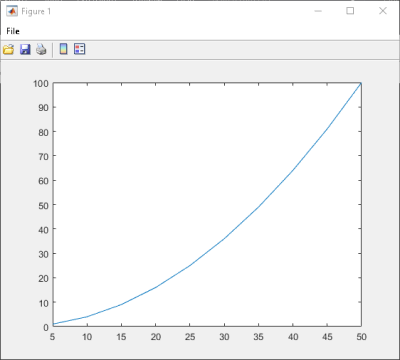
    Plot of x squared.

  9. To follow up on this example:

    • Try running the generated application on a different computer.

    • Try building an installer for the package using compiler.package.installer.

    • Try integrating an assembly that consists of multiple functions.

Create Phone Book

In this example, you create a .NET assembly that calls a MATLAB function to modify a structure array that contains phone numbers.

Files

MATLAB Function Locationmatlabroot\toolbox\dotnetbuilder\Examples\VSVersion\NET\PhoneBookExample\PhoneBookComp\makephone.m
C# Code Locationmatlabroot\toolbox\dotnetbuilder\Examples\VSVersion\NET\PhoneBookExample\PhoneBookCSApp\PhoneBookApp.cs
Visual Basic Code Locationmatlabroot\toolbox\dotnetbuilder\Examples\VSVersion\NET\PhoneBookExample\PhoneBookVBApp\PhoneBookApp.vb

Procedure

  1. Copy the following folder that ships with MATLAB to your work folder:

    matlabroot\toolbox\dotnetbuilder\Examples\VSVersion\NET\PhoneBookExample

    At the MATLAB command prompt, navigate to the PhoneBookExample\PhoneBookComp subfolder in your work folder.

  2. Examine the makephone function located in PhoneBookExample\PhoneBookComp.

    function book = makephone(friends)
    book = friends;
    for i = 1:numel(friends)
        numberStr = num2str(book(i).phone);
        book(i).external = ['(508) 555-' numberStr];
    end

    Test the function at the MATLAB command prompt.

    friends(1).name = "Jordan Robert";
    friends(1).phone = 3386;
    friends(2).name = "Mary Smith";
    friends(2).phone = 3912;
    struct2table(makephone(friends))
    ans =
    
      2×3 table
    
             name          phone         external     
        _______________    _____    __________________
    
        "Jordan Robert"    3386     {'(508) 555-3386'}
        "Mary Smith"       3912     {'(508) 555-3912'}
    
  3. Build the .NET component with the .NET Assembly Compiler app or compiler.build.dotNETAssembly using the following information:

    FieldValue
    Library NamePhoneBookComp
    Class NamePhoneBook
    File to Compilemakephone

    For example, if you are using compiler.build.dotNETAssembly, type:

    buildResults = compiler.build.dotNETAssembly('makephone.m', ...
    'AssemblyName','PhoneBookComp', ...
    'ClassName','PhoneBook');

    For more details, see the instructions in Generate MWArray .NET Assembly and Build .NET Application.

  4. Decide whether you are using C# or Visual Basic to access the component.

    • C#

      If you are using C#, write source code for a C# application that accesses the component.

      The sample application for this example is in
      PhoneBookExample\PhoneBookCSApp\PhoneBookApp.cs.

      /* Necessary package imports */
      using System;
      using System.Collections.Generic;
      using System.Text;
      using MathWorks.MATLAB.NET.Arrays;
      using PhoneBookComp;
      
      namespace MathWorks.Examples.PhoneBookApp
      {
        //
        // This class demonstrates the use of the MWStructArray class
        //
        class PhoneBookApp
          {
            static void Main(string[] args)
              {
                PhoneBook thePhonebook = null;  /* Stores deployment class instance */
                MWStructArray friends= null;   /* Sample input data */
                MWArray[] result= null;        /* Stores the result */
                MWStructArray book= null;      /* Output data extracted from result */
      
                /* Create the new deployment object */
                thePhonebook= new PhoneBook();
      
                /* Create an MWStructArray with two fields */
                String[] myFieldNames= { "name", "phone" };
                friends= new MWStructArray(2, 2, myFieldNames);
      
                /* Populate struct with some sample data --- friends and phone */
                /*  number extensions */
                friends["name", 1]= new MWCharArray("Jordan Robert");
                friends["phone", 1]= 3386;
                friends["name", 2]= new MWCharArray("Mary Smith");
                friends["phone", 2]= 3912;
                friends["name", 3]= new MWCharArray("Stacy Flora");
                friends["phone", 3]= 3238;
                friends["name", 4]= new MWCharArray("Harry Alpert");
                friends["phone", 4]= 3077;
      
                /* Show some of the sample data */
                Console.WriteLine("Friends: ");
                Console.WriteLine(friends.ToString());
      
                /* Pass it to a MATLAB function that determines external phone number */
                result= thePhonebook.makephone(1, friends);
                book= (MWStructArray)result[0];
       
                Console.WriteLine("Result: ");
                Console.WriteLine(book.ToString());
      
                /* Extract some data from the returned structure */
                Console.WriteLine("Result record 2:");
      
                Console.WriteLine(book["name", 2]);
                Console.WriteLine(book["phone", 2]);
                Console.WriteLine(book["external", 2]);
      
                /* Print the entire result structure using the helper function below */
                Console.WriteLine("");
                Console.WriteLine("Entire structure:");
      
                DispStruct(book);
      
                Console.ReadLine();
              }
      
            public static void DispStruct(MWStructArray arr)
              {
                Console.WriteLine("Number of Elements: " + arr.NumberOfElements);
                  
                int[] dims= arr.Dimensions;
      
                Console.Write("Dimensions: " + dims[0]);
      
                for (int idx= 1; idx < dims.Length; idx++)
                  {
                    Console.WriteLine("-by-" + dims[idx]);
                  }
                  
                Console.WriteLine("\nNumber of Fields: " + arr.NumberOfFields);
                Console.WriteLine("Standard MATLAB view:");
                Console.WriteLine(arr.ToString());
      
                Console.WriteLine("Walking structure:");
      
                string[] fieldNames= arr.FieldNames;
      
                for (int element= 1; element <= arr.NumberOfElements; element++)
                  {
                    Console.WriteLine("Element " + element);
      
                    for (int field= 0; field < arr.NumberOfFields; field++)
                      {
                        MWArray fieldVal= arr[arr.FieldNames[field], element];
                          
                        /* Recursively print substructures, */
                        /*  give string display of other classes */
                        if (fieldVal.GetType() == typeof(MWStructArray))
                          {
                            Console.WriteLine("   " + fieldNames[field] + ": 
                                nested structure:");
                            Console.WriteLine("+++ Begin of \"" + fieldNames[field] + "\" 
                                nested structure");
                            DispStruct((MWStructArray)fieldVal);
                            Console.WriteLine("+++ End of \"" + fieldNames[field] + 
                                "\" nested structure");
                          }
      
                        else
                          {
                            Console.Write("   " + fieldNames[field] + ": ");
                            Console.WriteLine(fieldVal.ToString());
                          }
                      }
                  }
              }
          }
      }
      
    • Visual Basic

      If you are using Visual Basic, write source code for a Visual Basic application that accesses the component.

      The sample application for this example is in
      \PhoneBookExample\PhoneBookVBApp\PhoneBookApp.vb.

      ' Necessary package imports
      
      Imports MathWorks.MATLAB.NET.Arrays
      Imports PhoneBookComp
      
      '
      ' getphone class demonstrates the use of the MWStructArray class
      '
      Public Module PhoneBookVBApp
          Public Sub Main()
              Dim thePhonebook As phonebook   'Stores deployment class instance
              Dim friends As MWStructArray    'Sample input data
              Dim result As Object()          'Stores the result
              Dim book As MWStructArray       'Output data extracted from result
      
              ' Create the new deployment object 
              thePhonebook = New phonebook()
      
              ' Create an MWStructArray with two fields 
              Dim myFieldNames As String() = {"name", "phone"}
              friends = New MWStructArray(2, 2, myFieldNames)
      
              ' Populate struct with some sample data --- friends and phone numbers 
              friends("name", 1) = New MWCharArray("Jordan Robert")
              friends("phone", 1) = 3386
              friends("name", 2) = New MWCharArray("Mary Smith")
              friends("phone", 2) = 3912
              friends("name", 3) = New MWCharArray("Stacy Flora")
              friends("phone", 3) = 3238
              friends("name", 4) = New MWCharArray("Harry Alpert")
              friends("phone", 4) = 3077
      
              ' Show some of the sample data 
              Console.WriteLine("Friends: ")
              Console.WriteLine(friends.ToString())
      
              ' Pass it to a MATLAB function that determines external phone number 
              result = thePhonebook.makephone(1, friends)
              book = CType(result(0), MWStructArray)
              Console.WriteLine("Result: ")
              Console.WriteLine(book.ToString())
      
              ' Extract some data from the returned structure '
              Console.WriteLine("Result record 2:")
      
              Console.WriteLine(book("name", 2))
              Console.WriteLine(book("phone", 2))
              Console.WriteLine(book("external", 2))
      
              ' Print the entire result structure using the helper function below 
              Console.WriteLine("")
              Console.WriteLine("Entire structure:")
              dispStruct(book)
          End Sub
      
      
          Sub dispStruct(ByVal arr As MWStructArray)
              Console.WriteLine("Number of Elements: " + arr.NumberOfElements.ToString())
              'int numDims = arr.NumberofDimensions
              Dim dims As Integer() = arr.Dimensions
              Console.Write("Dimensions: " + dims(0).ToString())
      
              Dim i As Integer
              For i = 1 To dims.Length
                  Console.WriteLine("-by-" + dims(i - 1).ToString())
              Next i
              Console.WriteLine("")
              Console.WriteLine("Number of Fields: " + arr.NumberOfFields.ToString())
              Console.WriteLine("Standard MATLAB view:")
              Console.WriteLine(arr.ToString())
              Console.WriteLine("Walking structure:")
      
              Dim fieldNames As String() = arr.FieldNames
      
              Dim element As Integer
              For element = 1 To arr.NumberOfElements
                  Console.WriteLine("Element " + element.ToString())
                  Dim field As Integer
                  For field = 0 To arr.NumberOfFields - 1
                      Dim fieldVal As MWArray = arr(arr.FieldNames(field), element)
                      ' Recursively print substructures, give string display of other classes 
                      If (TypeOf fieldVal Is MWStructArray) Then
                          Console.WriteLine("   " + fieldNames(field) + ": nested structure:")
                          Console.WriteLine("+++ Begin of \"" + fieldNames[field] + 
                                                            " \ " nested structure")
      
                          dispStruct(CType(fieldVal, MWStructArray))
                          Console.WriteLine("+++ End of \"" + fieldNames[field] + 
                                                            " \ " nested structure")
                      Else
                          Console.Write("   " + fieldNames(field) + ": ")
                          Console.WriteLine(fieldVal.ToString())
                      End If
                  Next field
              Next element
          End Sub
      End Module

    In either case, the PhoneBookApp program does the following:

    • Creates a structure array using MWStructArray to represent the example phonebook data containing names and phone numbers.

    • Instantiates the Phonebook class as thePhonebook object, as shown:
      thePhonebook = new phonebook();

    • Calls the MATLAB function makephone to create a modified copy of the structure by adding an additional field, as shown:
      result = thePhonebook.makephone(1, friends);

    • Displays the resulting structure array.

  5. Open the .NET project file that corresponds to your application language using Visual Studio.

    • C#

      If you are using C#, the PhoneBookCSApp folder contains a Visual Studio .NET project file for this example. Open the project in Visual Studio .NET by double-clicking PhoneBookCSApp.csproj in Windows Explorer. You can also open it from the desktop by right-clicking PhoneBookCSApp.csproj and selecting Open Outside MATLAB.

    • Visual Basic

      If you are using Visual Basic, the PhoneBookVBApp folder contains a Visual Studio .NET project file for this example. Open the project in Visual Studio .NET by double-clicking PhoneBookVBApp.vbproj in Windows Explorer. You can also open it from the desktop by right-clicking PhoneBookVBApp.vbproj and selecting Open Outside MATLAB.

  6. Create a reference to your assembly file PhoneBookComp.dll located in the folder where you generated the assembly.

  7. Create a reference to the MWArray API, which is located in:

    MATLABmatlabroot\toolbox\dotnetbuilder\bin\win64\<version>\MWArray.dll
    MATLAB Runtime<MATLAB_RUNTIME_INSTALL_DIR>\toolbox\dotnetbuilder\bin\win64\<version>\MWArray.dll

  8. Build and run the PhoneBookComp application in Visual Studio .NET.

    The application displays the following output:

    Friends: 
    2x2 struct array with fields:
        name
        phone
    Result: 
    2x2 struct array with fields:
        name
        phone
        external
    Result record 2:
    Mary Smith
    3912
    (508) 555-3912
    
    Entire structure:
    Number of Elements: 4
    Dimensions: 2-by-2
    Number of Fields: 3
    Standard MATLAB view:
    2x2 struct array with fields:
        name
        phone
        external
    Walking structure:
    Element 1
       name: Jordan Robert
       phone: 3386
       external: (508) 555-3386
    Element 2
       name: Mary Smith
       phone: 3912
       external: (508) 555-3912
    Element 3
       name: Stacy Flora
       phone: 3238
       external: (508) 555-3238
    Element 4
       name: Harry Alpert
       phone: 3077
       external: (508) 555-3077

See Also

Topics