Pool Dashboard
R2026bDescription
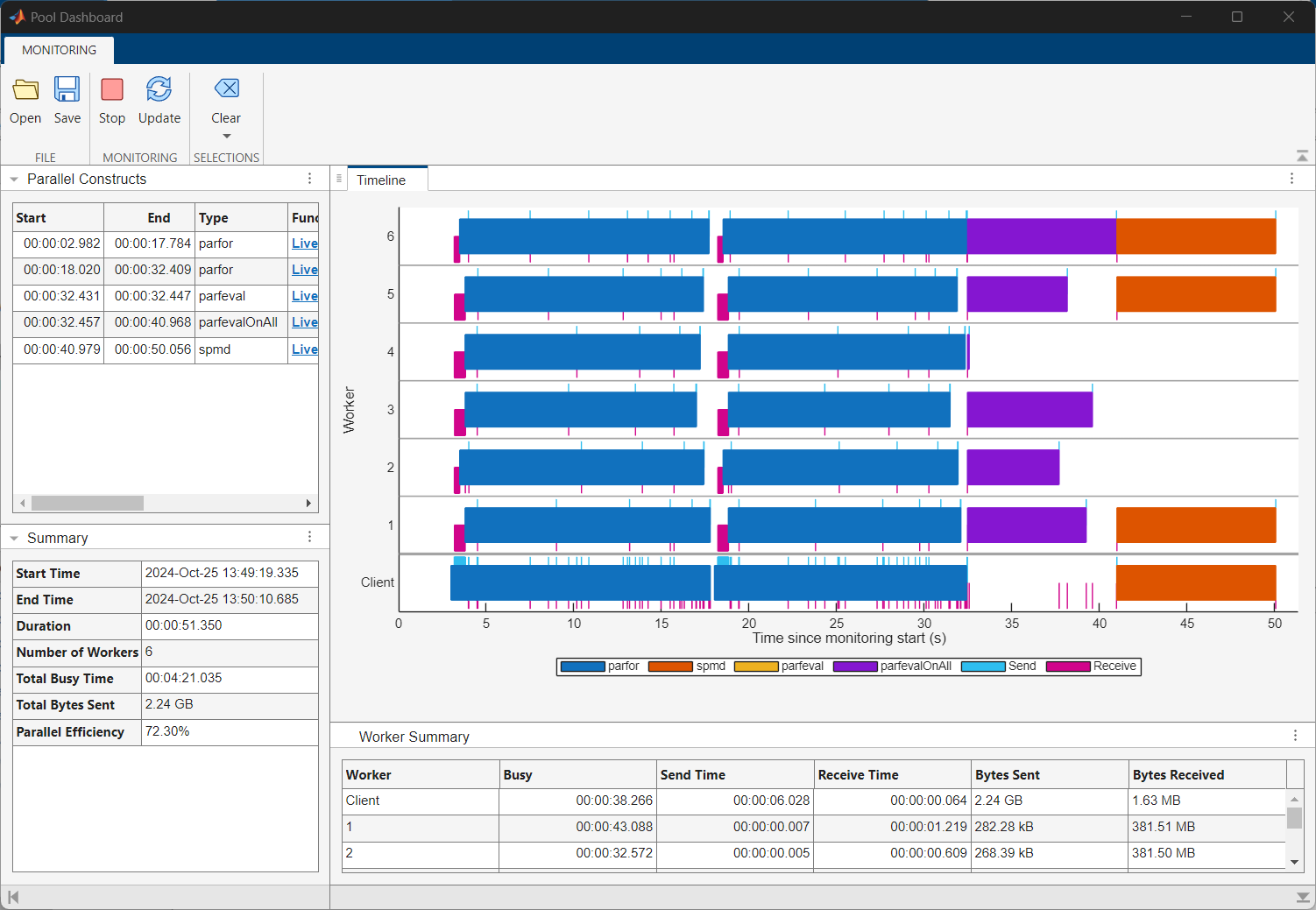
The Pool Dashboard enables you to collect and visualize monitoring data for interactive parallel pools.
Using the Pool Dashboard tool, you can:
Collect monitoring data on how pool workers execute parallel constructs like
parfor,parfeval, andspmd.Track the amount of data, in bytes, that the client and workers send and receive.
Understand the time each worker spends processing their portion of the parallel code.
Examine communication patterns and identify bottlenecks and load-balancing issues.
Open the Pool Dashboard
Parallel panel : To the right of the pool that you want to monitor, click the More Actions button , then click Pool Dashboard. (since R2026b)
MATLAB® Toolstrip: On the Home tab, in the Environment section, click Parallel > Open Pool Dashboard.
Parallel status indicator: Click the indicator icon and select Open Pool Dashboard.
MATLAB command prompt: Enter
parpoolDashboard.
Examples
This example shows how to use the Pool Dashboard to
diagnose performance bottlenecks in parallel computations with
parfor.
You have a computational task that calculates the maximum absolute eigenvalue of a
2-by-2 submatrix extracted from a large matrix. Initially, you implement this task using a
for-loop. To accelerate the computation, you convert the
for-loop into a parfor-loop, and run the
parfor-loop on a pool with six process workers. When you compare
the execution times, the parfor-loop takes significantly longer than
the serial for-loop. You can use the Pool Dashboard to
investigate why the execution time for the parfor-loop is much larger
than the serial for-loop.
| Serial Execution | Parallel Execution |
|---|---|
n = 10000;
data = magic(n);
out = zeros(n,1);
tic
for idx = 2:n
    thisData = idx*data(idx-1:idx,idx-1:idx);
    out(idx) = max(abs(eig(thisData)));
end
toc
Elapsed time is 0.049732 seconds. |
parpool("Processes",6)

n = 10000;
data = magic(n);
out = zeros(n,1);
tic
parfor idx = 2:n
    thisData = idx*data(idx-1:idx,idx-1:idx);
    out(idx) = max(abs(eig(thisData)));
end
toc
Elapsed time is 3.777290 seconds. |
Open the Pool Dashboard and start a pool of process workers.
parpoolDashboard
pool = parpool("Processes");
Save the parfor-loop code as a script named
parforPoolDashboard.m. In the MATLAB Command Window, enter edit parforPoolDashboard. Then
copy this code into the new file and save it.
n = 10000;
data = magic(n);
out = zeros(n,1);
parfor idx = 2:n
    thisData = idx*data(idx-1:idx,idx-1:idx);
    out(idx) = max(abs(eig(thisData)));
end
To start collecting monitoring data, in the Monitor
section of the Pool Dashboard, type parforPoolDashboard
in the Enter code to run and monitor box box and click
Run and Monitor. When the code completes, the Pool
Dashboard displays the monitoring results.
Before R2026a: To start collecting monitoring data, in the
Monitoring section of the Pool
Dashboard, select Start Monitoring. Switch to the
MATLAB Command Window and enter parforPoolDashboard. To
visualize the monitoring data when the code completes, return to the Pool
Dashboard, and in the Monitoring section, select
Stop. The Pool Dashboard displays the monitoring
results.
Review the monitoring data.
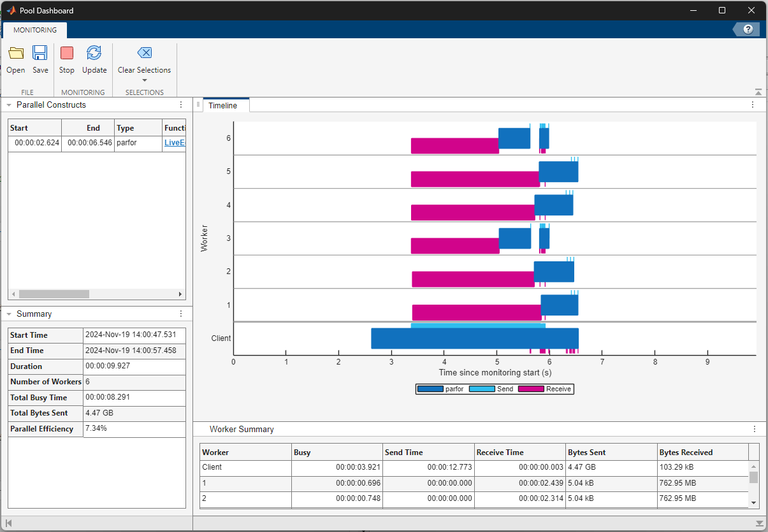
The Timeline graph shows a visual representation of the time
the workers and client spend running the parfor-loop and
transferring data. Dark blue indicates time spent running the
parfor-loop, light blue represents time spent sending data, and
magenta represents time spent receiving data. You can observe that the workers spend the
first two to three seconds of the computation receiving data from the client. Some
workers also spend a considerable amount of time waiting to receive data from the
client.
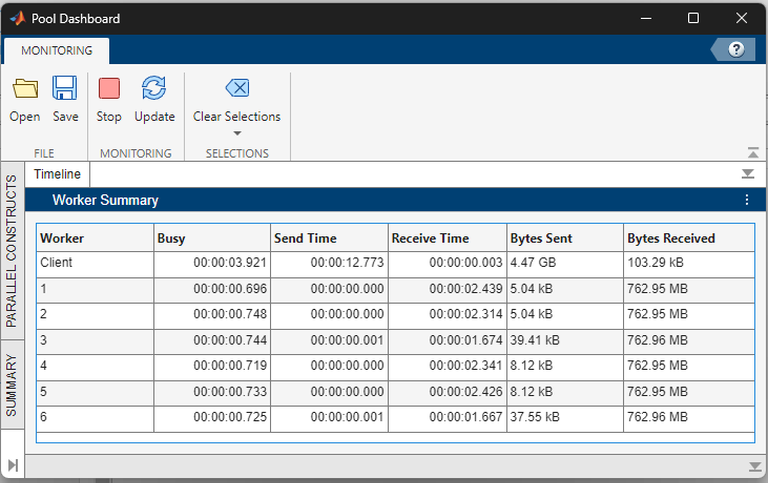
The Worker Summary table below the Timeline graph summarizes the information in the Timeline graph. To view the whole table, click the three dots on the right of the Worker Summary table and select Maximize.

The workers spend a short time running the computations compared to transferring
data. You can observe that the client sends a total of 4.47 GB of data to the workers
and the workers each receive 762.95 MB of data while executing the
parfor-loop. The parfor-loop requires all
the workers to receive a copy of the input data, which introduces data transfer
overheads to the computation that the for-loop does not have. The
high parallel overhead dominates the computing time and this indicates the
for-loop does not benefit from conversion into a
parfor-loop.
However, if you need to run a parfor-loop multiple times using
the same set of data, you can optimize the parfor-loop by
transferring the input data to the workers only once using a Constant
object. This is a one off cost, and the workers have access to the data until you clear
the Constant object.
To see how using a Constant object optimizes the
parfor-loop, modify the parforPoolDashboard
script and rerun it with the Pool Dashboard. In the MATLAB Command Window, enter edit parforPoolDashboard. Delete
the existing code, then copy and paste this code into the script and save the
file.
n = 10000;
data = magic(n);
out = zeros(n,1);

C = parallel.pool.Constant(data);

parfor idx = 1:10
    c = C.Value;
end;

parfor idx = 2:n
    thisData = idx.*C.Value(idx-1:idx,idx-1:idx);
    out(idx) = max(abs(eig(thisData)));
end
Type parforPoolDashboard into the Enter code to run and
monitor box box and click Run and Monitor. When the
code completes, the Pool Dashboard updates the displayed monitoring
results.
Before R2026a: To start collecting monitoring data, in the
Monitoring section of the Pool
Dashboard, select Start Monitoring. Switch to the
MATLAB Command Window and enter parforPoolDashboard. To
visualize the monitoring data when the code completes, return to the Pool
Dashboard, and in the Monitoring section, select
Stop. The Pool Dashboard displays the monitoring
results.
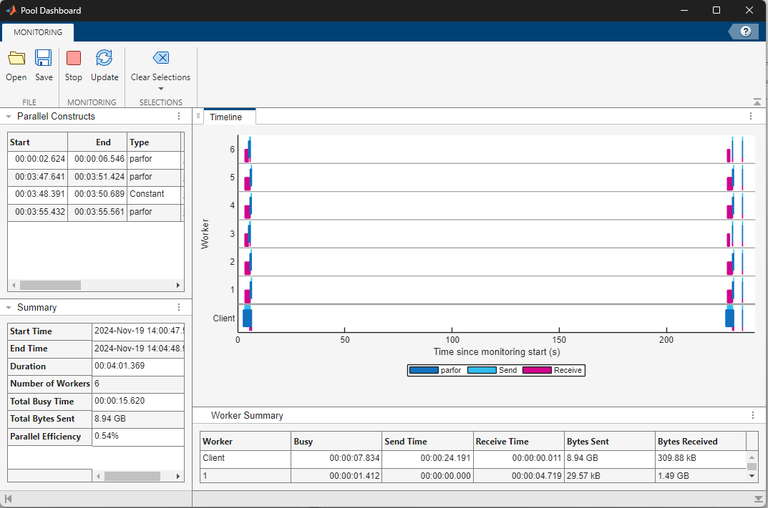
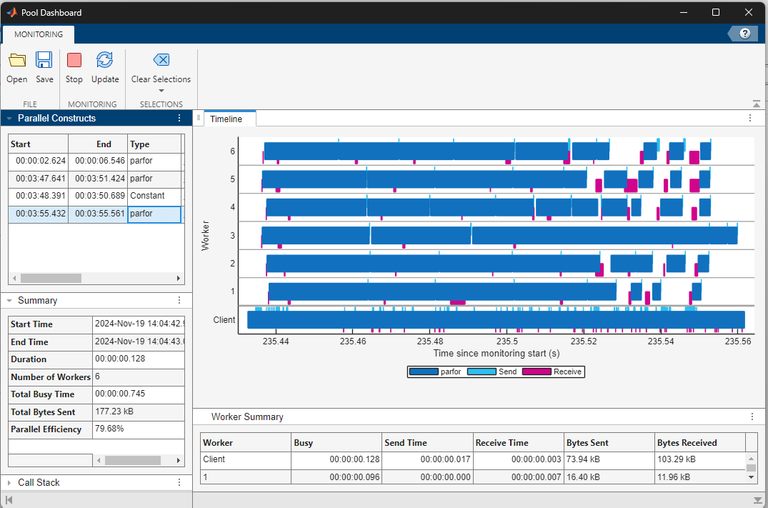
To view the monitoring data for only the parfor-loop that uses
the Constant object, in the Parallel Constructs
panel, select the last row in the table. When you use the Constant
object to transfer data to the workers before you run the
parfor-loop, the workers only spend time running the computations.
Related Examples
Parameters
Programmatic Use
Limitations
Before R2026a: Pool Dashboard is not supported on parallel pools of thread workers.
Pool Dashboard does not track data transfers when monitoring activity on a pool of thread workers.
Pool Dashboard is not supported on batch parallel pools. To monitor batch parallel pools, use a programmatic workflow with an
ActivityMonitorobject. For details, see Programmatically Collect Pool Monitoring Data.The Timeline graph displays information for a maximum of 32 workers.
ThreadPoolscreated usingparpool("Threads")and theBackgroundPoolare both thread-based pools that use the same resources. It is possible that activity on one pool may block activity on the other. If you use both pools at the same time and monitor activity on aThreadPool, the Pool Dashboard collects data only for the workers theThreadPooluses. The Timeline graph indicates when workers perform work for the other pool in grey and labels the other pool type in the legend.

