Use ROS Logger App to Save ROS Messages from Simulink
Use ROS Logger app to record ROS messages during Simulink® simulation, and obtain a rosbag file with fully synchronized ROS messages saved during simulation.
In this example, you will:
Load pre-defined 3D simulation environment provided by Automated Driving Toolbox(TM).
Configure ROS message logging in ROS Logger app.
Visualize logged ROS messages in ROS Bag Viewer app.
Load 3D Simulation Environment
Use the prebuilt Large Parking Lot scene created using the Unreal Engine 3D simulation environment in Simulink. To interactively select a sequence of waypoints from a scene and generate a custom vehicle trajectory, refer to Select Waypoints for Unreal Engine Simulation (Automated Driving Toolbox) example.
% Extract scene for visualization
sceneName = 'LargeParkingLot';
[sceneImage, sceneRef] = helperGetSceneImage(sceneName);
hScene = figure;
helperShowSceneImage(sceneImage, sceneRef)
title(sceneName)

% Interactively Select Waypoints
hFig = helperSelectSceneWaypoints(sceneImage, sceneRef);
% Prepare smooth poses for simulation
if exist('refPoses','var')==0 || exist('wayPoints','var')==0
    % Load MAT-file containing preselected waypoints
    data = load('waypointsForROSLoggerAppParking');

    % Assign to caller workspace
    assignin('caller','wayPoints',data.wayPoints);
    assignin('caller','refPoses',data.refPoses);
end
numPoses = size(refPoses{1}, 1);

refDirections  = ones(numPoses,1);   % Forward-only motion
numSmoothPoses = 10 * numPoses;      % Increase this to increase the number of returned poses

[smoothRefPoses,~,cumLengths] = smoothPathSpline(refPoses{1}, refDirections, numSmoothPoses);
Configure ROS Message Logging
To configure saving options, open the ROS Logger app under SIMULATION> PREPARE> ROS Logger. You can enable/disable ROS messages for saving, define custom file name, and rename messages saved to rosbag file based on your preference.
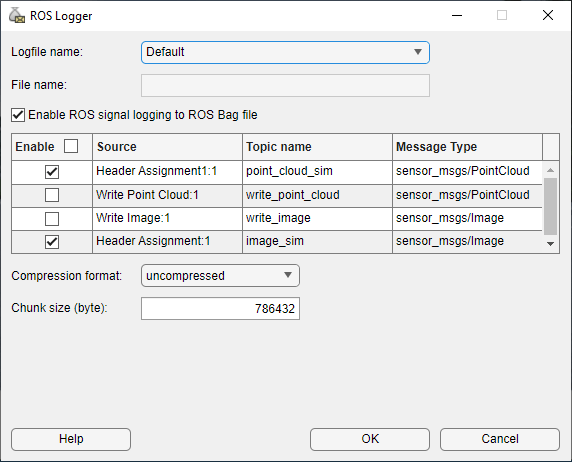
After configuring with ROS Logger app, run these commands to setup model parameters and run the simulation.
modelName = 'LogROSMessageFrom3DSimulation';
open_system(modelName);
% Configure the model to stop simulation at 5 seconds.
simStopTime = 5;
set_param(gcs, 'StopTime', num2str(simStopTime));

% Create a constant velocity profile by generating a time vector
% proportional to the cumulative path length.
timeVector = normalize(cumLengths, 'range', [0, simStopTime]);

% Create variables required by the Simulink model.
refPosesX = [timeVector, smoothRefPoses(:,1)];
refPosesY = [timeVector, smoothRefPoses(:,2)];
refPosesT = [timeVector, smoothRefPoses(:,3)];
% Run the simulation
rosinit
Launching ROS Core...
Creating Python virtual environment for ros1.Done.
Adding required Python packages to virtual environment.Done.
Copying include folders.Done.
Copying libraries.Done.
.............Done in 15.0217 seconds.
Initializing ROS master on http://172.18.230.188:57464.
Initializing global node /matlab_global_node_68986 with NodeURI http://mathworks-szlnm:50219/ and MasterURI http://localhost:57464.
sim(modelName);
Simulation Complete. Starting logging of ROS bag file...
After running the simulation, you can see a rosbag file generated in your current working directory. Long running simulations take some time to generate rosbag files. You can proceed to inspect the bag with "rosbag info" after you see the message “Successfully logged ROS bag file to…”.
Visualize Logged ROS Messages
Open the ROS Data Analyzer app.
rosDataAnalyzer
Click Open and browse for the generated bag file and load it. Inspect the Topic List and Source Details panels on the left side of the app to check the bag file info. Create Image and Point Cloud visualizers from the toolstrip. Play the bag file to visualize the logged messages.
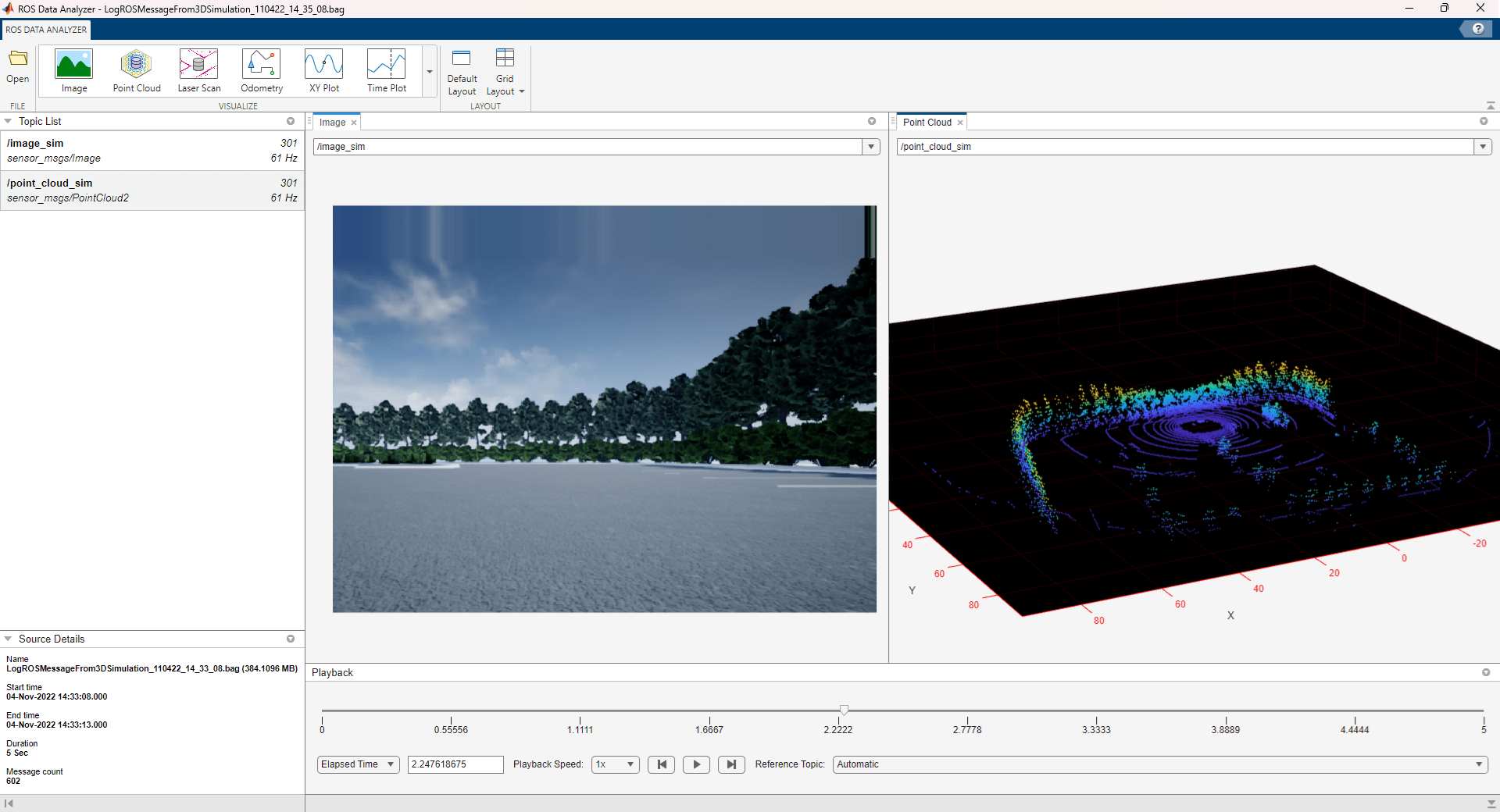
% Shutdown ROS network and close all windows
rosshutdown
close(hFig)
close_system(modelName, 0)
close(hScene)
