Contenu principal

Simulink.sdi.getVisualization

R2026b

Get visualization type of subplot in Simulation Data Inspector

Since R2024b

    Description

    visType = Simulink.sdi.getVisualization(r,c) returns the visualization type, visType, for the subplot at the location specified by r and c on the active tab in the Simulation Data Inspector subplot layout.

    example

    visType = Simulink.sdi.getVisualization(r,c,TabIndex=idx) returns the visualization type for the specified subplot on the tab specified by idx.

    example

    Examples

    collapse all

    Suppose you want to visualize route and speed data in the Simulation Data using a map visualization, an XY plot of the longitude and latitude data, and a time plot of the speed data. You can use the Simulink.sdi.setVisualization function and the Simulink.sdi.getVisualization function to programmatically set and get the visualization type for a subplot. For more information about the route and speed data used in this example, see View and Replay Map Data.

    When subplots are in a grid layout, use the row and column indexing of each subplot to set the visualization type. For example, using a 3-by-1 subplot layout, set the top subplot to a map visualization, the middle subplot to an XY plot, and the bottom subplot to a time plot. Then, plot the data.

    Simulink.sdi.setVisualization(1,1,"map");
    Simulink.sdi.setVisualization(2,1,"xy");
    Simulink.sdi.setVisualization(3,1,"timeplot");
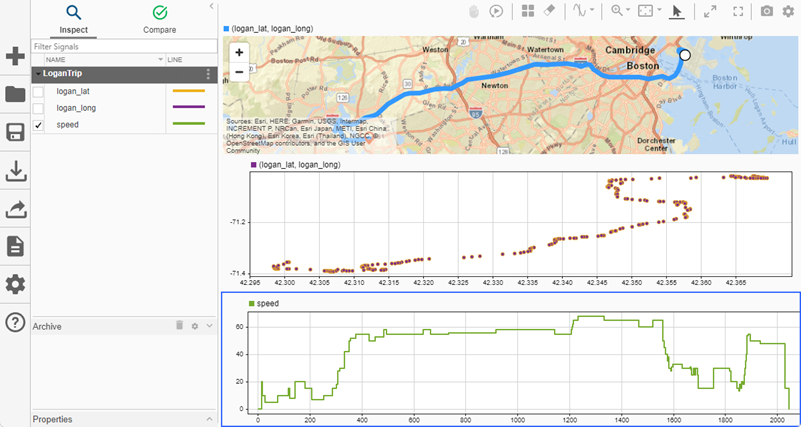
    Route and speed data plotted in the Simulation Data Inspector using a 3-by-1 grid layout.

    You can also set the visualization type when using a split three-plot basic layout. For example, using a split top three-plot layout, set the top-left subplot to an XY plot, the top-right subplot to a time plot, and the bottom subplot to a map. Then, plot the data.

    Simulink.sdi.setVisualization(1,1,"xy");
    Simulink.sdi.setVisualization(1,2,"timeplot");
    Simulink.sdi.setVisualization(2,1,"map");
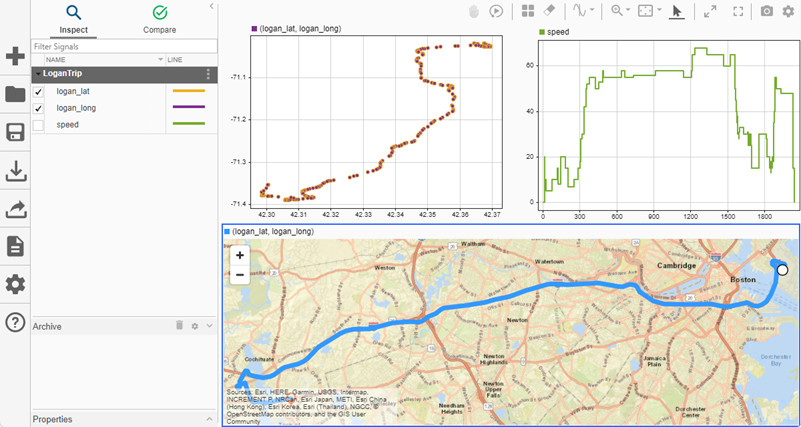
    Route and speed data plotted in the Simulation Data Inspector using split-top three-plot layout.

    When you use an overlay subplot layout, the indexing remains the same regardless of the orientation. Consider an overlay layout with the overlays located at the top of the main subplot. Set the main subplot to a map visualization, the top-left overlay to an XY plot, and the top-right overlay to a time plot.

    Simulink.sdi.setVisualization(1,1,"map");
    Simulink.sdi.setVisualization(1,2,"timeplot");
    Simulink.sdi.setVisualization(2,1,"xy");
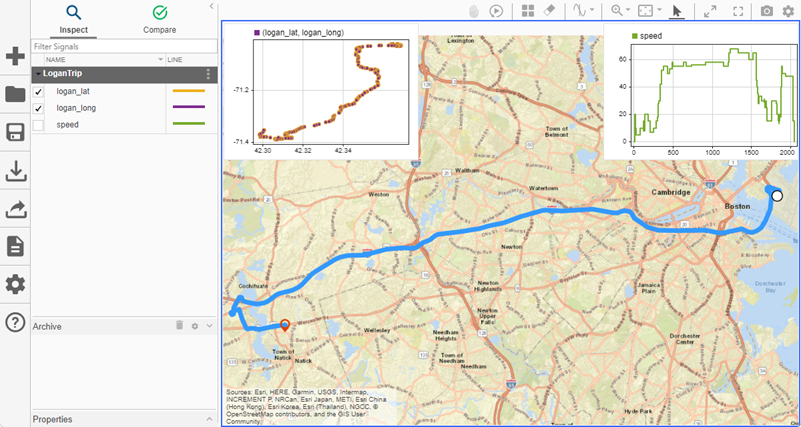
    Route and speed data plotted in the Simulation Data Inspector using an overlay layout with the overlayed subplots at the top of the main subplot.

    Change the position of the overlays so that they are on the right side of the main plot.
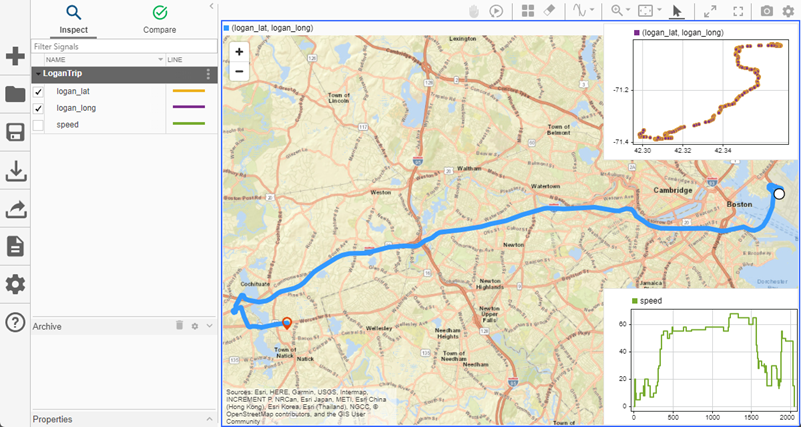
    Route and speed data plotted in the Simulation Data Inspector using an overlay layout with the overlayed subplots on the right side of the main subplot.

    Use the Simulink.sdi.getVisualization function to get the visualization type for each subplot.

    mapVis = Simulink.sdi.getVisualization(1,1)
    xyVis = Simulink.sdi.getVisualization(2,1)
    timeVis = Simulink.sdi.getVisualization(1,2)
    mapVis =
    
        'map'
    
    
    xyVis =
    
        'xy'
    
    
    timeVis =
    
        'timeplot'

    To get the visualization type for a subplot on a specific tab, specify the tab index using the TabIndex name-value argument. For example, get the visualization type for the subplot in the first row and first column of the second tab in the Simulation Data Inspector.

    visType = Simulink.sdi.getVisualization(1,1,TabIndex=2)

    Input Arguments

    collapse all

    Subplot row index, specified as an integer between 1 and 8, inclusive. Use the r and c inputs together to specify the location of the subplot for which you want to get the visualization type. For more information about how the Simulation Data Inspector indexes subplots, see Move Between Subplot Layouts.

    Subplot column index, specified as an integer value between 1 and 8, inclusive. Use the r and c inputs together to specify the location of the subplot for which you want to get the visualization type. For more information about how the Simulation Data Inspector indexes subplots, see Move Between Subplot Layouts.

    Since R2026b

    Tab index, specified as a positive integer between 1 and 8, inclusive. Tabs are indexed from 1 to 8, left to right in the Simulation Data Inspector. Reordering tabs in the Simulation Data Inspector updates the indices.

    You can also locate a tab programmatically using the TabsList property of the Simulink.sdi.TabGroup object. For example, the tab named Tab2 is at index 2.

    tabGrp = Simulink.sdi.TabGroup;
    allTabs = tabGrp.TabsList;
    fprintf("%-10s %-10s %-10s %-10s\n", "Name","Color","Index","IsActive");
    for k = 1:numel(allTabs)
        fprintf("%-10s %-10s %-10d %-10d\n",allTabs(k).Name, ...
            allTabs(k).Color,allTabs(k).Index,allTabs(k).IsActive);
    end
    Name       Color      Index      IsActive  
    Tab1       none       1          0         
    Tab2       none       2          0         
    Tab3       none       3          1    

    When you do not specify TabIndex, the function operates on the active tab.

    Example: TabIndex=2

    Output Arguments

    collapse all

    Visualization type, returned as one of these plotting options:

    • "timeplot" — Signal data as a function of time

    • "array" — Multidimensional data

    • "map" — Route on a map

    • "sparklines" — Many signals at once

    • "xy" — Relationships between time-aligned signals

    • "text-editor" — Rich text editor

    For more information about the visualization types, see Create Plots Using Simulation Data Inspector.

    Version History

    Introduced in R2024b

    expand all