Link Data Dictionary Entries to Requirements
R2026bThis example shows how to link requirements to entries in data dictionaries.
Open Model and Select Simulink Block
Open the sldemo_fuelsys_dd_controller model.
open_system("sldemo_fuelsys_dd_controller")In the sldemo_fuelsys_dd_controller model, open the airflow_calc subsystem and select the Pumping Constant lookup table.
open_system("sldemo_fuelsys_dd_controller/airflow_calc")Select Data Dictionary Entry
In the sldemo_fuelsys_dd_controller model, open the linked data dictionary by clicking the Model Data icon  in the bottom left corner of the model and selecting External Data.
In the Model Explorer window, in the Model Hierarchy pane, under the External Data node, expand the sldemo_fuelsys_dd_controller data dictionary node.
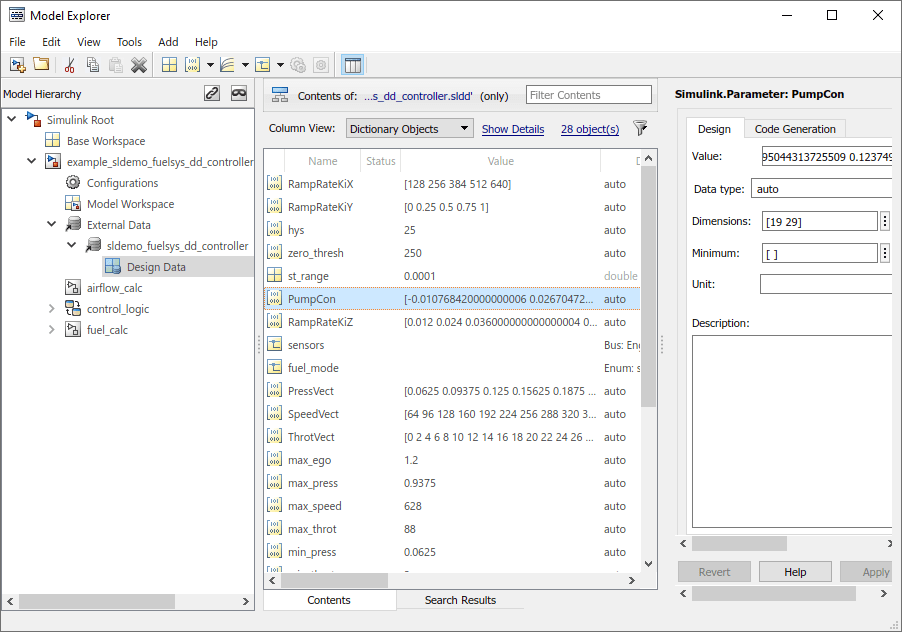
Select Design Data. In the Contents pane, select the PumpCon parameter.
Create Link
In the Model Explorer, select the PumpCon parameter. In the model, right-click the model canvas, point to Select Apps, and click the Requirements Manager button  . To create the link, right-click the
 Pumping Constant, and, in the Requirements Manager app section, click the Link to Selected Data Entry button  .
.
To check the link, right- click the Pumping Constant block, and select Implement: "Data entry PumpCon in sldemo_fuelsys_dd_controller.sldd".

