Energy Profiling of Bluetooth Mesh Nodes in Wireless Sensor Networks
This example shows how to perform energy profiling of nodes in a Bluetooth® mesh network.
Using this example, you can:
Create and configure a Bluetooth mesh network.
Compute energy consumption of mesh nodes in transmission, listen, sleep, and idle states by varying the number of Relay nodes, source-destination node pairs, Friend node-Low Power node (LPN) pair, and the application traffic.
Estimate the lifetime of mesh node based on the configured hardware-specific energy parameters.
Explore the impact of poll timeout and receive window size on the LPN lifetime.
The results confirm the expectation that LPN always consume less energy by spending more time in sleep, resulting in energy conservation and increased lifetime.
Bluetooth Mesh Energy Profiling
The Bluetooth mesh profile [ 3 ] defines the fundamental requirements to implement a mesh networking solution for Bluetooth LE. Bluetooth mesh networking enables large-scale device networks in the applications such as smart lighting, industrial automation, sensor networking, and asset tracking. For information about Bluetooth LE protocol stack, see Bluetooth Protocol Stack.
Each Bluetooth mesh node possess some optional features enabling them to acquire additional capabilities. These features include the Relay, Proxy, Friend, and the Low Power features. The Bluetooth mesh nodes possessing these features are known as Relay nodes, Proxy nodes, Friend nodes, and LPNs, respectively. To reduce the duty cycles of the LPN and conserve energy, the LPN must establish a Friendship with a Friend node (mesh nodes supporting the Friend feature). For more information about devices, nodes, and the Friendship in Bluetooth mesh network, see Bluetooth Mesh Networking.
In this example, the source nodes initiates mesh communication to a destination node and an LPN. During the simulation, the Friend node and LPN exchange Friendship messages. Each node computes the time spent in various states (transmission, listen, idle and sleep) and calculates its lifetime.
Configure Simulation Parameters
Set the seed for the random number generator to 1. The seed value controls the pattern of random number generation. For high fidelity simulation results, change the seed value for each run and average the results over multiple simulations.
rng(1,"twister");Specify the simulation time.
simulationTime = 5; % In secondsSpecify total number of nodes in the mesh network.
numNodes = 21;
Get the node positions from the MAT file. Specify the positions of Bluetooth mesh nodes as a numNodes-by-2 array, where numNodes is the number of nodes in the network. Each row specifies the Cartesian coordinates of a node, starting from the first node.
load("bleMeshNetworkNodePositions.mat");
if numNodes ~= size(bleMeshNetworkNodePositions,1)
    error("Invalid Bluetooth mesh node position value. Specify 'bleMeshNetworkNodePositions' value in the MAT file as a "...
        +num2str(numNodes)+"-by-2 array.");
end
Set some of the nodes as relay nodes, source-destination node pairs, friend node and LPN.
relayNodes = [3 6 7 8 9 12 13 14 17];
sourceDestinationPairs = [1 20; 21 16];
friendNode = 15;
lpn = 16;
Create a wireless network simulator object.
networkSimulator = wirelessNetworkSimulator.init;
Create and Configure Bluetooth Mesh Nodes
Initialize array to store Bluetooth mesh nodes.
meshNodes = bluetoothLENode.empty(0,numNodes);
Create Bluetooth mesh network. Use bluetoothMeshProfileConfig to create mesh profile configuration object. To create a Bluetooth mesh node, use the bluetoothLENode object. Specify the role as "broadcaster-observer" and assign the mesh profile to MeshConfig.
for nodeIndex = 1:numNodes
    % Create and configure Bluetooth mesh profile by specifying the element
    % address (unique to each node in the network). Set relay and network
    % message repetitions.
    meshCfg = bluetoothMeshProfileConfig(ElementAddress=dec2hex(nodeIndex,4),...
        NetworkTransmissions=3,RelayRetransmissions=3);

    % Enable Relay feature of the configured relay nodes
    if any(nodeIndex==relayNodes)
        meshCfg.Relay = true;
    elseif nodeIndex==friendNode % Enable Friend feature of the configured Friend nodes
        meshCfg.Friend = true;
    elseif nodeIndex==lpn % Enable Low Power feature of the configured Low Power nodes
        meshCfg.LowPower = true;
    end

    % Create and configure Bluetooth mesh node by assigning the mesh profile.
    % Set receiver range, advertising interval (seconds) and scan interval (seconds).
    meshNodes(nodeIndex) = bluetoothLENode("broadcaster-observer",MeshConfig=meshCfg, ...
        Position=[bleMeshNetworkNodePositions(nodeIndex,:) 0],Name="Node"+num2str(nodeIndex),...
        AdvertisingInterval=20e-3,ScanInterval=30e-3);
end
Configure Friendship Between Friend Node and LPN
Set friendship timing parameters (in seconds) such as poll timeout, receive window, and receive delay by using the bluetoothMeshFriendshipConfig object.
friendshipConfig = bluetoothMeshFriendshipConfig(PollTimeout=2,ReceiveWindow=180e-3,...
    ReceiveDelay=50e-3);
Configure the friendship between the friend node and LPN by using the configureFriendship object function of bluetoothMeshFriendshipConfig.
configureFriendship(friendshipConfig,meshNodes(friendNode),meshNodes(lpn));
Add Application Traffic to Source Nodes
Create a networkTrafficOnOff (Wireless Network Toolbox) object to generate an On-Off application traffic pattern. Configure the On-Off application traffic pattern by specifying the application data rate, packet size, on, and off state duration. Use addTrafficSource object function to attach the application traffic source between the specified source-destination node pairs.
% Set data rate, packet size, on time, and off time based on the
% simulation time
traffic = networkTrafficOnOff(DataRate=1,PacketSize=15,...
    OnTime=simulationTime*0.3,OffTime=simulationTime*0.7);

% Maximum number of hops for a packet is controlled by setting
% time-to-live (TTL) value
ttl = 10;
for srcIdx = 1:numel(sourceDestinationPairs)/2
    % Attach application traffic to source
    addTrafficSource(meshNodes(sourceDestinationPairs(srcIdx,1)),traffic,...                         % Traffic object
        SourceAddress=meshNodes(sourceDestinationPairs(srcIdx,1)).MeshConfig.ElementAddress,...      % Source element address
        DestinationAddress=meshNodes(sourceDestinationPairs(srcIdx,2)).MeshConfig.ElementAddress,... % Destination element address
        TTL=ttl);
end
Visualize Mesh Network
To visualize the nodes in Bluetooth mesh network, use the wirelessNetworkViewer object. The visualization shows the node placements in the Cartesian plane. To add the mesh nodes to the wireless network viewer, use the addNodes object function of the wirelessNetworkViewer object.
viewerMeshObj = wirelessNetworkViewer();
addNodes(viewerMeshObj,meshNodes(relayNodes),Type="Mesh Relay Node");
addNodes(viewerMeshObj,meshNodes(friendNode),Type="Mesh Friend Node");
addNodes(viewerMeshObj,meshNodes(lpn),Type="Mesh Low Power Node");
addNodes(viewerMeshObj,meshNodes(setdiff(1:numNodes,[relayNodes friendNode lpn])),Type="Mesh Node");
Run the simulation
Add nodes to the wireless network simulator.
addNodes(networkSimulator,meshNodes);
Schedule a pre-simulation action to verify that all mesh nodes have unique element addresses by using the schedulePreSimulationAction object function of the wireless network simulator. The nodes are validated before the start of the simulation using the validateMeshNodes function.
schedulePreSimulationAction(networkSimulator,@validateMeshNodes,meshNodes);
Run the network simulation for the specified simulation time.
run(networkSimulator,simulationTime);

Simulation Results
At each mesh node, the simulation captures these statistics.
Application end-to-end packet latency in seconds
Link layer (LL) throughput in Kbps
Time spent in listen state, transmit state, idle state and sleep state in seconds
Packet statistics at the application layer, network layer, transport layer, LL and physical layer
The workspace variable statisticsAtEachNode contains the cumulative value of the preceding statistics for all the nodes in the network. Use statistics object function to get the statistics of mesh nodes in the network.
% List of statistics (structure array) of the simulated mesh nodes in the network
statisticsAtEachNode = statistics(meshNodes);
This plot shows the average time spent by different type of mesh nodes in different states. The results conclude that the LPN spend most of the time in sleep state, resulting in energy conservation and increased lifetime.
fprintf("Average time statistics of different Bluetooth mesh nodes are:\n");Average time statistics of different Bluetooth mesh nodes are:
meshNodesAvgStats = helperBLEMeshNodeAverageTime(meshNodes);

Configure the traffic between the mesh nodes by using the addTrafficSource object function of the bluetoothLENode object. The transmission time at the mesh node depends on the application traffic. The transmission time at the LPN depends on the poll timeout value.
Further Exploration
Calculate Lifetime of LPN:
At the end of the simulation, calculate the lifetime of a node in the Bluetooth mesh network by using the helperBLEMeshNodeLifetime helper function. To compute node lifetime, the simulation time and the mesh node is given as an input to the helperBLEMeshNodeLifetime helper function. The node lifetime is calculated by using the energy parameters that are hardware dependent. To update these hardware parameters, use the helperBLEMeshNodeLifetime helper function.
lifeTime = helperBLEMeshNodeLifetime(meshNodes(lpn),simulationTime);
Configured hardware parameters for a 1200 mAh battery are:
       Hardware parameters        Configured values (mA)
    __________________________    ______________________

    Self-discharge                      0.0013699
    Transmission on channel 37               7.57
    Transmission on channel 38               7.77
    Transmission on channel 39                7.7
    Listening                                10.3
    Sleep                                     0.2
    Idle                                     1.19

Timing metrics at Node16 are:
     Time variables      Time (seconds)
    _________________    ______________

    Transmission time       0.016704
    Listen time                  1.2
    Sleep time                2.8998
    Idle time                 0.5803
fprintf("Lifetime of %s is %.4f days.\n",meshNodes(lpn).Name,lifeTime);Lifetime of Node16 is 18.1611 days.
Lifetime of LPN by Varying Poll Timeout
The lifetime of an LPN depends on the time for which the node is in the listen state. In a given poll timeout, an LPN is in listen or sleep state for most of the time. The receive window for each poll request of an LPN determines the time spent in listen state. The time spent in transmission state is negligible.
Visualize the impact of the poll timeout and receive window on the lifetime of LPN by using the helperBLEMeshLPNLifetimeVSPolltimeout helper function.
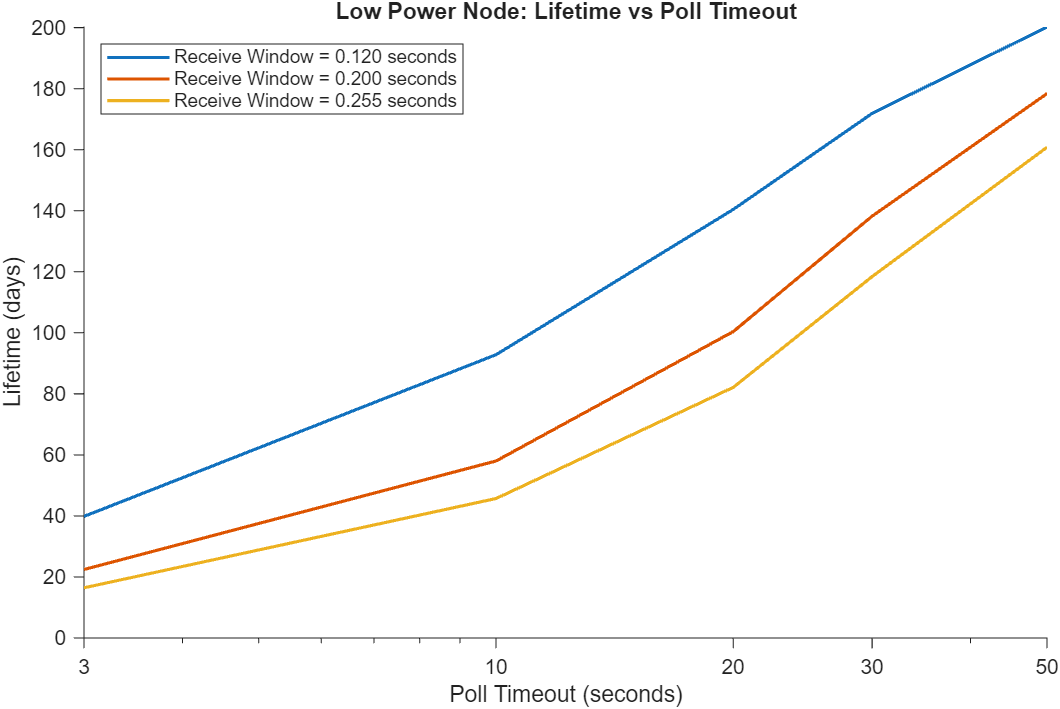
The preceding plot concludes that the lifetime of LPN is directly proportional to the poll timeout. The poll timeout specifies the maximum time between two consecutive requests from an LPN to Friend node. As the poll timeout increases, the LPN spends more time in sleep state that results in increasing the lifetime of the LPN.
Faster Execution Using Parallel Simulation Runs
If you want to run multiple simulations, you can speed up the simulations by enabling parallel computing using the parfor loop. The parfor loop is an alternative to the for loop. The parfor loop enables you to execute multiple simulation runs in parallel, thereby reducing the total execution time. To use parfor, you need to install the Parallel Computing Toolbox™. For more information about running multiple simulations using parfor loop, see helperBLEMeshLPNLifetimeVSPolltimeout helper function.
Appendix
The example uses these helpers:
helperBLEMeshNodeLifetime— Compute lifetime of a Bluetooth mesh nodehelperBLEMeshNodeAverageTime— Compute average time spent in various states by the Bluetooth mesh nodeshelperBLEMeshLPNLifetimeVSPolltimeout— Compute the lifetime of Bluetooth mesh LPN for different poll timeout and receive window values
Selected Bibliography
Bluetooth Technology Website. “Bluetooth Technology Website | The Official Website of Bluetooth Technology.” Accessed November 04, 2025. https://www.bluetooth.com.
Bluetooth Special Interest Group (SIG). "Bluetooth Core Specification". Version 6.1. https://www.bluetooth.com/.
Bluetooth Special Interest Group (SIG). "Bluetooth Mesh Profile". Version 1.0.1. https://www.bluetooth.com/.
Local Functions
validateMeshNodes - Function to validate whether all mesh nodes to have a unique element address
function validateMeshNodes(~,nodes)
% Verify nodes passed are of type bluetoothLENode with role set as
% "broadcaster-observer"
for idx=1:numel(nodes)
    validateattributes(nodes(idx), {'bluetoothLENode'}, {}, mfilename, 'Node');
    if nodes(idx).Role ~= "broadcaster-observer"
        error("Invalid 'Role'. The value of 'Role' for each mesh node must be 'broadcaster-observer'.")
    end
end

% Verify unique element address at each mesh node
addressVals = arrayfun(@(x) x.MeshConfig.ElementAddress,nodes);
if numel(unique(addressVals)) ~= numel(addressVals)
    error("Invalid unicast element address. Each mesh node must have a unique address distinct from all other nodes in the network.")
end
end
See Also
Functions
Objects
wirelessNetworkSimulator(Wireless Network Toolbox) |bluetoothLENode|bluetoothMeshProfileConfig|bluetoothMeshFriendshipConfig

