Import Data to Lookup Table
R2026bYou can import data into lookup table from an Excel® spreadsheet using the readtable function or from the
MATLAB® workspace.
Import Lookup Table Data from Excel Using readtable Function
To use the readtable function in a model to
import data into a lookup table:
Create or open an existing Excel spreadsheet, for example, an Excel spreadsheet that contains this data.
Tip
Instead of importing data into a lookup table, you can also copy and paste the contents of an Excel spreadsheet into a Lookup Table spreadsheet. See Copy and Paste Lookup Table Data from Excel.
1 25 -7 2 35 -4 4 42 Save the Excel file in a folder on the MATLAB path, for example,
MySpreadsheet.xlsx.Create a model and add a 2-D Lookup Table block.
In the model, select Model Settings > Model Properties.
In the Model Properties dialog box, on the Callbacks tab, in the model callbacks list, select PostLoadFcn.
To import the Excel spreadsheet data from
Sheet1, use the MATLABreadtablefunction. This example code imports data for a 2-D lookup table.% Import the data from Excel for a lookup table data = readtable('MySpreadsheet','Sheet','Sheet1'); % Row indices for lookup table breakpoints1 = data{2:end,1}'; % Column indices for lookup table breakpoints2 = data{1,2:end}; % Output values for lookup table table_data = data{2:end,2:end};
Click OK.
After you save your changes, the next time you open the model, Simulink® invokes the callback and imports the data. To see the imported data, click the View diagnostics.
Import Lookup Table Data from MATLAB Workspace
These examples show how to import and export standard format and non-standard format data from the MATLAB workspace.
Import Standard Format Lookup Table Data
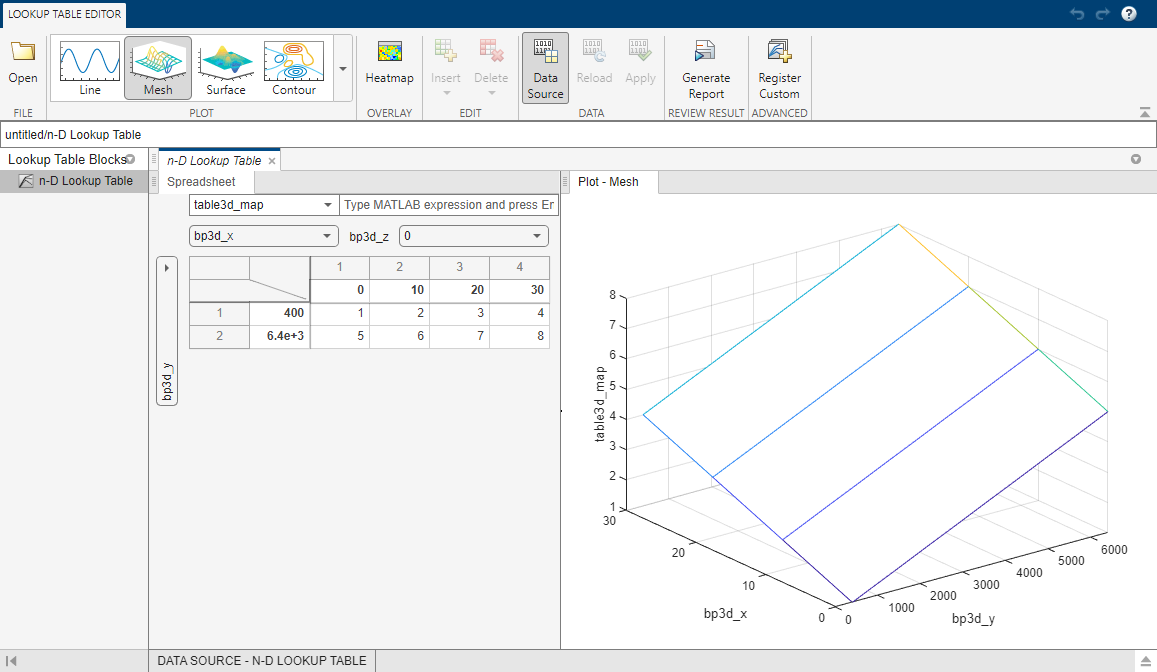
Suppose you specify a 3-D lookup table in your n-D Lookup Table block.
Create workspace variables to use as breakpoint and table data for the lookup table.
table3d_map = zeros(2,4,3);
table3d_map(:,:,1) = [     1     2     3     4;      5     6     7     8];
table3d_map(:,:,2) = [    11    12    13    14;     15    16    17    18];
table3d_map(:,:,3) = [   111   112   113   114;   115   116   117   118];
bp3d_z =[  0    10    20];
bp3d_x =[     0    10    20    30];
bp3d_y =[   400  6400];
Table data:
table3d_mapBreakpoints 1:
bp3d_yBreakpoints 2:
bp3d_xBreakpoints 3:
bp3d_z
To open the Lookup Table Editor and show the data from the workspace variables, click Edit table and breakpoints.
Propagate Standard Format Lookup Table Data
When you make changes to your lookup table data, consider propagating the changes back to the MATLAB workspace variables the data was imported from using File > Update Block Data.
You can also use the Lookup Table Editor to edit the table data and breakpoint
vectors of Simulink.LookupTable objects and the breakpoint
vectors of Simulink.Breakpoint objects and
propagate the changes back to the object.
Suppose you make a change to the lookup table variables imported from the
MATLAB workspace variables in Import Standard Format Lookup Table Data. Change the value of the
data in (1,1,1) from 1 to 33. To propagate
this change back to table3d_map in the workspace, in the
Lookup Table Editor toolstrip, click Apply.
Import Nonstandard Format Lookup Table Data
Suppose you specify a 3-D lookup table in your n-D Lookup Table block. Create
workspace variables to use as breakpoint and table data for the lookup table.
The variable for table data, table3d_map_custom, is a
two-dimensional
matrix.
table3d_map_custom = zeros(6,4);
table3d_map_custom = [     1     2     3     4;      5     6     7     8;
11      12     13      14;        15      16      17     18;
111   112    113    114;     115    116    117    118];
bp3d_z =[  0    10    20];
bp3d_x =[  0    10    20    30];
bp3d_y =[  400  6400];
table3d_map_custom into a
three-dimensional matrix for the table data input using the
reshape command.
Table data:
reshape(table3d_map_custom,[2,4,3])Breakpoints 1:
bp3d_yBreakpoints 2:
bp3d_xBreakpoints 3:
bp3d_z
To open the Lookup Table Editor and show the data from the workspace variables, click Edit table and breakpoints.
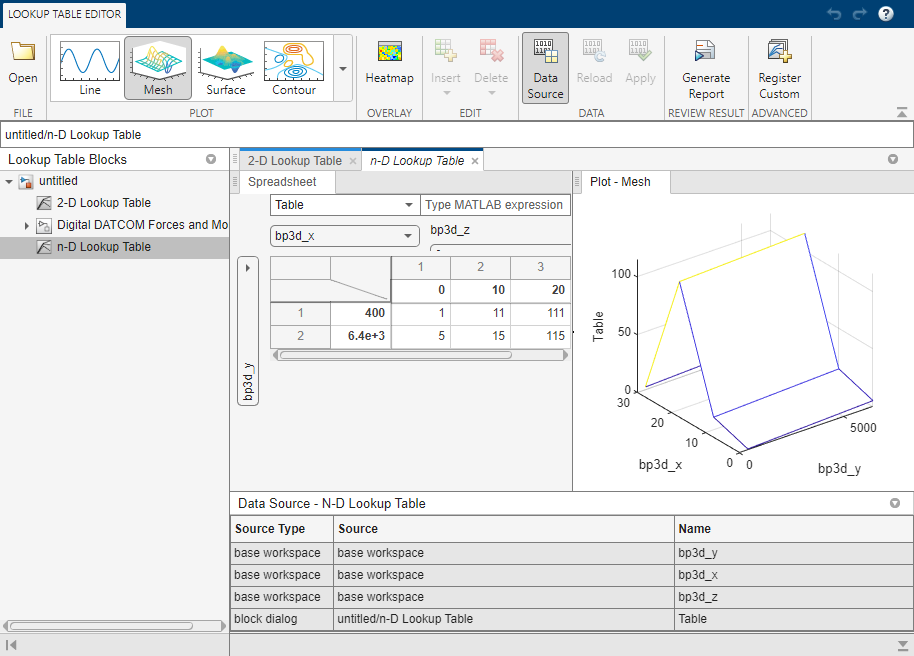
In the Lookup Table Editor, change 1 to 33. The Lookup Table Editor records
your changes by maintaining a copy of the table. To restore the variable values
from the MATLAB workspace, in the Lookup Table Editor toolstrip, click
Reload. To update the MATLAB workspace variables with the edited data, in the Lookup Table
Editor toolstrip, click Apply. You cannot propagate the
change to table3d_map_custom, the workspace variable that
contains the nonstandard table data for the n-D Lookup Table block. To propagate
the change, you must register a customization function that resides on the
MATLAB search path. For details, see Propagate Nonstandard Format Lookup Table Data.
Propagate Nonstandard Format Lookup Table Data
Suppose your Simulink model from Import Nonstandard Format Lookup Table Data
has a three-dimensional lookup table that gets its table data from the
two-dimensional workspace variable table3d_map_custom. Update
the lookup table in the Lookup Table Editor and propagate these changes back to
table3d_map_custom using a customization function.
Create a file named
sl_customization.mwith these contents.function sl_customization(cm) cm.LookupTableEditorCustomizer.getTableConvertToCustomInfoFcnHandle{end+1} = ... @myGetTableConvertInfoFcn; endIn this function:
The argument
cmis the handle to a customization manager object.The handle
@myGetTableConvertInfoFcnis added to the list of function handles in the cell array forcm.LookupTableEditorCustomizer.getTableConvertToCustomInfoFcnHandle. You can use any alphanumeric name for the function whose handle you add to the cell array.
In the same file, define the
myGetTableConvertInfoFcnfunction.function blkInfo = myGetTableConvertInfoFcn(blk,tableStr) blkInfo.allowTableConvertLocal = true; blkInfo.tableWorkSpaceVarName = 'table3d_map_custom'; blkInfo.tableConvertFcnHandle = @myConvertTableFcn; endThe
myGetTableConvertInfoFcnfunction returns theblkInfoobject containing three fields.allowTableConvertLocalallows table data conversion for a block.tableWorkSpaceVarNamespecifies the name of the workspace variable that has a nonstandard table format.tableConvertFcnHandlespecifies the handle for the conversion function.
When
allowTableConvertLocalis set totrue, the table data for that block is converted to the nonstandard format of the workspace variable whose name matchestableWorkSpaceVarName. The conversion function corresponds to the handle thattableConvertFcnHandlespecifies. You can use any alphanumeric name for the conversion function.In the same file, define the
myConvertTableFcnfunction. This function converts a three-dimensional lookup table of size Rows * Columns * Height to a two-dimensional variable of size (Rows*Height) * Columns.% Converts 3-dimensional lookup table from Simulink format to % nonstandard format used in workspace variable function cMap = myConvertTableFcn(data) % Determine the row and column number of the 3D table data mapDim = size(data); numCol = mapDim(2); numRow = mapDim(1)*mapDim(3); cMap = zeros(numRow, numCol); % Transform data back to a 2-dimensional matrix cMap = reshape(data,[numRow,numCol]); endPut the
sl_customization.mfile on the MATLAB search path. You can have multiple files namedsl_customization.mon the search path. For more details, see Behavior with Multiple Customization Functions.Refresh Simulink customizations at the MATLAB command prompt.
sl_refresh_customizations
Open the Lookup Table Editor for your lookup table block and select File > Update Block Data. Click Yes to overwrite the workspace variable
table3d_map_custom.Check the value of
table3d_map_customin the base workspace.table3d_map_custom = 33 2 3 4 5 6 7 8 11 12 13 14 15 16 17 18 111 112 113 114 115 116 117 118The change in the Lookup Table Editor has propagated to the workspace variable.
Note
If you do not overwrite the workspace variable
table3d_map_custom the software prompts you to
replace it with numeric data. Click Yes to replace
the expression in the Table data box with numeric data.
Click No if you do not want your Lookup Table Editor
changes for the table data to appear in the block dialog box.
Behavior with Multiple Customization Functions
At the start of a MATLAB session, Simulink loads each sl_customization.m customization
file on the path and executes the sl_customization function.
Executing each function establishes the customizations for that session.
When you select File > Update Block Data in the Lookup Table Editor, the editor checks the list of function
handles in the cell array for
cm.LookupTableEditorCustomizer.getTableConvertToCustomInfoFcnHandle.
If the cell array contains one or more function handles, the
allowTableConvertLocal property determines whether
changes in the Lookup Table Editor can be propagated.
If the value is set to
true, then the table data is converted to the nonstandard format in the workspace variable.If the value is set to
false, then table data is not converted to the nonstandard format in the workspace variable.If the value is set to
trueand another customization function specifies it to befalse, the Lookup Table Editor reports an error.

