Display
R2026bDisplay signal value during simulation in box with customizable appearance
Since R2023b
Custom Display block

To add a block to a model, double-click the canvas and start typing the block name. Then, select the block from the list.
Libraries:
Simulink /
Dashboard /
Customizable Blocks
Description
The Display block connects to a signal in your model and displays the signal value during simulation. The Display block can display scalar and multidimensional signals. When you use the Display block in the Customizable Blocks library, you can customize the appearance of the block to resemble a real display in your system. Use the Display block with other dashboard blocks to build an interactive dashboard of controls and indicators for your model.
Customize Display Blocks
When you add a Display block to your model, the block is preconfigured with a default design. You can use the block with the default design or customize the appearance of the block.
To customize the appearance of the block, use design mode. After selecting the block, you can enter design mode in one of three ways:
In the Simulink® Toolstrip, on the block-specific tab, click Edit.
In the Property Inspector, on the Design tab, click Edit.
Pause on the ellipsis that appears over the block and click the Edit Custom Block button
 .
.
In design mode, you can use the toolbar above the block to customize the display. To access additional customization options or to enter exact values for design settings, use the Design tab in the Property Inspector.
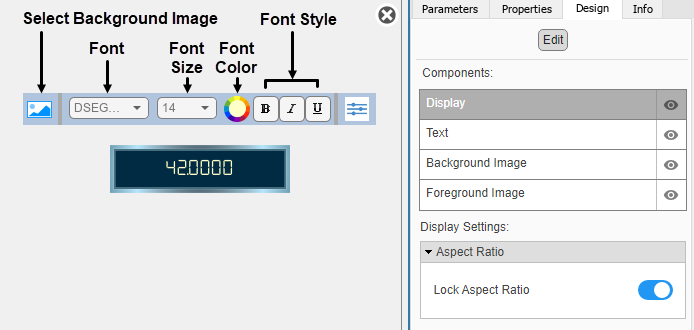
Design Mode Actions
| Action | Available in Toolbar | Available in Design Tab |
|---|---|---|
Change the font. Choose from a list of WYSIWYG (what you see is what you get) fonts that look the same on all platforms. | Yes | Yes |
Change the font size. | Yes | Yes |
Change the text color. | Yes | Yes |
Make the text bold, italic, or underlined. | Yes | Yes |
Change the position of the text within the block. | No | Yes |
| Display multidimensional signals in a grid and change the grid line color. | No | Yes |
Upload a background image. | Yes | Yes |
Set a solid background color. | No | Yes |
Upload a foreground image. | No | Yes |
In addition to customizing the block design using the toolbar and Design tab, you can reposition the text interactively in the canvas.
When you finish editing the design, to exit design mode, click the X in the upper right of the canvas.
Connect Dashboard Blocks
This block is a display block — a block that connects to a signal and visualizes its value.
Dashboard blocks do not use ports to connect to model elements. Instead, use connect mode. To
enter connect mode on an unconnected block, pause on the block you want to connect and click
the Connect button  . To enter connect mode on a connected block, select the
block, pause on the ellipsis that appears (…), and in the action menu that expands, click
the Connect button.
. To enter connect mode on a connected block, select the
block, pause on the ellipsis that appears (…), and in the action menu that expands, click
the Connect button.
In connection mode, select the signal line to which you want to connect. From the list
that appears, select the signal to which you want to connect. Then, pause on the dashboard
block and click the Done Connecting button . To see the dashboard block display the value of the
connected signal, run the simulation.
For more information about connecting dashboard blocks, see Connect Dashboard Blocks to Simulink Model.
You can also connect dashboard blocks to a Stateflow® chart. For more information, see Connect Dashboard Blocks to Stateflow (Stateflow).
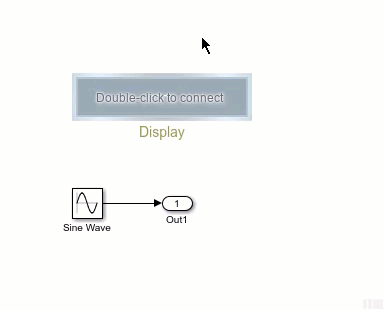
This animation shows how to connect the Display block to your model.
Examples
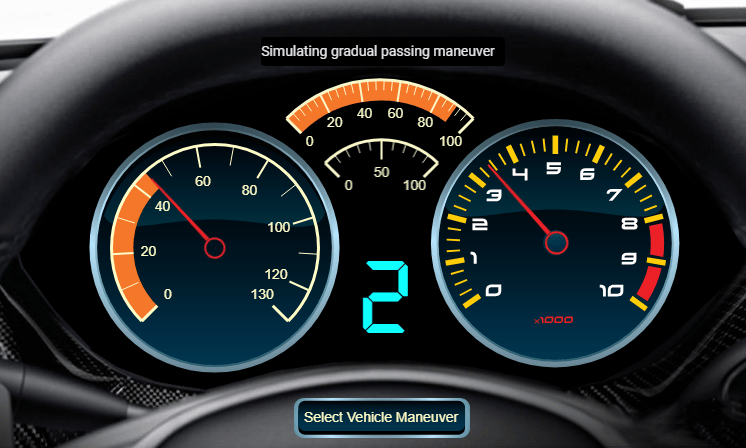
Create a Realistic Dashboard Using Blocks from the Customizable Blocks Library
Use the Circular Gauge and Display blocks to create a realistic dashboard for your model.
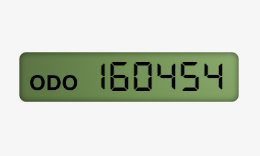
Design Custom Displays
Design displays using the customizable Display block.
Limitations
You cannot use the Connection table to connect a dashboard block to a block that is commented out. When you connect a dashboard block to a commented block using connect mode, the dashboard block does not display the connected value until you uncomment the block.
Dashboard blocks in a parent model cannot connect to signals inside referenced models.
When you simulate a model hierarchy, dashboard blocks inside referenced models do not update.
Dashboard blocks do not support rapid accelerator simulation.
During simulation, you cannot connect a dashboard block to Stateflow chart data or state activity.
You cannot programmatically connect a dashboard block to Stateflow chart data or state activity.
Some signals do not have data available during simulation due to block reduction or optimization for accelerator mode simulations. To view such a signal using a dashboard block, mark the signal for logging.
Parameters
Use the Property Inspector and the Block Parameters dialog box to specify the values of the block parameters. To set the core parameters of the dashboard block, use the Block Parameters dialog box or the Parameters tab in the Property Inspector. To customize the block, use the Design tab in the Property Inspector. To open the Block Parameters dialog box for a block, double-click the block. To open the Property Inspector, on the Modeling tab, under Design, select Property Inspector.
Parameters Tab of Property Inspector
To set the core parameters of the dashboard block, select the block, open the Property Inspector and click the Parameters tab.
Signal
This block is a display block — a block that connects to a signal and visualizes its value. Dashboard blocks do not use ports to connect to model elements. Instead, use connect mode, the Simulink Toolstrip, or the Connection table in the Block Parameters dialog box. For information, see Connect Dashboard Blocks to Simulink Model.
To connect a display block to a signal using the Connection table:
Select the block.
In the Property Inspector, on the Parameters tab, click Connect or Change.
Select the signal line to which you want to connect.
In the table that appears, select the signal.
Click Apply.
You can also connect dashboard blocks to a Stateflow chart. For more information, see Connect Dashboard Blocks to Stateflow (Stateflow).
Programmatic Use
You can programmatically connect a display block to a signal. Define a Simulink.HMI.SignalSpecification
object that represents the signal. Then, set the value of the
Binding parameter to the object. To set the value of the
Binding parameter, use the set_param function.
For example, suppose the model named vdp contains a
Circular Gauge block named myGauge and a
signal named x1. To connect the block to the signal, use this
code.
blockPath = "vdp/myGauge";
signalPath = "vdp/x1";

myObj = Simulink.HMI.SignalSpecification;
myObj.BlockPath = Simulink.BlockPath(signalPath);

set_param(blockPath,Binding=myObj)
| Parameter: | Binding |
| Values: | Simulink.HMI.SignalSpecification object |
Example: set_param(gcb,Binding=myObj)
Main
Specify a format for displaying signal values.
| If You Select... | The Block Displays... |
|---|---|
short | Scaled fixed-decimal format with four digits after the decimal point. |
long | Scaled fixed-decimal format with fifteen digits after the decimal point
for double values and seven digits after the decimal
point for single values. |
shortE | Scientific notation format with four digits. |
longE | Scientific notation format with fifteen digits after the decimal point
for double values and seven digits after the decimal
point for single values. |
shortG | Data takes the more compact format between fixed-decimal or scientific notation, with a total of five digits. |
longG | Data takes the more compact format between fixed-decimal or scientific
notation, with a total of fifteen digits for double
values and seven digits for single values. |
shortEng | Engineering notation where the exponent is a multiple of three, with four digits after the decimal point. |
longEng | Engineering notation where the exponent is a multiple of three, with fifteen significant digits. |
+- | Positive/negative format. +, -,
and blank characters are displayed for positive, negative, and zero values,
respectively. |
bank | Currency format with two digits after the decimal point. |
hex | Hexadecimal representation. |
rat | Ratio. |
Custom | Custom string format. Data is displayed in a custom string that you specify using the Format String parameter. |
Integer | Data rounded to the nearest whole number. |
When you connect the Display block to the signal output
by a String Constant block, the format for displaying signal values is
string, regardless of the value of the
Format parameter. Similarly, when you connect the
Display block to the signal output by an Enumerated
Constant block, the format for displaying signal values is
enum, regardless of the value of the Format parameter.

Programmatic Use
To set the block parameter value programmatically, use
the set_param function.
| Parameter: | Format |
| Values: | 'short' (default) | "short" | "long" | "shortE" | "longE" | "shortG" | "longG" | "shortEng" | "longEng" | "bank" | "+" | "hex" | "rat" | "Custom" | "Integer" |
Example: set_param(gcb,Format="longG")
Specify a custom string to format the displayed value. The format string consists
of text and format operators, which start with a % sign and end
with a conversion character. Use the format operators at the place in the string where
you want the signal data to display. For more information about supported formatting
operators, see the formatSpec input of the compose function.
Example: The value of pi is %.2f displays the value of the
connected signal with two decimal places.
Dependencies
To enable this parameter, set Format to
Custom.
Programmatic Use
To set the block parameter value programmatically, use
the set_param function.
| Parameter: | FormatString |
| Values: | '%d' (default) | custom string or character array to format displayed value |
Example: set_param(gcb,FormatString="The value of pi is
%.2f")
You can display the name of the element to which the dashboard block connects in a
label positioned at the top or at the bottom of the block, or you can hide the label. If
you want the label to be visible, specify the position of the label. If you do not want
the label to be visible, specify Hide.
Note
When the dashboard block is not connected to an element, the label is blank.
Programmatic Use
To set the block parameter value programmatically, use
the set_param function.
| Parameter: | LabelPosition |
| Values: | 'Hide' (default) | "Bottom" | "Top" | "Hide" |
Example: set_param(gcb,LabelPosition="Bottom")
Select this parameter to maintain the aspect ratio when resizing the block in the Simulink canvas.
When the aspect ratio is locked, adding a new background image changes the aspect ratio of the block to match the aspect ratio of the background image. When the aspect ratio is unlocked and you add a new background image, the image resizes to fit the block without changing the block aspect ratio.
When the aspect ratio is locked, pressing Shift while resizing a block temporarily unlocks the aspect ratio. When you release Shift, the aspect ratio locks. When the aspect ratio is unlocked, pressing the Shift key while resizing a block temporarily locks the aspect ratio. When you release Shift, the aspect ratio unlocks.
Design Tab of Property Inspector
To customize the dashboard block, open the Property Inspector, click the Design tab, and click Edit.
Display
Select this parameter to maintain the aspect ratio when resizing the block in the Simulink canvas.
When the aspect ratio is locked, adding a new background image changes the aspect ratio of the block to match the aspect ratio of the background image. When the aspect ratio is unlocked and you add a new background image, the image resizes to fit the block without changing the block aspect ratio.
When the aspect ratio is locked, pressing Shift while resizing a block temporarily unlocks the aspect ratio. When you release Shift, the aspect ratio locks. When the aspect ratio is unlocked, pressing the Shift key while resizing a block temporarily locks the aspect ratio. When you release Shift, the aspect ratio unlocks.
Text
Choose from a list of WYSIWYG (what you see is what you get) fonts that look the same on all platforms.
Choose from a list of font sizes between 8 and
72.
Choose a text color from the palette of standard colors, or specify a custom color.
Example: [1 1 0.5]
Option to display multidimensional data with or without grid lines. Specify the color of the grid lines using the Grid Color parameter.
Programmatic Use
To set the block parameter value programmatically, use
the set_param function.
| Parameter: | ShowGrid |
| Values: | 'on' (default) | "on" | "off" |
Example: set_param(gcb,ShowGrid="off")
To display grid lines between signal elements, enable Show grid for non-scalar signals. Then, choose a color for the grid lines from the palette of standard colors or specify a custom color.
Programmatic Use
To set the block parameter value programmatically, use
the set_param function.
| Parameter: | GridColor |
| Values: | [r g b] vector with values between 0
and 1 |
Example: set_param(gcb,GridColor=[1 0 0])
Specify the horizontal offset of the center of the text from the center of the
block as a fraction of the block width. Relative to the position of the text when the
offset is 0, an offset with a negative value moves the text left,
and an offset with a positive value moves the text right.
Specify the vertical offset of the center of the text from the center of the block
as a fraction of the block height. Relative to the position of the text when the offset
is 0, an offset with a negative value moves the text up, and an
offset with a positive value moves the text down.
Specify the width of the bounding box of the text as a fraction of the block width.
Specify the height of the bounding box of the text as a fraction of the block height.
Select this parameter to maintain the aspect ratio when resizing the bounding box of the text in the Simulink canvas.
Background Image
For the block background, you can provide a background image or select a solid color. To select a solid background color, select this parameter. To provide a background image, clear this parameter.
Note
Changing the background color using the Format tab of the Simulink Toolstrip removes the background image and enables the Use Background Color parameter.
To use a solid background color, select the Use Background Color parameter. Then, choose a background color from the palette of standard colors, or specify a custom color.
Programmatic Use
To set the block parameter value programmatically, use
the set_param function.
| Parameter: | BackgroundColor |
| Values: | [r g b] vector with values between
0 and 1 formatted as a string or
character vector |
Example: set_param(gcb,BackgroundColor="[1 0
1]")
Specify the block background opacity as a scalar value from 0 to
1.
Specify the corner radius of the area covered by the block background color. The radius is a fraction of whichever is smaller, half the block width or half the block height.
Foreground Image
Specify the horizontal offset of the left edge of the image from the left edge of the block as a fraction of the block width. Relative to the position of the image without offset, a negative offset moves the image left, and a positive offset moves the image right.
Specify the vertical offset of the top edge of the image from the top edge of the block as a fraction of the block height. Relative to the position of the image without offset, a negative offset moves the image up, and a positive offset moves the image down.
Specify the width of the foreground image as a fraction of the block width.
Specify the height of the foreground image as a fraction of the block height.
Select this parameter to maintain the aspect ratio when resizing the image using the Property Inspector.
Block Characteristics
Data Types |
|
Direct Feedthrough |
|
Multidimensional Signals |
|
Variable-Size Signals |
|
Zero-Crossing Detection |
|
Programmatic Use: Add Block
To add the block programmatically, use the add_block function with one of these library block paths as the source.
"simulink_hmi_customizable_blocks/Display"
Example: add_block("simulink_hmi_customizable_blocks/Display","myModel/myBlock",MakeNameUnique="on")
For information about programmatic access to individual block parameters, see the Programmatic Use section of parameter descriptions on this page.
Version History
Introduced in R2023bStarting in R2023b, you can open a dashboard panel in a new window. To do so, select the
panel and pause on the ellipsis that appears. In the action menu that expands, click Open in
New Window  .
.
You can minimize and restore the new window containing the panel separately from the model window. From the panel window, you can run, pause, stop, and step through the simulation. In the panel window, you can edit the panel and the blocks it contains.
To return the panel to the model canvas, in the panel window toolstrip, click Open in
canvas  .
.
For more information about opening a panel in a new window, see Open Panels in New Window.

