Reference Protected Models from Third Parties
R2026bTo deliver a model without revealing its intellectual property, third parties can protect the model before delivery. A protected model is a referenced model that does not support editing. The protected model author chooses whether to enable read-only view, simulation, code generation, and password protection. When an operation is password-protected, the AES-256 encryption technology protects the supporting file contents.
Note
Creating a protected model requires a Simulink® Coder™ license.
Identify Protected Models
To identify protected models, look for:
Files in the MATLAB® Files panel with a badge icon
 and an
 .slxpextension. The Files panel registers the file type asSimulink Protected Model.Model blocks in the Simulink Editor with a badge icon at the lower left corner. For these Model blocks, the Model type block parameter returns
Protected model.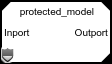
Protected models do not appear in the model hierarchy in the Model Explorer.
Published models also have a
.slxp file extension. To reference a published model, see Reference Published Models. (since R2026b)
When a Model block specifies a filename without an extension, and both
a protected model (.slxp) and the original model
(.slx) with that name are in the same folder, the
Model block references the protected model.
Identify Functionality Supported by Protected Model
If available, a protected model report describes the supported functionality. To open the report, use one of these options:
In the MATLAB Files panel, right-click the protected model and click Open Report.
In the Simulink Editor, right-click the protected-model badge icon on the Model block and click Display Report.
Alternatively, use the slxpinfo
function. This function provides high-level information about the protected model even
when the report is unavailable.
Load Supporting Files for Protected Model
You may receive the protected model on its own, in a project archive, or in a package.
If you receive a project archive (.mlproj), double-click the
project archive in the Files panel and specify the destination folder. Alternatively,
right-click the project archive and click Extract Here. The project
opens, and the extracted files are in a new folder named after the project archive.
Optionally, reference the protected model project from another project. For more
information, see Componentize Large Projects.
If you receive a protected model or supporting files by another method, follow the
provided instructions. For example, you might need to load a MAT file that contains
workspace definitions. You can configure a callback function, such as LoadFcn,
to load the MAT file automatically. See Customize Model Behavior with Callbacks.
Verify Digital Signature of Protected Model
If the author signed the protected model, verify the digital signature. In the Files panel, double-click the protected model. In the Details pane, the Signed by field indicates the publisher that signed the model and whether the signature is verified by a trusted certificate authority. Verification fails in these cases:
The protected model was changed after it was signed.
The protected model was not signed.
The protected model was signed with an expired certificate.
The protected model was self-signed with a certificate issued by the author.
The protected model was signed with a missing or invalid certificate.
The certificate of the CA is missing in your system or is invalid.
To verify the signature on protected models by default, in the Simulink Settings dialog box, select Verify digital signature of protected model before opening.
View Protected Model Contents
A read-only view lets you view system contents, block parameters, and signal properties.
To open the read-only view, double-click the Model block referencing
the protected model or the .slxp file in the Files panel. If the
read-only view is password protected, right-click the protected-model badge icon and
select Authorize. In the Model view box,
enter the password, then click OK.
To navigate the model hierarchy, double-click Model or Subsystem blocks. Alternatively, navigate to the View All tab and select the system that you want to view. You cannot view the content of protected referenced models in the protected model.
To view block parameters and signal properties, select a block or a signal line, respectively.
To search in the read-only view, click the search button. In the box that appears, enter the name or value to search. The elements of the model that the search returns appear highlighted. The search results include the name and parent of each returned element.
Test Protected Model in Isolated Environment
With the protected model, you may receive a harness model, which typically has the
suffix _harness. A harness model provides an isolated environment for
you to test the protected model. If supporting files are missing, simulating or
generating code for the harness model can help identify them.
To create a harness model, right-click the protected model file in the Files panel, then click Create Harness Model. The created harness model is set up for simulation of the protected model.
Reference Protected Model
To reference a protected model:
Check that the protected model is on the MATLAB path.
If you have a harness model, copy the Model block from the harness model into your model. Otherwise, reference the protected model in a new Model block. Set the Model file block parameter to the name of the protected model.
When a Model block references a protected model, the Simulation mode of the block becomes
Accelerator. You cannot change this mode.If the protected model is password protected, right-click the protected-model badge icon on the Model block and click Authorize. In the Model view box, enter the password, then click OK.
Connect signal lines to the Model block that match its input and output port requirements. For more information, see Define Model Reference Interfaces.
A protected model cannot use noninlined S-functions directly or indirectly.
Provide the needed model argument values. For more information, see Configure Referenced Model to Use Model Arguments.
Use Protected Models
To simulate or generate code for a model that references a protected model, use the same platform and compiler used to create the protected model.
Platform — In the protected model report or with the
slxpinfofunction, check the platform used to create the protected model. For example,win64indicates that the platform must be a 64-bit version of Windows®.Compiler — In the protected model report, click Protected model configuration parameter settings. Then, on the Code Generation pane, check the Toolchain configuration parameter setting. When Toolchain is set to
Automatically locate an installed toolchain, the code generator displays the name of the selected toolchain or compiler. For example,MinGW64indicates that the compiler must be a MinGW®-w64 compiler. For more information, see Toolchain (Simulink Coder).
To display or change your default compiler, in the MATLAB Command Window, enter mex -setup. For more information,
see mex.
When you simulate or generate code for a model that references the protected model, the software stores the protected model as a compiled MEX binary.
Use Models Protected in Previous Releases
In some cases, you can use a protected model from an older Simulink release than your current release. To check the release version used to
create a protected model, open the protected model report or use the slxpinfo
function.
You cannot use a protected model created in a newer release than your current release. For example, in R2024b, you cannot use a protected model created in R2025a.
When the protected model is created in an older release than your current release, check whether your current release supports the protected model.
| Modeling Requirement | Backward Compatibility for Protected Models |
|---|---|
| Read-only view | Supported with limitations in R2019a and later releases
|
| Simulation in normal mode | Supported with limitations in R2019a and later releases
|
| Simulation in accelerator mode | Supported with limitations in R2020a and later releases
|
| Simulation in SIL or PIL mode | Supported with limitations in R2020b and later releases
|
| Simulation in rapid accelerator mode | Not supported |
| Code generation | Supported with limitations in R2020b and later releases
|
If a protected model does not support your modeling requirements in later releases, use the same Simulink release that was used to create the protected model.
See Also
Simulink.ProtectedModel.getPublisher | Simulink.ProtectedModel.verifySignature

